
LG Magic Remote Not Working? Try These 10 Proven Fixes
An LG Magic Remote that suddenly stops working can make a perfectly good TV feel almost unusable. The good news is that most problems are caused by weak batteries, a lost wireless pairing, a temporary webOS glitch, or an issue with one specific feature—not a failed TV.
This guide starts with the fastest fixes and then narrows the problem down by symptom. It covers a completely unresponsive remote, failed pairing, a missing on-screen pointer, voice recognition problems, stubborn buttons, and external devices that no longer respond.
If your remote still works and you want to learn its shortcuts, pointer controls, and hidden features, read our complete LG Magic Remote guide. If it is not working, stay here and follow the steps below in order.
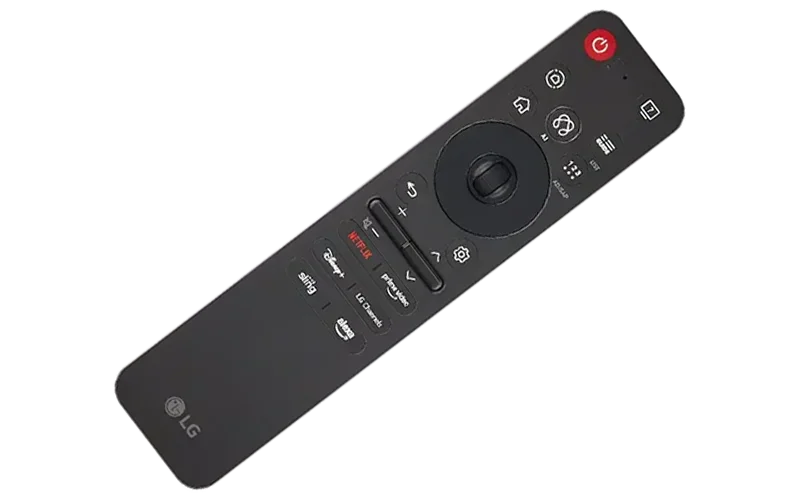
LG Magic Remote Not Working? Try This First
Replace both batteries, turn the TV off and unplug it for about 60 seconds, then reconnect the power. Turn the TV on, point the remote toward it, and press the Wheel (OK) button to pair it again.
If that does not work, initialize the remote and re-register it. The reset-button combination varies by remote generation, so use the model-specific instructions later in this guide rather than assuming one shortcut works with every LG Magic Remote.
What Your Remote Is Telling You
The symptom is often more useful than the error message. Use this table to identify the most likely cause before changing TV settings.
| Symptom | Most Likely Cause | Best First Step |
|---|---|---|
| No buttons work and no light appears | Dead batteries, poor battery contact, or remote hardware failure | Install two fresh matching batteries |
| Power works, but the pointer, voice, or most buttons do not | The remote has lost its wireless pairing | Press Wheel (OK), then reset and re-pair if needed |
| Buttons work, but the pointer is missing | Pointer is asleep, pairing was lost, or pointer settings changed | Shake the remote and press Wheel (OK) |
| Everything works except voice control | Internet, LG account, permissions, language, or microphone issue | Check the TV's connection and voice settings |
| The TV responds, but a soundbar or cable box does not | Universal Control or HDMI-CEC setup issue | Run Universal Control setup again |
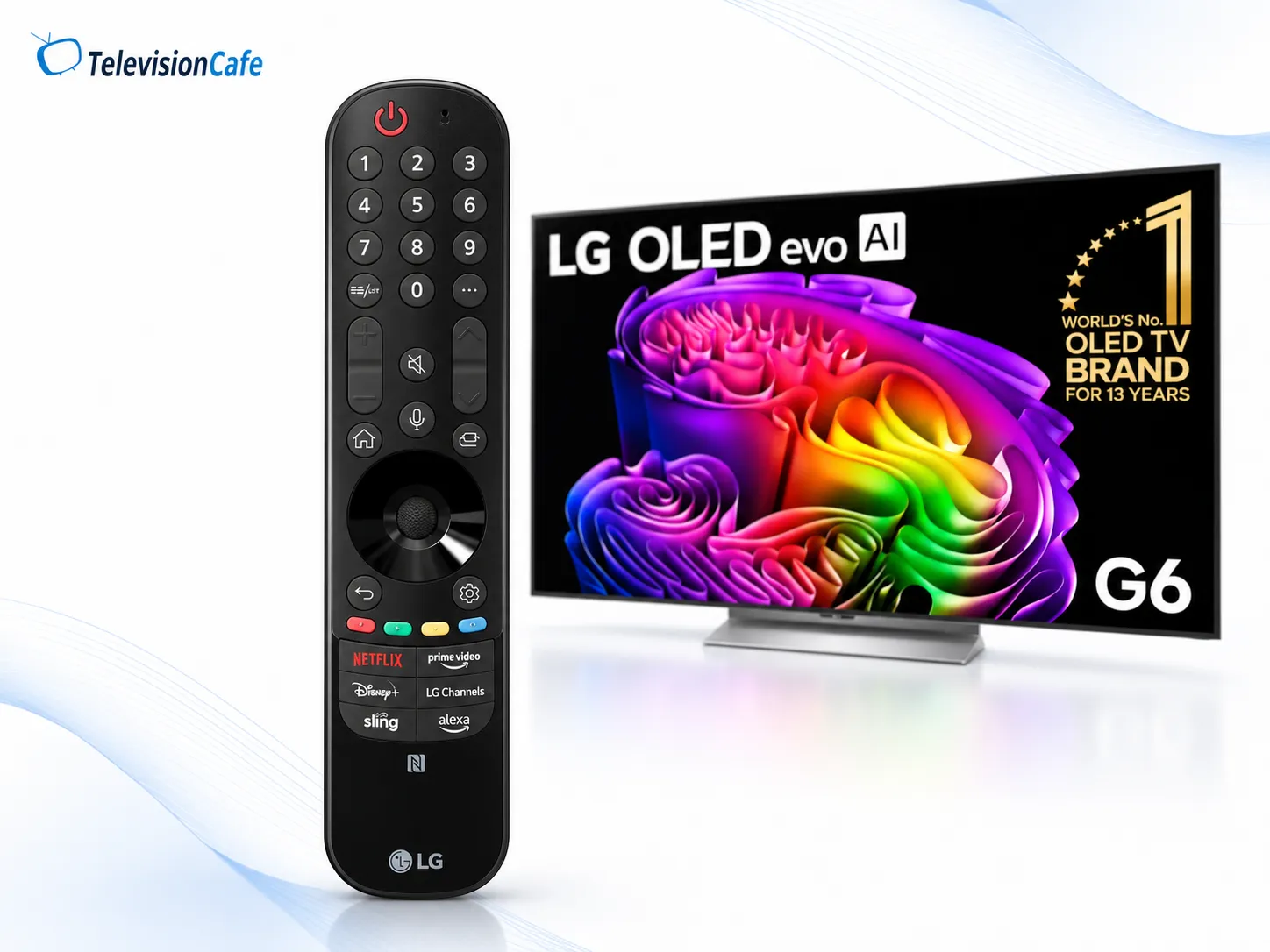
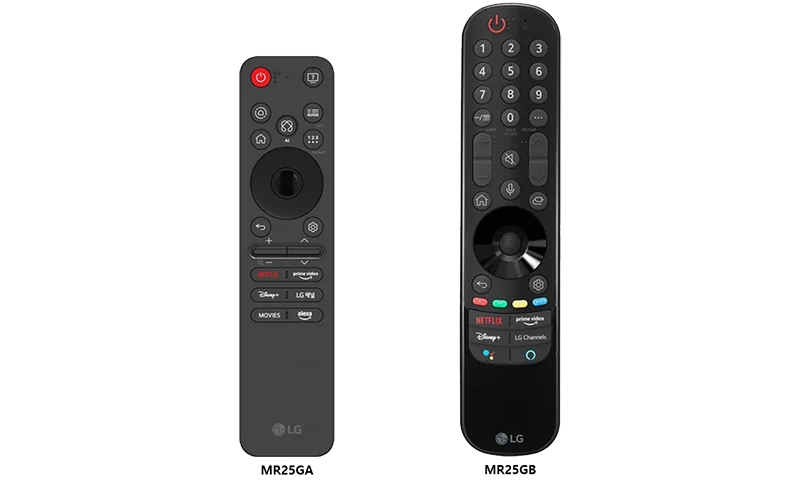
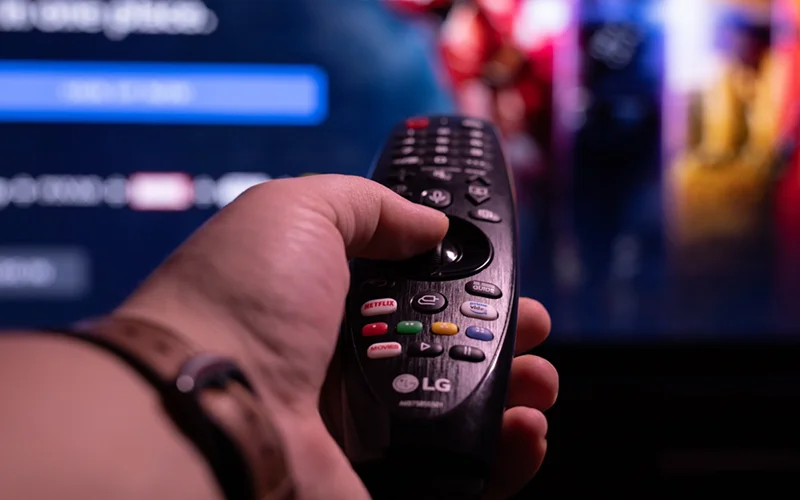
1. Replace Both Batteries—even If the Remote Still Lights Up
A blinking power light does not prove that the batteries can maintain a stable wireless connection. A Magic Remote can have enough power to send a basic command but still behave erratically when the pointer or voice features are used.
Remove both batteries and install a fresh, matching pair in the correct direction. Do not mix an old battery with a new one or combine different battery types. While the compartment is open, inspect the metal contacts for dirt, corrosion, or flattening. Clean dry dust with a soft cloth; if you see leakage or significant corrosion, stop using the remote until it has been cleaned safely or replaced.
After installing the batteries, press a button and watch the power indicator. No light with known-good batteries strongly suggests a battery-contact or remote hardware problem.
2. Check for a Stuck Button, Then Power-Cycle the TV
A button held down by debris, a tight silicone cover, or physical damage can make the remote appear frozen. Remove any third-party cover and press every button once, including the Wheel (OK) button. The wheel should rotate and click without sticking.
Next, restart the TV's electronics rather than only placing the TV in standby:
- Turn the TV off.
- Unplug it from the wall outlet for about 60 seconds.
- Reconnect the power and turn the TV on using its physical power button if necessary.
- Wait for webOS to load, point the Magic Remote at the TV, and press Wheel (OK).
This clears a temporary webOS or wireless-control lockup without deleting your apps, accounts, picture settings, or channel setup.
3. Pair the LG Magic Remote Again
The pointer, voice control, and motion features depend on a registered wireless connection between the Magic Remote and the TV. If the Power button works but the smart functions do not, lost pairing is the first thing to suspect.
- Turn on the LG TV and wait roughly 20 seconds for it to finish starting.
- Stand close to the TV and point the remote toward the screen.
- Press the Wheel (OK) button once.
- Wait for the on-screen pairing confirmation.
If registration fails, restart the TV and repeat the process with fresh batteries. Also move other active wireless devices away from the TV temporarily, especially if the problem began after adding a router, access point, game console, or wireless audio device near the screen.
4. Reset and Re-Register the Magic Remote
If normal pairing fails, initialize the remote to remove its existing registration, then pair it again. This does not factory-reset the TV.
LG has used different reset and re-registration shortcuts across remote generations. Depending on the model, official LG instructions may call for holding Back + Home, Back + Settings, or another model-specific combination for at least five seconds. The remote's indicator typically flashes after it has been unpaired. Then point it at the TV and press Wheel (OK) to register it again.
For current model-specific guidance, consult the official LG Magic Remote support guide.
5. Fix a Missing or Unstable On-Screen Pointer
The Magic Remote pointer normally disappears after a period of inactivity so it does not remain over your movie or show. Gently shake the remote from side to side or roll the wheel to wake it. If it does not return, press Wheel (OK) to check the pairing.
If buttons work but the pointer feels too fast, too small, or difficult to control, open Settings > All Settings > General > System > Additional Settings > Pointer Options on many newer webOS versions. There you may be able to adjust pointer size, speed, or related behavior. The path can differ on older TVs; some place Pointer Options under Accessibility.
Also try the remote away from intense fluorescent lighting and temporarily move nearby wireless equipment. LG documentation warns that close wireless access points and electromagnetic interference can affect Magic Remote behavior.
6. Fix LG Magic Remote Voice Control
If navigation works but voice recognition does not, the remote itself may be fine. Voice features require more than pairing: the TV generally needs an internet connection, the correct region and menu language, acceptance of the voice-service terms, and—on supported models—an LG account.
Check the following:
- Confirm that streaming apps can access the internet.
- Make sure the remote is paired and the pointer appears when you move it.
- Sign in to the LG account used on the TV if the feature requests it.
- Review voice-recognition permissions and terms under the TV's AI Service or voice settings.
- Verify that the TV region and menu language are compatible.
- Press and hold the AI or microphone button while speaking, then release it when finished.
For clearer pickup, speak at a normal volume with the remote about four inches from your mouth. If the TV displays a network prompt, solve the connection problem before replacing the remote.
7. If Only Certain Buttons or the Scroll Wheel Do Not Work
When one button consistently fails but the rest of the remote works, pairing is unlikely to be the cause. Remove the batteries, then press the affected button repeatedly to loosen minor debris. Wipe around it with a dry microfiber cloth and check whether a case is pressing against the controls.
A phone-camera test may reveal infrared output when certain commands are pressed, but it cannot fully test a Magic Remote. The pointer, voice, and other paired functions use a wireless radio link that a camera cannot see. In addition, some smartphone cameras filter infrared light. Treat the camera test as a clue, not a final diagnosis.
If a wheel no longer clicks, a button is physically sunken, the remote was dropped, or liquid entered the housing, replacement is usually safer than opening the remote and risking further damage.
8. Reconfigure Universal Control for a Soundbar or Set-Top Box
If the Magic Remote controls the LG TV normally but no longer changes the volume on a soundbar or operates a cable or satellite box, do not reset the entire TV. The issue is more likely the external-device setup.
Open the Inputs screen, select the HDMI port used by the device, and look for Universal Control Settings or Device Connector. Choose the device type and manufacturer, then follow the on-screen power or volume test. Menu names vary with the webOS version.
Make sure nothing blocks the infrared receiver on the external device. If you use HDMI control, confirm that SIMPLINK (HDMI-CEC) is enabled on the LG TV and that HDMI-CEC is also enabled on the connected device. Each manufacturer may use a different name for HDMI-CEC.
9. Update webOS and Remove Wireless Interference
If the remote disconnects repeatedly, check for a TV software update under Settings > All Settings > Support > Software Update. Install available updates, allow the TV to restart fully, and pair the remote again. Settings paths vary slightly by webOS version.
Then look at the area around the TV. A Wi-Fi router or access point placed almost against the television, a crowded cluster of wireless transmitters, or strong electromagnetic interference can disrupt reliable control. Move nearby wireless hardware at least several inches away as a test and avoid hiding the TV's remote sensor behind a soundbar, frame, or decoration.
Do not perform a full factory reset as an early troubleshooting step. It erases personal settings and app logins, yet it will not repair a damaged remote. Reserve it for a broader webOS problem affecting the entire TV after you have confirmed that the remote itself works.

10. Use the LG ThinQ App as a Temporary Remote
The LG ThinQ app can keep the TV usable while you diagnose the physical remote or wait for a replacement. Connect the phone and TV to the same home network, sign in to the ThinQ app, select Add a Device, choose TV, and complete the on-screen connection process.
Available controls can include power, volume, channels, inputs, directional navigation, pointer movement, scrolling, and app launching. Exact features depend on the TV and webOS version. Initial setup may still require confirmation on the TV, so the physical button on the set or a basic compatible remote can be helpful.
If ThinQ controls the TV perfectly while the Magic Remote still fails after fresh batteries and re-pairing, that is strong evidence that the television is operating normally and the handheld remote may need replacement.
LG Magic Remote Troubleshooting FAQ
Why does the Power button work when the rest of my LG Magic Remote does not?
The Power command can still reach the TV while the remote's paired wireless connection is lost. Press Wheel (OK) to register the remote again. If that fails, initialize the remote with the correct button combination for your model and then re-pair it.
How do I pair an LG Magic Remote?
Turn on the TV, wait for it to finish starting, point the Magic Remote at the screen, and press the Wheel (OK) button. A confirmation message should appear. If it does not, replace the batteries, restart the TV, and try again.
How do I reset an LG Magic Remote?
The reset shortcut depends on the model. Many older remotes use Home + Back for at least five seconds, while some newer LG instructions specify Back + Settings or another combination. Check the manual for your exact TV or remote, then press Wheel (OK) to pair it again.
Why is the LG Magic Remote pointer not showing?
The pointer may simply be asleep, or the remote may have lost its pairing. Shake the remote gently, roll the wheel, and press Wheel (OK). If the pointer remains missing, re-register the remote and review Pointer Options in the TV settings.
Does LG Magic Remote voice control need the internet?
Voice recognition on supported LG TVs generally requires an internet connection. It may also require a compatible region and language, accepted voice-service terms, and an LG account. Basic remote buttons and the pointer do not require internet access once the remote is properly paired.
Can I use any LG Magic Remote with my LG TV?
No. Compatibility varies by TV model, model year, region, and remote generation. An incompatible remote may provide only basic functions or may not pair at all. Match the TV model to LG's official compatibility information before buying.
Can my phone replace an LG Magic Remote?
The LG ThinQ app can act as a useful temporary remote on compatible LG smart TVs. The phone and TV normally need to be on the same network, and available controls vary by model and webOS version.