
TV Motion Blur: Why Sports Look Blurry and 7 Fixes
The scoreboard is sharp. The grass looks detailed. Then the camera follows a long pass, and the players turn into soft outlines. If sports look blurry on your TV, the screen may be only part of the problem.
Motion blur can come from the broadcast, pixel response, the way the display holds each frame, or processing that is trying too hard. Those causes need different fixes.
This guide walks through seven checks for U.S. sports viewers, from the stream you are watching to the motion controls on Samsung, LG, Sony, TCL, and Hisense TVs. Change one setting at a time and compare the same play.
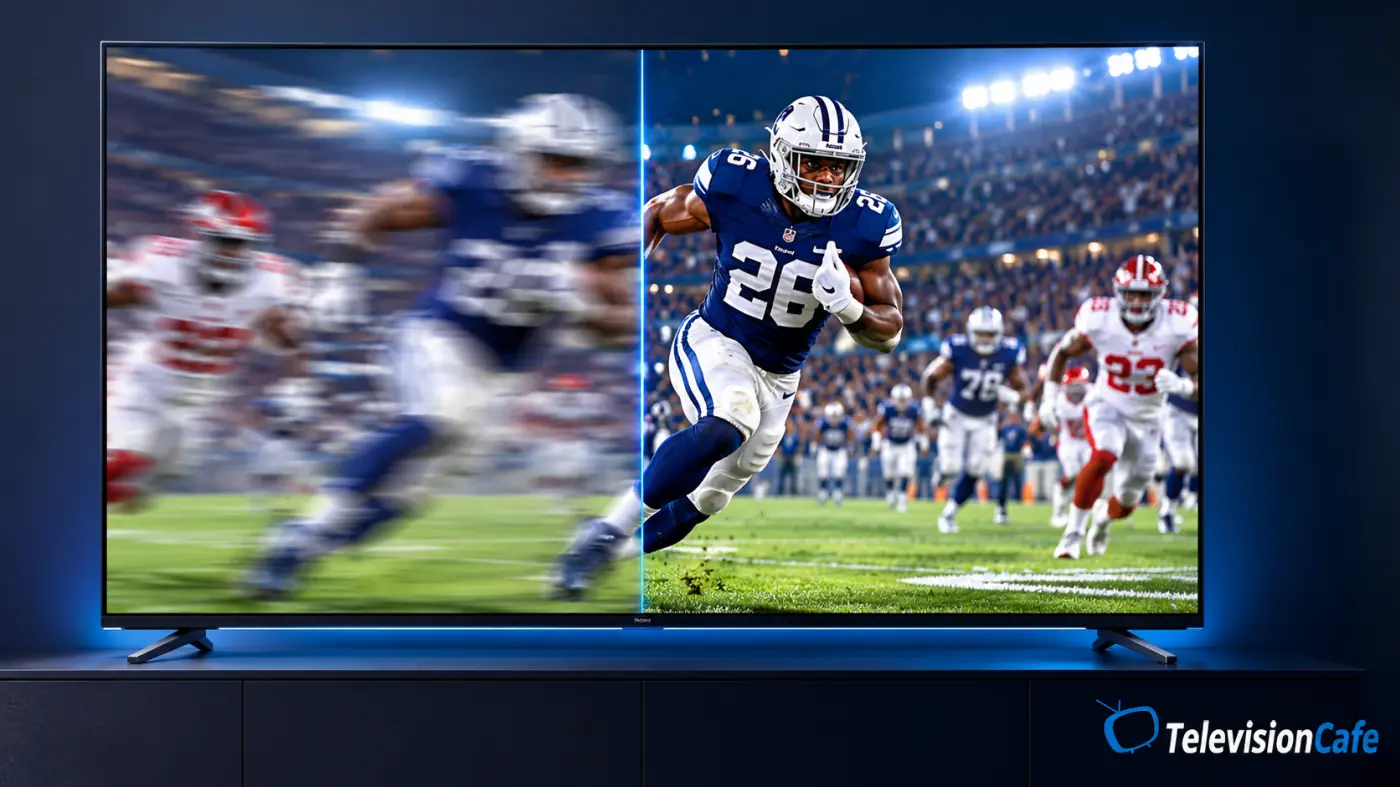
Why Do Sports Look Blurry on Your TV?
Sports look blurry when moving detail is lost in the source, smeared by slow pixel transitions, or softened by display persistence and picture processing. A sharper picture when the action stops does not automatically mean the TV is defective.
Start here: compare another sports feed, check the app’s playback quality, reduce unnecessary noise reduction, and try a modest motion setting. If the ball breaks into odd shapes after enabling smoothing, turn that setting down.
A high refresh rate is useful, but it does not guarantee clear sports. The panel, incoming frames, and processing all matter.
Motion Blur, Stutter, or a Bad Stream? Read the Symptom
Before changing settings, describe what you see. A trail behind a player and a blocky patch of grass are different clues.
| What You See | Likely Issue | First Check |
|---|---|---|
| Soft trails behind moving players | Pixel response or persistence blur | Compare sources and motion controls |
| Motion advances in visible steps | Low frame rate or stutter | Check source frame rate; try mild smoothing |
| Pans have an uneven rhythm | Cadence mismatch or dropped frames | Check device output and playback stability |
| Grass or crowds become blocky during action | Compression or reduced stream quality | Compare feeds and app quality settings |
| The ball has halos or briefly disappears | Possible interpolation artifacts | Turn motion smoothing off for comparison |
| Dark patches stay in the same screen positions | Possible dirty screen effect | Compare another uniform playing surface |
These are starting clues, not diagnoses. Several issues can appear in the same broadcast.
1. Compare the Sports Feed Before Blaming the TV
Replay a familiar camera pan and pause it, if the app allows. If the paused frame already has smeared players or missing texture, investigate the footage and source processing first. Motion settings cannot reliably reconstruct the original detail.
If the paused frame is crisp but the moving picture looks soft, display motion behavior becomes worth investigating. This test narrows the search; it does not isolate every cause.
- Compare another live sports channel or a high-quality sports clip.
- Compare the TV’s built-in app with a streaming device, using the same coverage where possible.
- Check the app’s quality selector and playback information, if available.
A weak connection can reduce streaming quality, but fast internet does not eliminate compression already present in the provider’s feed. Try Ethernet or improve Wi-Fi reception if quality fluctuates or playback buffers.
Watch full-speed coverage as well as replays. Slow-motion replay footage is not a reliable test of the live feed’s motion clarity.
2. Check Frame Rate and Streaming Device Output
If your provider offers a 60 fps sports feed, favor it over a 30 fps version when the rest of your setup supports it. More captured frames give moving objects more frequent position updates. Higher resolution alone does not do that.
On an external streamer, check the selected output format. Avoid an unsuitable fixed output rate that forces unnecessary conversion. Where supported by both the device and app, frame-rate matching can preserve the content’s cadence.
On Apple TV, look under Settings > Video and Audio > Match Content > Match Frame Rate. Compatibility depends on the app and display, so compare the actual result.
Read the signal correctly: a TV reporting a 60Hz HDMI input does not prove the stream contains 60 distinct frames per second. The device may be repeating lower-frame-rate footage.
3. Choose a Picture Mode You Can Fine-Tune
Compare Movie, Cinema, or another balanced preset with the mode you currently use. A Sports preset may apply stronger smoothing and edge enhancement, so evaluate it rather than accepting the name as a recommendation.
Choose enough brightness for the room, then customize motion separately. Vivid colors will not make the ball easier to track.
If you watch through a console or a streamer connected to a gaming input, check whether Game Mode is active. It can restrict processing options on some TVs. For watching a game, you can try another picture mode; for playing a game, preserving low input lag remains important.
Make changes while the problem content is playing. Available controls can differ between inputs and SDR, HDR, and Dolby Vision modes.
4. Reduce Heavy Noise Reduction and Excess Sharpening
Noise reduction can clean up a rough feed, but aggressive settings may also hide fine texture. Compare Off and Low on the same play instead of disabling every processing feature permanently.
Check controls named Noise Reduction, Digital Noise Reduction, MPEG Noise Reduction, or similar. If grass and jersey detail look less smeared with a lower setting, keep that improvement.
Return Sharpness to the preset’s neutral starting point before adjusting it. Do not assume zero is neutral on every brand. Too much sharpening adds bright outlines without restoring detail lost in motion.
A heavily compressed feed may still look better with a small amount of noise reduction. Keep the setting that improves the broadcast you actually watch.
5. Try Mild Motion Smoothing, Then Watch the Ball
Motion interpolation estimates extra frames between the real ones. A modest setting can make camera movement easier to follow, but complicated action can expose its mistakes.
Start with smoothing off. Enable a low or custom setting, replay the same play, and increase it gradually. Watch the ball, player outlines, and anything crossing in front of the crowd.
If edges wobble or the ball gains a strange halo, reduce smoothing. The setting that makes a slow pan look smoothest may struggle with a fast pass.
Some TVs separate Blur Reduction and Judder Reduction. These are manufacturer control names, not interchangeable measurements. Use the TV’s descriptions to identify which slider targets your content.
A useful target: use the least smoothing that makes the action comfortable to follow. Maximum is a test setting, not a universal sports recommendation.
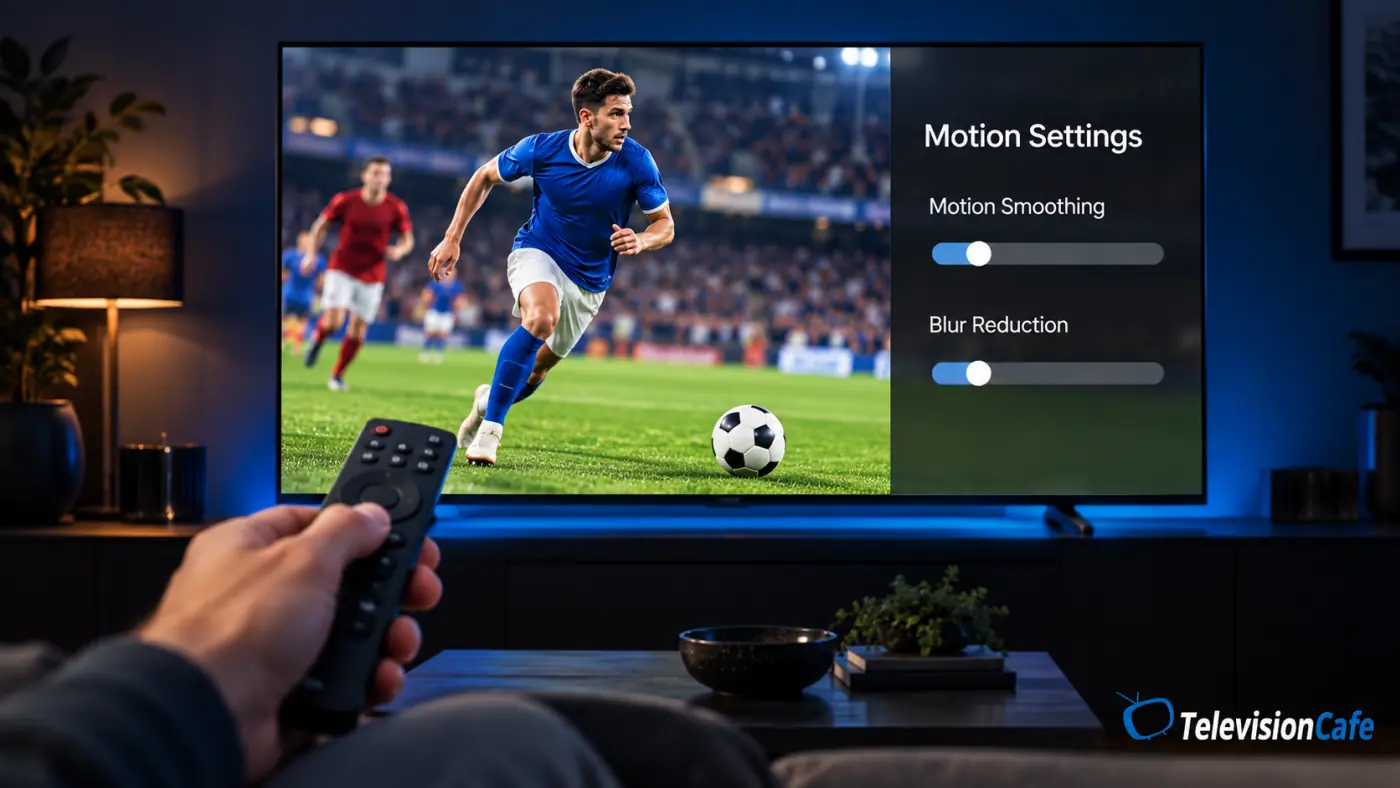
Where Are the Motion Settings on Your TV?
Look for these names in the picture menu. Features and menu paths vary by model, software, and platform; not every TV has every listed option.
- Samsung: Picture Clarity Settings or Auto Motion Plus, commonly under Picture > Expert Settings. Custom options may include Blur Reduction, Judder Reduction, and LED Clear Motion.
- LG: TruMotion, commonly under Picture > Advanced Settings > Clarity.
- Sony: Motionflow. Custom controls can include Smoothness and Clearness; newer models may separate Smoothness for Film and Camera.
- TCL: Motion or Motion Clarity under advanced picture settings. Available controls can include Blur Reduction, Judder Reduction, and Clear LED Motion.
- Hisense: depending on the model and platform, look for Motion Enhancement and Motion Clearness. Custom Motion Enhancement can offer separate blur and judder controls.
For a model-specific starting point, see our TCL QM6K picture settings or Hisense U6SF Pro picture settings.
6. Test Black Frame Insertion if Your TV Offers It
Black frame insertion, or backlight strobing on LCD TVs, reduces how long each image remains visible. It can improve motion clarity without estimating extra positions for the ball.
The trade-offs can include a dimmer picture, visible flicker, or double images. Start with a low setting and compare a full-speed pan.
Availability and behavior depend on the TV and signal. Do not assume a model offers effective 60 fps blur reduction just because it has a “clear motion” label.
If the result is distracting or too dim for your room, switch it off. This is an optional experiment, not a requirement for watching sports.
7. Check for Dirty Screen Effect
Sometimes what looks like blurred grass is uneven brightness across the panel. Dirty screen effect becomes noticeable as a football field or hockey rink moves behind fixed darker patches.
Watch whether those patches stay in the same screen positions as the camera pans. Compare another channel or a different uniform playing surface to avoid mistaking shadows in the stadium for a panel issue.
Motion smoothing cannot repair panel uniformity. If it is distracting during normal viewing, document it and check your retailer’s return terms or the manufacturer’s support options.
Do not press or massage the screen in an attempt to fix it. Assess the television from your normal seat with real content.
Will a 120Hz TV Fix Blurry Sports?
A 120Hz TV can provide more motion-processing flexibility, but the number alone is not a cure. If a 60 fps feed is simply repeated twice per frame, you still have 60 distinct images each second.
Interpolation can add estimated frames. Faster pixel transitions can reduce trailing. Effective strobing can reduce persistence blur. Those are separate capabilities, and their implementation matters.
For sports shopping, compare demonstrated motion performance alongside brightness, reflections, viewing angles, and screen uniformity. A fast refresh-rate specification tells only part of the story.
Our 60Hz vs. 120Hz vs. 144Hz guide explains where the extra Hz helps and where the source sets the limit.
Why Can Sports Still Look Blurry on an OLED?
OLED’s fast pixel transitions reduce one source of smearing. They do not remove motion blur already captured by the camera or the effect of displaying frames that remain visible while your eyes track movement.
That second effect is called sample-and-hold, or persistence blur. It can happen even when pixels change almost instantly.
Low-frame-rate footage can also look visibly stepped on a fast display. That is stutter, rather than a long pixel-response trail. Appropriate smoothing may help, with the usual trade-offs.
OLED can be excellent for sports, but a weak feed does not become crisp simply because it is playing on an OLED panel.
When the Panel Is the Limitation
Some LCD panels take longer to complete particular pixel transitions. That can leave trailing or smearing behind fast objects even when the TV accepts a high-refresh-rate signal.
If similar trails remain across several good sources with unnecessary processing reduced, investigate the exact TV’s measured response behavior. Smoothing does not make the underlying pixels switch faster.
A phone video is not a precise motion test: its exposure and frame timing can introduce artifacts of their own. Use it to document a concern, then describe what you see directly.
If you are comparing affordable models, our TCL QM6K vs. Hisense U6SF Pro comparison discusses the trade-offs to weigh beyond headline specifications.
What to Try Before the Next Game
- Choose a familiar full-speed play and use it for every comparison.
- Check another source and the app’s playback quality.
- Confirm the streamer’s output and active picture mode.
- Compare lower noise reduction and neutral sharpening.
- Try mild smoothing, then optional blur reduction.
- Save the useful changes and stop when the picture looks comfortable.
At TelevisionCafe, our advice is to identify the symptom before buying a replacement. You may need a better stream, a small adjustment, or a different panel. Testing in that order makes the decision easier.
TV Motion Blur: Frequently Asked Questions
Why do sports look blurry on a 4K TV?
4K describes resolution. Sports can still look soft because of source quality, camera blur, pixel response, display persistence, or processing. Compare sources before changing the TV.
Should I turn motion smoothing on for sports?
Try a low setting and compare the same play. Reduce it if the ball develops halos or moving edges distort. The best level depends on the TV, feed, and your preference.
Is a Sports picture mode always the best choice?
No. Compare it with a balanced preset and fine-tune motion separately. The preset’s name does not establish how well it handles your broadcast.
Does a 120Hz screen make a sports stream 120 fps?
No. Repeating frames does not add captured motion detail. Interpolation may estimate extra frames, but it does not change how the event was filmed.
Why is the picture sharper when I pause?
Pausing removes the moving-viewing part of the comparison. A clear paused frame can point toward display motion behavior, but it does not rule out every source or processing issue.
Can higher Sharpness fix motion blur?
It can emphasize edges, but it does not fix slow pixels or restore missing source detail. Excessive sharpening can add distracting outlines.
Should I leave black frame insertion on?
Only if you prefer the result. Compare the improvement with any loss of brightness, flicker, or double images, and check behavior with your usual sports feed.