
Do You Need a Streaming Device With a Smart TV?
You bought a smart TV with streaming apps built in. So why would you plug another streaming device into it?
You do not need a streaming device if your smart TV already runs the apps you want reliably. An external player becomes useful when the TV feels slow, loses support for an important app, or lacks a feature you actually use. It can replace the streaming experience without replacing the screen.
That distinction matters. A good TV can still have frustrating software, while a perfectly ordinary built-in app can deliver everything you need for movie night.
Quick answer: Keep using your TV's apps if they work well. Buy a streaming player to solve a specific problem—not simply because the television has an empty HDMI port.
Smart TV Apps vs. a Streaming Device: What's the Difference?
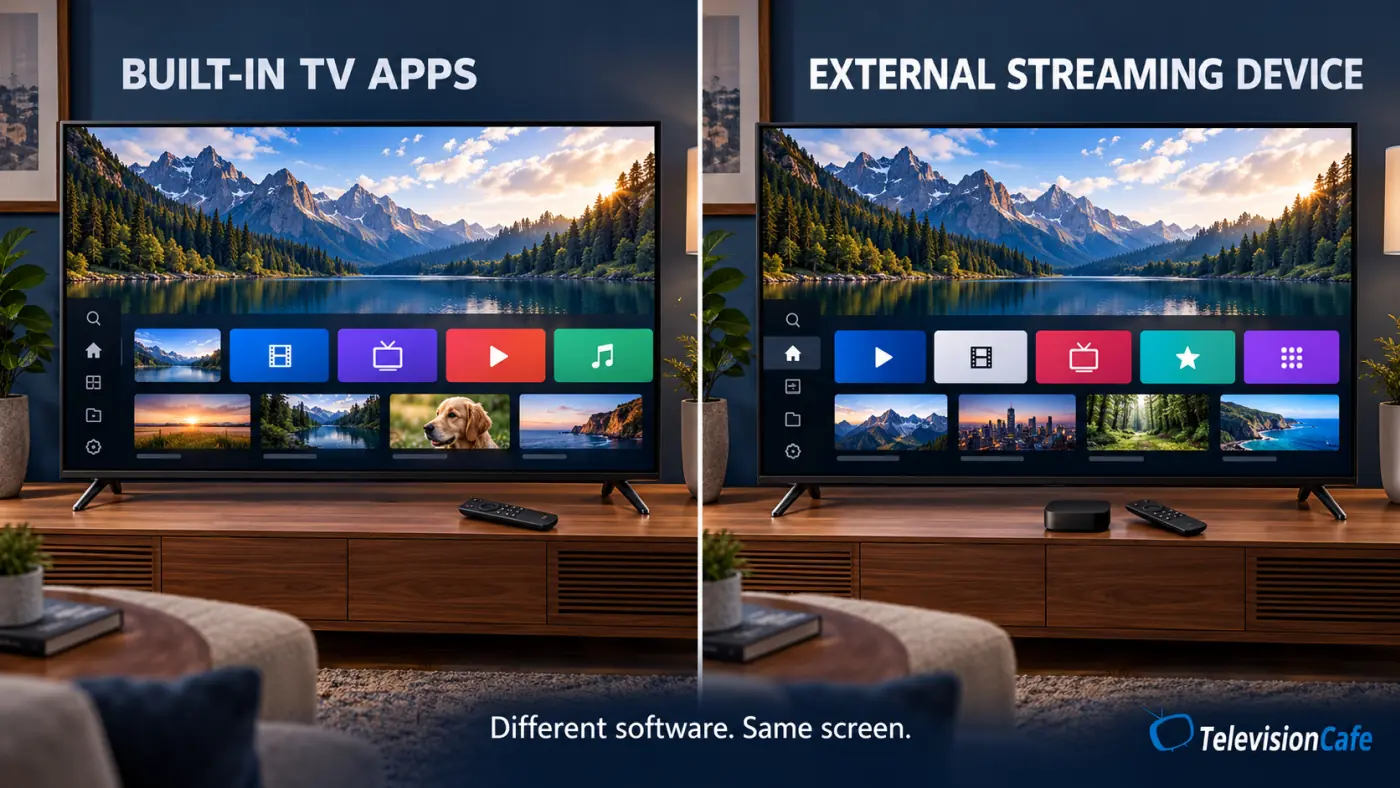
A smart TV combines a display with an internet-connected platform, such as Google TV, Roku TV, Fire TV, LG webOS, or Samsung Tizen. You open compatible apps directly on the television.
A streaming device runs its own apps and sends picture and sound to the TV over HDMI. Some players are sticks that plug into the port; others are small boxes connected with an HDMI cable.
The TV still handles the display and its picture settings. The player supplies a separate home screen, app catalog, and playback software. Connecting one does not replace the TV's operating system.
Want to understand the built-in options first? Our Google TV vs. webOS vs. Tizen comparison explains the practical differences.
When Is a Streaming Device Worth Buying?
| Your situation | Best next step |
|---|---|
| Your apps are available and run smoothly | Keep using the smart TV. |
| Menus and app switching remain slow after troubleshooting | Consider a player with a more responsive interface. |
| A must-have app no longer supports the TV | Check that app's supported external devices. |
| Video buffers or looks soft | Check the connection, subscription, and playback settings first. |
| You want a different remote or home screen | Compare the actual controls and interface before buying. |
| The TV's picture is still good, but its apps are outdated | An HDMI player is worth considering before replacing the TV. |
Four Good Reasons to Add a Streaming Player
1. Your TV is slow where it matters
Waiting for the home screen, watching app icons load, and struggling to move through a menu can make an otherwise good television annoying to use.
A capable external player can bypass that interface. But do not assume every inexpensive stick will be faster than a recent TV. Compare the exact device, and try restarting and updating the television before spending money. Samsung's app troubleshooting guidance is one example of the checks worth doing first.
2. An app you need is missing or unsupported
App compatibility can change while the screen itself still works well. Check the streaming service's supported-device list against your TV's model and year, then check the player you are considering.
This matters especially for a particular live TV service, sports app, or smaller streaming service. Finding Netflix on a device does not tell you whether it supports your entire watchlist.
3. You prefer another way to browse
You might like your TV's picture but dislike its home screen or remote. An external device lets you choose another interface without choosing another television.
Using the same platform on several TVs can also make life easier for a household. Everyone knows where the apps are, even if the screens come from different brands.
4. You need a specific connection or playback feature
Ethernet, compatible headphone listening, phone sharing, or supported frame-rate matching may justify a player. Check the exact model and app, because a feature offered elsewhere in the same product family may be missing from the version you buy.
Will a Streaming Device Improve Picture Quality?
Not automatically. If a TV app and an external player deliver the same title in the same resolution and HDR format, the player is not guaranteed to produce a better picture.
Differences can come from app support, video processing, output settings, or the picture mode applied to that HDMI input. A player can help when it provides a format or playback option that the built-in app cannot deliver. It cannot change the panel's contrast, brightness, or viewing angles.
For 4K HDR playback, check the whole setup: the title, subscription tier, app, player, TV, HDMI connection, and any receiver or soundbar in the video path. The formats need to be compatible. Apple's 4K HDR setup guide also explains why the correct TV input and enhanced HDMI settings matter.
Frame-rate matching is another useful feature to investigate for movies. On supported Apple TV apps, for example, Match Frame Rate can adjust the output to the content's original frame rate. It is a playback setting, not a promise that every motion problem will disappear.
Before comparing pictures: Check the TV's picture settings for both sources. A built-in app in a restrained movie mode and an HDMI input in Vivid mode can look very different even before the streaming hardware makes any difference.
Can a Streaming Device Fix Buffering?
It can help if the TV's network connection or app is the problem. It will not fix an overloaded internet connection simply by being plugged in.
Netflix recommends a stable connection of at least 15 Mbps for 4K streaming. That is a Netflix recommendation, not a universal requirement for every service, and other people using the connection need bandwidth too.
Test near the television rather than relying only on a speed test beside the router. If Wi-Fi is unreliable, a player with Ethernet may help you use a wired connection, provided you can run a cable to it. Check whether your TV already offers that option.
If the issue is a soft picture rather than buffering, start with our guide to why Netflix looks blurry on a 4K TV. Buying hardware before checking the plan and playback quality can leave you with the same problem.
Roku, Fire TV, Apple TV, or Google TV: What Should You Check?
For US shoppers, these are useful starting points—not a reason to choose by logo alone:
- Roku: Check the apps, included remote, and HDR support on the specific Roku player.
- Amazon Fire TV: Compare the exact Fire TV model's app compatibility and controls, especially if Alexa is part of your routine.
- Apple TV 4K: Consider how it fits your Apple devices and preferred apps. Check the version: Ethernet is model-dependent.
- Google TV: Consider it if Google Cast and Google's browsing experience suit your household. Google TV Streamer (4K), for example, includes Gigabit Ethernet.
Start with your three most-used apps. Confirm they support the video and audio features you want on that exact player. Then compare the remote, accessibility options, network connections, and total price, including any required cable or adapter.
Also look at the current home screen. Recommendations and advertising can affect how pleasant a platform feels. An external device does not automatically give you an uncluttered interface.
For a bedroom TV used mostly for casual viewing, a compatible basic player may be enough. For a main movie setup, give more attention to HDR formats, frame-rate behavior, and audio compatibility.
Do You Have to Pay Monthly for a Streaming Device?
Buying a mainstream streaming player does not, by itself, require a monthly hardware subscription. You still pay for any paid services, rentals, or purchases you choose. Internet service is separate too.
Roku explicitly states that there are no additional monthly or yearly device fees after purchase and account setup. Optional subscriptions and purchases are separate charges.
If you already subscribe directly to a service, you can generally install its supported app and sign in with that account. Check the service's rules, particularly for subscriptions purchased through another platform. Avoid starting a second subscription when you only need to sign in.
Free apps and ad-supported services are available, but buying a player does not unlock every paid channel or live sports package.
How to Connect a Streaming Device to a Smart TV
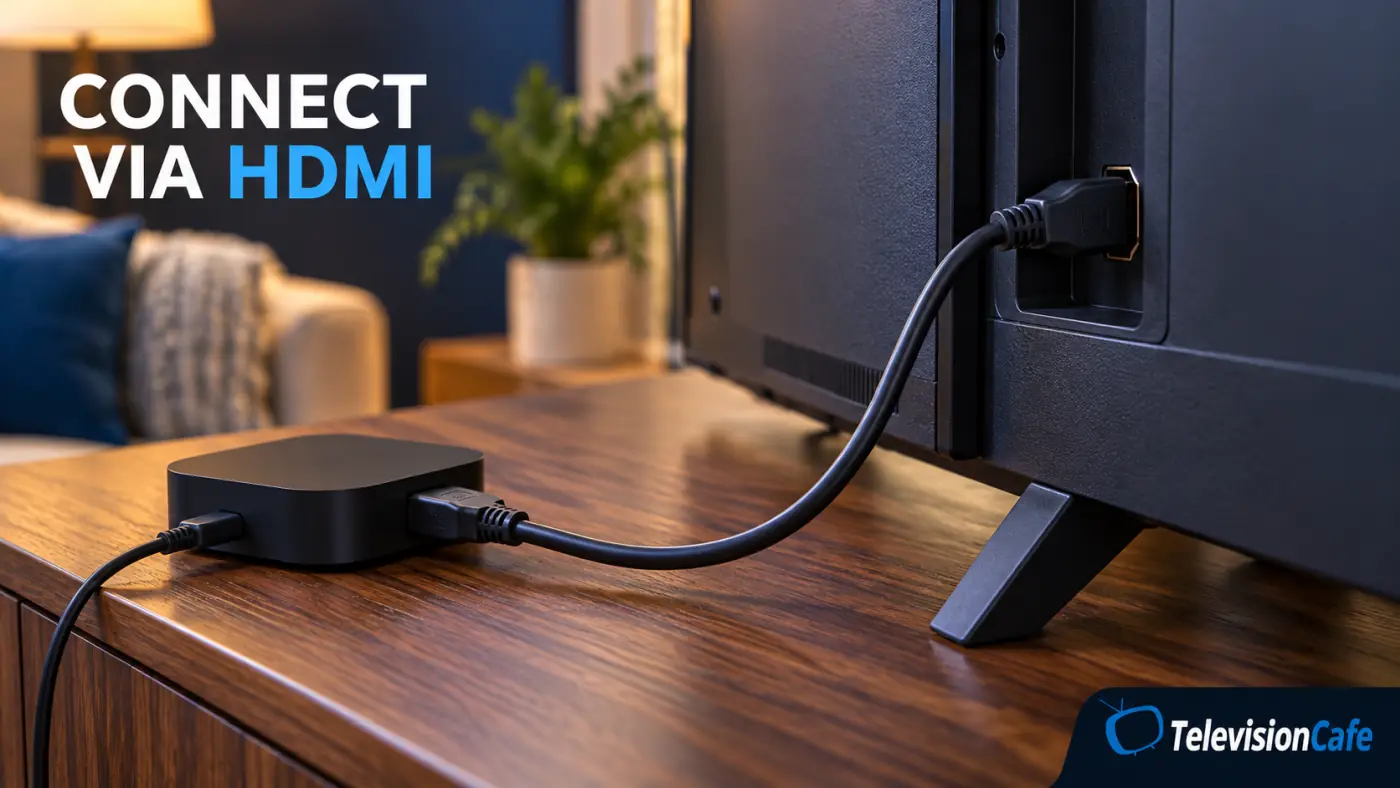
- Connect it to a suitable HDMI input. Plug in the stick directly or use the cable specified for the box. Check which TV inputs support your intended video format.
- Connect power as instructed. Use the supplied or manufacturer-approved power setup. Do not assume a TV USB port provides enough power.
- Select that HDMI input. Complete the player's account, network, and software-update steps.
- Install your apps and sign in. Use existing service accounts where applicable.
- Check video, audio, and remote controls. Confirm 4K/HDR playback where supported, then set up TV power and volume controls if available.
HDMI-CEC or infrared control can let a compatible player remote handle everyday TV functions. Support varies, so keep the original TV remote for picture settings and other controls the player cannot access.
If sound works in TV apps but disappears on the player, check the player's audio output and the TV's passthrough settings. Our HDMI ARC/eARC troubleshooting guide covers the connection checks.
Frequently Asked Questions
Final Verdict: Buy One When It Solves a Problem
If your smart TV opens your favorite apps quickly and plays them reliably, keep using it. There is no need to add another device to watch the same shows in the same supported formats.
An external player makes more sense when the screen still looks good but the software gets in the way. A missing app, persistent menu lag, or a specific connection requirement gives you a concrete reason to upgrade.
Our recommendation at TelevisionCafe: check the problem first, then choose the player that fixes it. Your TV's picture and its streaming software do not have to be replaced together.
Sources and Compatibility Checks
This guide uses manufacturer and streaming-service documentation rather than comparative device speed tests. App availability and supported features vary by model, software version, subscription, and US service availability.