
Why Is Netflix Blurry on a 4K TV? 9 Things to Check
You bought a 4K TV, opened Netflix, and expected a crisp picture. Instead, faces look soft, dark scenes turn into patches of gray, and distant scenery seems to lose its texture. The Netflix menus might look perfectly sharp, which makes the movie underneath them even more frustrating.
A 4K screen does not guarantee a 4K stream. Your subscription, playback settings, internet connection, viewing device, and the title itself all affect what reaches the screen.
Why Does Netflix Look Blurry on a 4K TV?
Netflix can look blurry because the stream is below 4K, the connection is unstable, the playback device limits resolution, or picture processing softens the image. Start by checking your plan, profile settings, and the connection at the device you actually watch on. Then compare another title before changing the TV's picture settings.
This guide focuses on U.S. Netflix plans and TV viewing. Change one thing at a time and replay the same scene so you can tell what helped.
What Kind of Blurry Picture Are You Seeing?
Use these patterns to choose your first test. They are clues, not proof of a particular fault.
| What You Notice | What to Check First |
|---|---|
| The picture starts soft, then improves | Let playback settle before judging it |
| Quality improves and drops during an episode | Test the viewing device's network connection |
| One profile looks worse than another | Compare profile playback settings |
| The TV app looks good, but an HDMI device looks soft | Check the device's resolution and HDMI path |
| Only one show or movie looks soft | Compare other titles before changing everything |
| Objects mainly blur when they move | Investigate motion separately from stream resolution |
If moving objects are the main problem, our TV motion blur guide explains why a sharp stationary image can still look blurry in motion.
1. Check Whether Your Netflix Plan Includes 4K
Check your subscription before spending an evening adjusting sharpness. In the U.S., Netflix's Standard with ads and Standard plans offer up to 1080p Full HD. Premium includes 4K Ultra HD and HDR on compatible devices and titles.
A Standard subscription does not become 4K when you buy a better television. The TV scales the lower-resolution picture to fill its panel, but that cannot recover the original detail missing from the stream.
Open your Netflix account in a browser and check the plan listed there. If Netflix is included in a carrier or internet package, verify which tier that package provides.
Premium is worth considering if 4K Netflix is your goal. It still will not make every movie available in 4K.
2. Check Playback Settings for the Profile You Use
Netflix's data-use settings are profile-specific. A restricted setting on your profile can explain why someone else gets a better-looking picture on the same television.
- Open your Netflix Account in a web browser.
- Select Profiles, then the profile you watch with.
- Open Playback settings.
- Check Data usage per screen.
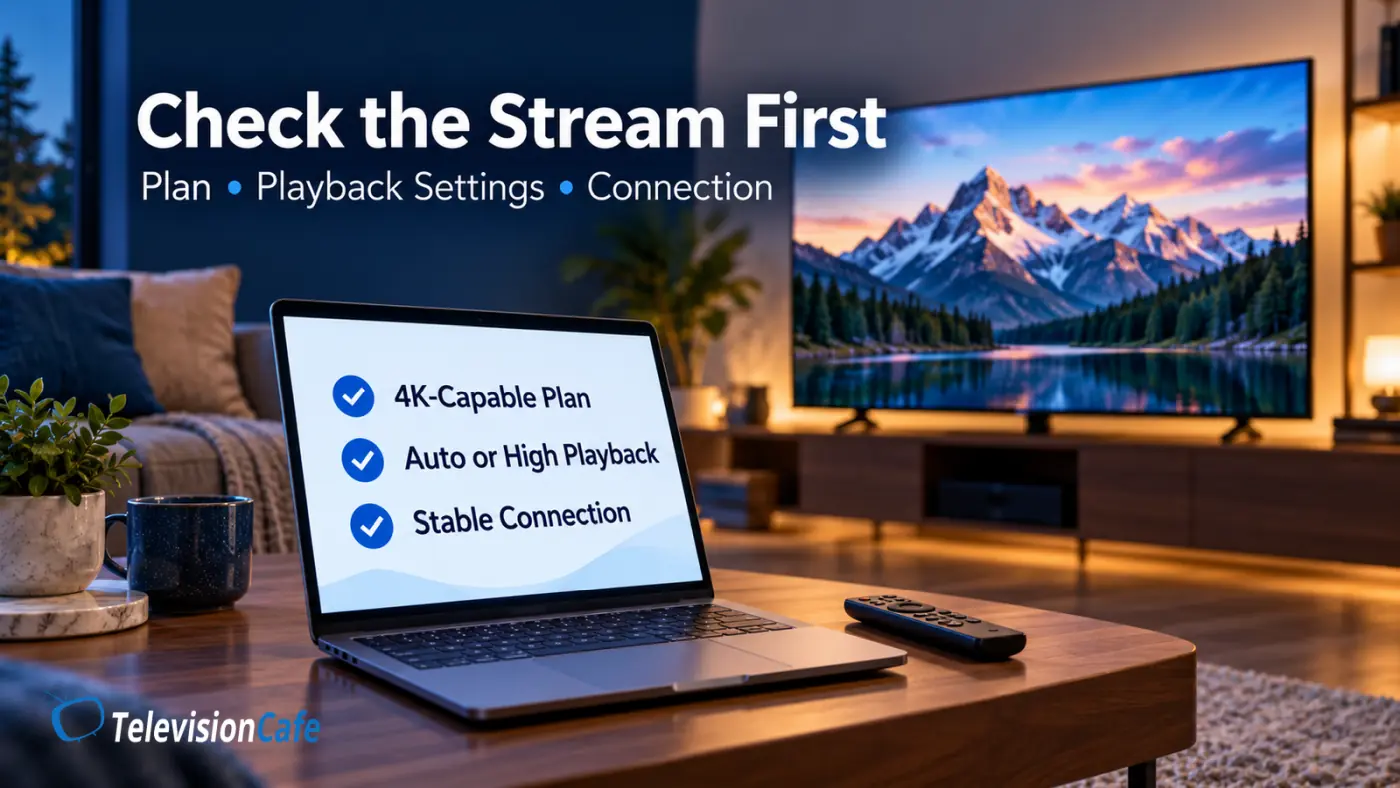
- For 4K, use Auto or High, then confirm the change has saved.
Auto adjusts quality to the connection. High allows Netflix's highest available quality, but it does not unlock a better subscription or make an unsupported device play 4K. If High causes buffering, return to Auto while troubleshooting the connection.
Have a monthly data cap? Netflix estimates that Ultra HD can use up to 7 GB per hour, per device. That is an upper estimate, not a fixed rate for every show.
3. Make Sure the Title Is Available in 4K on Your Device
Check the title's details page on the device you use. Netflix's quality labels reflect the playback quality available through that setup. An HD label can mean 720p or 1080p.
There is a catch: some devices show only one quality label. A title that supports both 4K and Dolby Vision may display Dolby Vision without a separate 4K badge. A missing badge alone does not prove a problem, and an HDR label is not a live resolution meter.
Try several titles offered in 4K. Let playback run briefly; Netflix can start at a lower resolution and improve afterward.
If those titles look detailed but an older series remains soft, avoid rebuilding your entire picture setup around that one series.
4. Test the Connection at Your TV, Not Just Your Phone
Netflix recommends a stable connection of 15 Mbps or higher for 4K. Its recommendations are 5 Mbps for 1080p and 3 Mbps for 720p.
Your internet package's advertised speed is not the speed reaching a streaming stick behind the TV. A fast phone test near the router does not settle that question.
On many TV versions of Netflix, press Back from the home screen to open the menu, then look for Get Help → Check your Network. Depending on the layout, Get Help may be under your profile icon or near the bottom of the menu.
Run the test while the problem is happening. If the result is low or inconsistent, try these practical comparisons:
- Pause large downloads and test again.
- Try Ethernet if your viewing device supports it.
- Move the router or test the viewing device closer to it, if practical.
- Restart the router and repeat the same scene.
Use Ethernet as a test, not an automatic upgrade purchase. If it helps, you have a reason to investigate the wireless connection. If it changes nothing, move on to the next check.
5. Check Your Streaming Device and HDMI Connection
If you use the TV's built-in Netflix app, skip the HDMI checks. If you watch through a streaming stick, console, or set-top box, confirm that the exact device supports Netflix in 4K.
A familiar product name is not enough. Netflix lists the Fire TV Stick Lite as a 1080p device, while the Fire TV Stick 4K supports Ultra HD. Check the model, not just the brand.
On a compatible Fire TV device, Netflix's recommended display setting is Settings → Display & Sounds → Display → Video Resolution → Auto (up to 4K Ultra HD). Other devices have their own resolution controls.
For an external Netflix 4K setup, check the TV input's HDCP 2.2 or later support. Consult the manual rather than assuming every HDMI input has identical capabilities.
If the video passes through a receiver, soundbar, or HDMI switch, temporarily connect the source directly to the TV. An improvement points toward the device you bypassed, its settings, or its connections.
Check compatibility before buying a cable. Premium High Speed HDMI cables are certified for formats including 4K at 60Hz and HDR. A compatible Ultra High Speed cable also works, but replacing a working cable cannot repair a low-resolution Netflix stream.
A TV's HDMI information screen may report the streaming device's 2160p output even when the device is upscaling lower-resolution video. That readout alone does not verify Netflix's stream resolution.
6. Using a Laptop? Browser and Hardware Support Matter
A laptop connected to a 4K television adds another set of requirements. Setting the desktop to 3840 × 2160 does not automatically make Netflix play in 4K.
Netflix currently lists Chrome and Edge on qualifying Windows systems as supporting up to 4K. Firefox and Opera on Windows are listed at up to 1080p. Browser choice alone is not enough: Netflix's Windows 4K requirements also include Windows 11, compatible graphics hardware, the required HEVC support, and a suitable display connection.
Mac requirements differ. Netflix lists Safari as supporting up to 4K on qualifying Macs, while Chrome on Mac is listed at up to 1080p.
For troubleshooting, compare the laptop with the TV's built-in Netflix app, if available. A better picture there gives you a useful reason to investigate the computer's playback path.
7. Review Picture Processing While Netflix Is Playing
Once the playback path checks out, look at the TV's settings. Open them during the Netflix scene you are testing; settings can vary between inputs and picture modes.
Try Movie, Cinema, or Filmmaker Mode if available, then compare the same scene from your normal seat. These are starting points, not a promise that one preset suits every room.
- Sharpness: Avoid pushing it to maximum. Compare a modest setting with the preset default rather than copying a number from another TV.
- Noise reduction: Try Low or Off if fine textures or moving faces look smeared. Sony specifically recommends this test for certain blur and after-image symptoms.
- Motion processing: Test separately if the softness mainly appears during movement.
For model-specific starting points, use our LG C6 picture settings guide, Samsung S90H settings guide, or TCL QM6K settings guide.
If the main complaint is that shadows are hard to see, read why HDR can look too dark before treating it as a resolution problem.
8. Separate Compression Problems From the Look of the Movie
Not every soft-looking shot needs fixing. A face can be in focus while the background is deliberately blurred. Film grain is also a legitimate part of a movie's texture, not automatic evidence that your television is faulty.
Streaming compression introduces a different limitation. Netflix's engineers describe blockiness, blurring, and distorted objects as picture-quality problems that efficient encoding aims to reduce. Their film-grain work also shows why preserving that texture can be demanding.
Compare more than one scene. Look at focused faces, clothing, buildings, and scenery, rather than expecting a dark or shallow-focus shot to reveal detail everywhere.
Do not judge a stream solely by its bitrate. Netflix uses different encoding approaches, and a more efficient codec can produce better quality without a higher bitrate. Nor should you expect every title carrying a 4K label to look equally crisp.
9. Restart the App and Narrow Down Where the Problem Happens
If quality remains unexpectedly poor, fully restart the viewing device instead of only returning to the home screen. Use its restart menu or manufacturer-recommended power procedure, then reopen Netflix.
Check for TV firmware, streaming-device software, and app updates where available. You can also sign out and back in. Reinstalling the app is an option on devices that allow it, but it should follow the simpler checks.
Before considering a full factory reset, try this comparison:
- One Netflix title looks wrong: Test other titles. If one appears faulty, report it through Netflix's Viewing Activity.
- Netflix looks wrong, but other apps look good: Recheck Netflix's plan, profile, and playback device support.
- An external device looks wrong, but the TV app looks good: Investigate that external device and its connections.
- Menus and multiple sources look wrong: Use the TV's picture test or diagnostics, if available, and contact the manufacturer if the issue persists.
Keep notes about which profile, device, title, and scene show the problem. Those details are more useful to support than simply saying that everything looks blurry.
What to Check Before Replacing Your TV
Work through the plan, profile settings, title, connection, and playback device first. Then adjust picture processing using a repeatable scene.
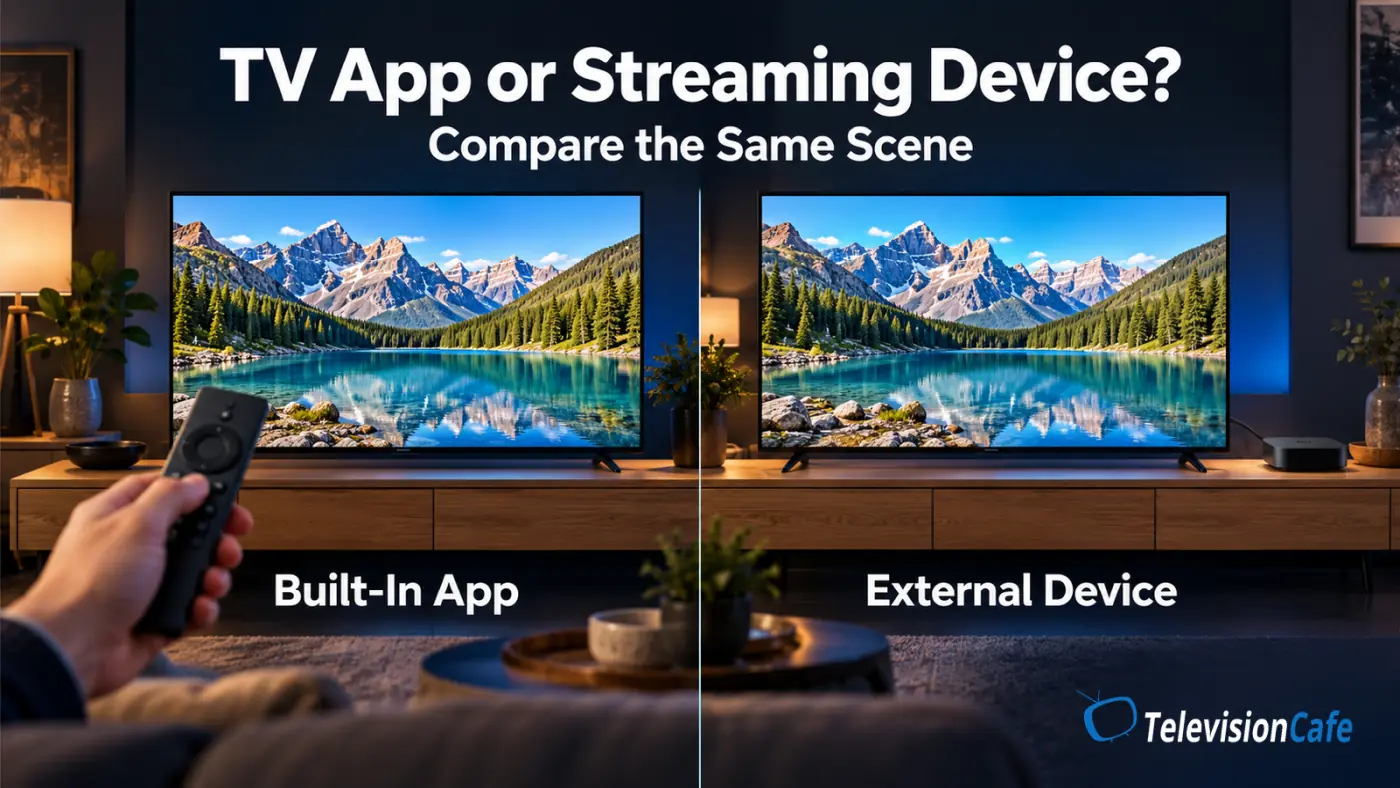
A useful comparison is the same title, at the same moment, through the TV app and an external device you already own. Keep in mind that the two playback paths may use different picture presets.
At TelevisionCafe, our recommendation is to identify which part of the setup changes the result before spending money. A new TV or streaming box makes sense only when you have found a limitation it can actually address.
Netflix Blurry on a 4K TV: Frequently Asked Questions
Why is Netflix blurry even though my internet is fast?
A fast connection does not remove limits imposed by your plan, profile settings, viewing device, or the title. Test the connection at the device you watch on, then compare another title and playback path.
Do I need Netflix Premium to watch in 4K?
For U.S. plans, yes. Premium includes 4K Ultra HD on supported titles and devices. Standard and Standard with ads offer up to 1080p.
What internet speed does Netflix recommend for 4K?
Netflix recommends a stable connection of 15 Mbps or higher for 4K. Test at the viewing device, especially when quality drops.
Should Netflix playback quality be Auto or High?
Both allow 4K when the rest of the setup supports it. Auto adapts to the connection. If High causes buffering, switch back to Auto and investigate the network.
Does a Dolby Vision badge mean Netflix is playing in 4K?
The badge identifies an HDR format, not the live streaming resolution. Some devices show Dolby Vision instead of a separate 4K badge when a title supports both.
Will a new HDMI cable fix blurry Netflix?
Only if an external playback connection is the problem. HDMI cables do not affect Netflix running in the TV's built-in app, and a cable cannot improve the source stream itself.
Why are Netflix subtitles sharp while the movie looks blurry?
Text can be rendered separately from the video image. Sharp subtitles therefore do not prove that the movie stream contains full 4K detail. Check the video rather than using text as a resolution test.