
LG C6 Best Picture Settings Guide: SDR, HDR & Gaming
LG C6 Picture Settings: Start Here
The LG C6 already looks impressive when you take it out of the box, but a few sensible changes can make movies look more natural, HDR highlights more convincing and games more responsive. The trick is to stop looking for one “perfect” setting and create a profile for the type of content you actually watch.
For most owners, the best starting point is Filmmaker Mode for SDR and HDR movies, Game Optimizer for a console or gaming PC, and Energy Saving turned off while you tune the picture. After that, adjust the OLED Pixel Brightness to suit the room instead of pushing contrast or black level around.
Quick recommendation: Use Filmmaker Mode, Contrast 95 for SDR, Contrast 100 and OLED Pixel Brightness 100 for HDR, and Game Optimizer for gaming. Keep Dynamic Contrast off. Use Dynamic Tone Mapping only when HDR looks too dim and you accept a less reference-accurate image.
This guide covers the 2026 LG C6 family, including the 42-, 48-, 55- and 65-inch C6 models and the larger 77- and 83-inch C6H versions. Those sizes do not all use the same panel, so the size-specific warning near the end is worth reading before you copy any numbers.
Guide checked: September 16, 2026. Settings are starting points for a normal home, not a claim that every C6 panel will measure identically.
Before You Change the LG C6 Settings
Press the gear button on the Magic Remote and open All Settings → Picture. The exact wording can change with webOS 26 firmware and regional software, but the important controls are under Picture Mode, Brightness, Color, Clarity and, when a game is running, Game Optimizer.
- Choose the input and content first. SDR, HDR10 and Dolby Vision use separate picture memories.
- Turn Energy Saving off while setting the TV. Automatic brightness changes make it difficult to judge a picture accurately.
- Let your eyes settle. Warm color temperature may look yellow for the first few minutes if you have been using a cool, blue-tinted preset.
- Change one control at a time. If you change five settings together, you will not know which one fixed the problem.
Do not start with Vivid mode. It is designed to catch attention in a bright showroom and can clip highlights, exaggerate color and sharpen edges. It can be fun for a sports bar, but it is a poor baseline for a film or gaming setup.
LG C6 Recommended Settings at a Glance
| Content | Picture mode | Key settings | Why use it |
|---|---|---|---|
| SDR movies, dark room | Filmmaker Mode | Contrast 95; Gamma 2.2; Warm 40 | Most accurate starting point |
| SDR daytime viewing | Filmmaker Mode | Raise OLED Pixel Brightness; Peak Brightness High | More comfortable in daylight |
| HDR10 | Filmmaker Mode | Contrast 100; OLED Pixel Brightness 100; Peak High; DTM Off | Preserves the creator's intended tone map |
| Dolby Vision | Cinema or Cinema Home | OLED Pixel Brightness 100; Contrast 100 | Cinema for dark rooms, Home for brighter rooms |
| PS5, Xbox or PC | Game Optimizer | VRR and ALLM on; HGiG after console calibration | Low latency and gaming controls |
The table is deliberately short. The detailed sections explain when to depart from these defaults, especially if you use the 48-inch C6, a 77- or 83-inch C6H, or a very bright room.
Best LG C6 Settings for SDR Movies and TV
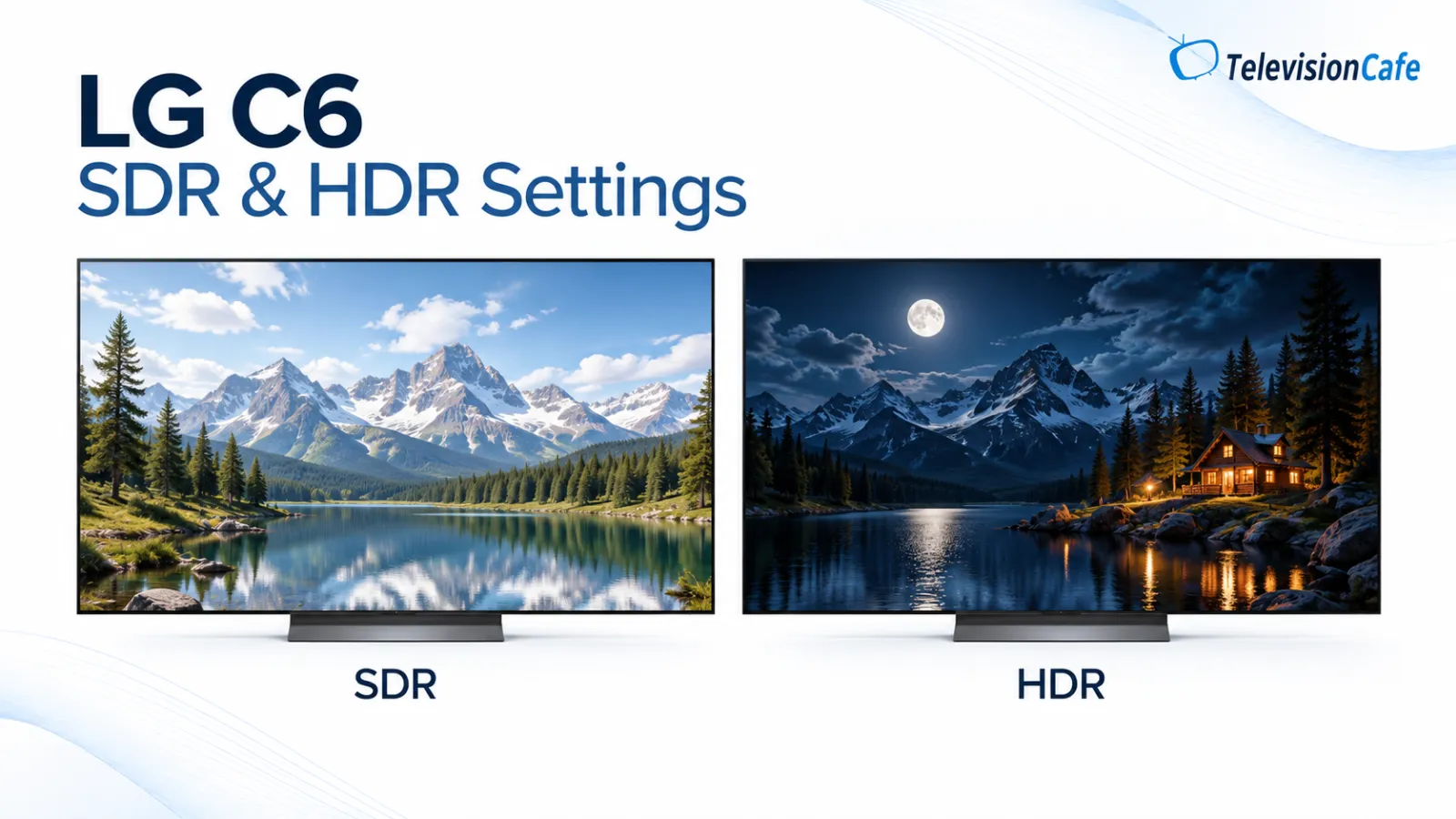
SDR includes much of standard broadcast television, older Blu-rays and many regular HD streams. For an accurate picture, select Filmmaker Mode. Independent calibration testing of the 65-inch C6 used it as the most accurate out-of-box preset and left most other controls at their defaults.
| Setting | Dark-room starting point | What to know |
|---|---|---|
| Picture Mode | Filmmaker Mode | Avoids most showroom-style processing |
| Contrast | 95 | A safe reference starting point |
| Black Level | 50 | Keep the source and TV range matched |
| Gamma | 2.2 | Use BT.1886 if you prefer a darker, cinema-like midtone |
| Color Temperature | Warm 40 | Closer to the usual video reference white point |
| Peak Brightness | Off for reference viewing | High is reasonable when daylight is the priority |
| OLED Pixel Brightness | 12 for about 100 nits, or 43 for about 200 nits | Raise it for a brighter room |
OLED Pixel Brightness is the control to use when the whole SDR picture is too dim. Do not use Contrast to compensate: too much contrast can remove detail from white clouds, snow and bright subtitles. Likewise, lowering Black Level to make blacks “blacker” can crush shadow detail if the video range is already correct.
Why the numbers are not universal: The 12 and 43 OLED Pixel Brightness values are useful reference points from a measured 65-inch C6. Most living rooms need more light, and every panel, wall color and viewing distance changes what looks comfortable.
LG C6 Settings for a Bright Room
If sunlight or lamps wash out the picture, keep Filmmaker Mode and increase brightness gradually. Start by turning Energy Saving off, then raise OLED Pixel Brightness until the image is comfortable. Setting Peak Brightness to High can also help SDR highlights stand out.
If your firmware includes Filmmaker Mode with Ambient Light Compensation, it is a sensible daytime option. It uses the room-light sensor to adapt the presentation while keeping the film-oriented preset. Turn it off if you want the picture to remain identical throughout the day or if the sensor makes the image change more than you like.
Curtains and screen placement still matter. A brighter OLED cannot remove the reflection of a window directly opposite the panel. If a reflection is the real problem, moving the TV or controlling the light may produce a bigger improvement than changing any picture slider.
Warm 40 can look noticeably less blue than Standard or Cool. Give it a few minutes before deciding that it is wrong. If you still prefer a cleaner white for daytime news and sports, move one step cooler rather than jumping straight to Cool.
Best LG C6 HDR10 Picture Settings
When the source sends HDR10, the LG C6 switches to a separate HDR picture memory. Start a genuine HDR film or game before changing these settings; the controls you see in SDR are not always the same.
| Setting | Accuracy-first value | Brighter alternative |
|---|---|---|
| Picture Mode | Filmmaker Mode | Filmmaker Mode |
| Contrast | 100 | 100 |
| OLED Pixel Brightness | 100 | 100 |
| Peak Brightness | High | High |
| Dynamic Tone Mapping | Off | On |
| Expression Enhancer | Off | Brightness |
| Black Level | 50 / Auto where available | 50 / Auto where available |
Dynamic Tone Mapping Off is the better place to begin if you want the TV to follow the HDR signal as closely as possible. Turning it on can lift the midtones and make a dark title easier to see in a bright room, but it also changes the creator's tone map. Expression Enhancer set to Brightness is another comfort option, not a calibration requirement.
Do not worry if the menu changes as you start and stop HDR content. That is normal. LG stores picture settings by signal type, so an adjustment made while watching an HDR stream will not necessarily change your SDR profile.
Best LG C6 Dolby Vision Settings
Dolby Vision carries dynamic metadata, so it should be treated as its own format. For a dark cinema room, select Cinema or Dolby Vision's film-oriented mode. For daytime viewing, Cinema Home is usually easier to see because it trades a little strict accuracy for a brighter presentation.
| Setting | Dark-room recommendation | Daytime option |
|---|---|---|
| Picture Mode | Cinema | Cinema Home |
| OLED Pixel Brightness | 100 | 100 |
| Contrast | 100 | 100 |
| Black Level | 50 / Auto | 50 / Auto |
| Dynamic Tone Mapping | Off | Off to start; enable only if needed |
| Expression Enhancer | Off | Brightness or Details to taste |
Dolby Vision can look darker than a store demo because Cinema mode is designed for controlled lighting. That does not automatically mean the TV is malfunctioning. Check the room, disable Energy Saving and try Cinema Home before changing Black Level. If the picture is still too dark, use the brighter option you prefer rather than copying HDR10 settings into Dolby Vision.
Use the same source when comparing modes. A Dolby Vision stream from a built-in app can look different from a standard HDR signal sent by a streaming box, and each input can have its own memory.
Best LG C6 Gaming Settings for PS5, Xbox and PC
For gaming, choose Game Optimizer. On the C6, it is the quickest route to low input lag and the TV's gaming controls, including the Game Bar. With ALLM enabled, a compatible console or PC can switch the television into its gaming profile automatically.
| Control | Recommended starting point | Reason |
|---|---|---|
| Picture Mode | Game Optimizer | Low latency and gaming features |
| OLED Pixel Brightness | 100 for HDR; adjust SDR for the room | HDR games need the panel's available range |
| Peak Brightness | High | Preserves small HDR highlights |
| VRR | On when supported | Reduces tearing when frame rate changes |
| ALLM | On when supported | Lets the source call up Game Optimizer |
| HDR tone mapping | HGiG after console calibration | Use Dynamic Tone Mapping On if HGiG looks too dim |
| TruMotion | Off | Avoids extra processing and possible lag |
On PS5 or Xbox Series X, enable 4K, 120Hz, VRR and HDR where the console supports them, then run the console's HDR adjustment screens. HGiG is most useful after that calibration because it lets the game handle its own highlight clipping. If a particular title looks too dark, Dynamic Tone Mapping On is a perfectly reasonable comfort choice.
On a gaming PC, label the HDMI input PC if the option is available. This helps preserve chroma detail for text and desktop use. The C6 can accept a higher PC refresh rate than a console can use, but your graphics card, cable, resolution and game must all support it. The difference between 144Hz and 165Hz matters mainly to players who can sustain very high frame rates.
Gaming reality check: A 165Hz option does not create extra frames. If your PC game runs at 90fps, a 165Hz C6 will still display the frames your computer delivers. Stable frame rate, VRR and low input lag usually matter more.
Motion Settings: Films, Sports and Fast Action
OLED pixels change state almost instantly, which is excellent for gaming and fast sports. The same speed can make 24fps movie pans look stuttery because each film frame remains visible for a relatively long time. Motion settings can soften that effect, but interpolation creates its own trade-offs.
| Content | Motion recommendation | Trade-off |
|---|---|---|
| Films and scripted TV | Real Cinema On; TruMotion Off or Cinematic Movement | Cinematic Movement reduces judder but can add a little smoothing |
| Sports | User mode; start around De-Judder 2–4 and De-Blur 8–10 | Higher values can create halos around players and graphics |
| Gaming | TruMotion Off | Keeps the signal direct and avoids added processing |
There is no prize for the most aggressive smoothing. Watch a slow camera pan, a hockey puck and a football graphic after each change. If you see a soap-opera look, double edges or objects bending around a player, lower the setting.
Sharpness, Noise Reduction and Upscaling
Modern TVs can make poor video look cleaner, but processing cannot turn a low-bitrate stream into native 4K. For a high-quality 4K source, keep the image as untouched as possible.
| Setting | Start here | When to change it |
|---|---|---|
| Adjust Sharpness | 0 for native 4K | Try 5–10 for soft or compressed HD, then check for halos |
| Super Resolution | Off | Low can help an especially soft source |
| Noise Reduction | Off for clean 4K; Auto for poor streams | Useful for compression noise, harmful to fine film grain if too strong |
| MPEG Noise Reduction | Off or Auto | Try Auto with low-quality cable or broadcast video |
| Smooth Gradation | Off | Low can hide visible banding in heavily compressed content |
| Real Cinema | On for film content | Leave it on unless a particular source behaves oddly |
Sharpness is not the same as detail. A high value draws a bright outline around edges; it does not recover information that was never in the source. Pause on small text or a tree line and look for a white halo before keeping a higher value.
Color Temperature, Gamut and White Balance
Color is where many “recommended settings” become unreliable. A value measured on one panel can be visibly wrong on another, even when both televisions have the same model number.
| Setting | Starting point | Advice |
|---|---|---|
| Color Depth | 50 | Raise only if you deliberately want more saturation |
| Tint | 0 | Do not use it to correct a source or cable problem |
| Color Gamut | Auto Detect | Lets the TV choose the appropriate range for SDR or HDR |
| Color Temperature | Warm 40 | Give it time before judging the warmer white |
| White Balance | Default | Use a meter and calibration software for custom values |
Professional two-point and twenty-point white-balance values should not be copied from a review and treated as universal. Manufacturing tolerances, panel age and even the screen size can change the correct numbers. Reset the controls if a copied calibration makes skin tones or shadow detail worse.
How to Fix Common LG C6 Picture Problems
| What you see | Try this first | Avoid this mistake |
|---|---|---|
| SDR looks too dark | Turn Energy Saving off and raise OLED Pixel Brightness | Do not raise Contrast until white detail clips |
| HDR looks too dim | Try Dynamic Tone Mapping On or Expression Enhancer Brightness | Do not assume the brightest mode is the most accurate |
| Blacks look gray or crushed | Set Black Level to Auto and match the source's RGB range | Do not force 49 or another value on every input |
| Soap-opera effect | Turn TruMotion off or choose Cinematic Movement | Do not judge motion using a showroom demo alone |
| Color banding in a stream | Try Smooth Gradation Low and Noise Reduction Auto | Do not use heavy processing on clean 4K film |
| PC will not show 165Hz | Check GPU output, HDMI cable, PC input label and Windows display settings | Do not assume every laptop or cable supports the maximum mode |
When blacks look wrong, the source range is a more likely culprit than the OLED panel. Set both ends to Auto first: the TV's Black Level and the console or PC's RGB range. A Limited video signal interpreted as Full can lift blacks; a Full signal interpreted as Limited can crush them.
OLED Care Settings You Should Leave Enabled
Energy Saving should be off while you establish a consistent picture, but that does not mean every OLED care feature should be disabled. Keep the panel-protection features enabled, including automatic compensation cycles, Screen Move and Logo Brightness Adjustment when available.
After long viewing sessions, allow the TV to complete its normal maintenance cycle by leaving it connected to power. Do not manually run a long Pixel Refresher as a routine picture adjustment. It is a panel-care tool, not a way to make Filmmaker Mode brighter.
For static news tickers, sports scoreboards and PC desktop elements, vary the content and use the TV's protection features. Modern OLED care reduces risk, but no picture setting can make a permanently static image risk-free.
Important distinction: Turning Energy Saving off prevents unexpected brightness changes while you calibrate. It does not turn off OLED panel protection. Keep the dedicated OLED Care options active.
Do These Settings Work on Every LG C6 Size?
Use the values in this guide as a starting point for the 42-, 55- and 65-inch C6, but check the exact size before judging brightness. Independent testing notes that the 42-inch model does not have Brightness Booster, while the 48-inch C6 and the larger C6H models use different panel configurations.
| Size | Family | What it means for settings |
|---|---|---|
| 42 inches | C6 | No Brightness Booster; expect lower peak brightness |
| 48 inches | C6 | Tandem OLED panel; do not assume a 65-inch review describes it exactly |
| 55 and 65 inches | C6 | The main sizes covered by the common calibration starting points |
| 77 and 83 inches | C6H | Tandem/Hyper Radiant Color hardware; use C6H-specific testing |
The menu names are broadly similar, but the panel's brightness behavior is not. If you own a 48-inch C6 or a 77- or 83-inch C6H, copy the basic mode choices, then use a review or measurement for that exact size before making claims about peak brightness or HDR performance.
How to Save and Apply LG C6 Picture Settings
LG picture controls are remembered by mode, input and signal type. That is why you may see one set of values for an HDMI console, another for a built-in streaming app and a third when HDR starts.
- Open the source you want to configure, such as an SDR stream or HDR game.
- Open All Settings → Picture and select the intended picture mode.
- Make the changes, then return to the content and check a familiar scene.
- Repeat for any other inputs or formats you use.
If your firmware offers Apply to All Inputs, use it only after checking that you really want the same profile everywhere. A setting that is comfortable for a living-room streaming box may be wrong for a PC desktop or a bright daytime channel.
Take a quick photo of your original values before experimenting. If a change makes the image worse, use Reset for that picture mode and start again rather than chasing multiple sliders.
Copy-Ready LG C6 Profiles
| Use case | Mode | Values to enter |
|---|---|---|
| Accurate SDR movie | Filmmaker Mode | Contrast 95; Black Level 50; Gamma 2.2; Warm 40; Peak Brightness Off; OLED Pixel Brightness to room |
| Bright-room SDR | Filmmaker Mode | Keep the SDR values; raise OLED Pixel Brightness; Peak Brightness High; Ambient Compensation on if preferred |
| Accurate HDR10 | Filmmaker Mode | Contrast 100; OLED Pixel Brightness 100; Peak High; Dynamic Tone Mapping Off; Expression Enhancer Off |
| Bright HDR10 | Filmmaker Mode | Contrast 100; OLED Pixel Brightness 100; Peak High; Dynamic Tone Mapping On; Expression Enhancer Brightness |
| Dolby Vision movie | Cinema | OLED Pixel Brightness 100; Contrast 100; Black Level 50/Auto; DTM Off; Expression Off |
| Console or PC gaming | Game Optimizer | VRR and ALLM On; OLED Pixel Brightness 100 for HDR; HGiG after console calibration; TruMotion Off |
These profiles are intentionally conservative. They give you a clean baseline that is easy to compare, then leave room for personal choices such as brighter daytime viewing, a little motion smoothing for sport or Dynamic Tone Mapping for a dim HDR title.
LG C6 Picture Settings FAQ
What is the best picture mode on the LG C6?
Filmmaker Mode is the best starting point for accurate SDR and HDR movie playback. It avoids much of the artificial sharpening and motion processing used by showroom presets. Cinema or Cinema Home are the practical choices for Dolby Vision.
Why does my LG C6 look too dark in HDR?
First turn Energy Saving off and confirm that OLED Pixel Brightness is 100. If the room is bright or the title is mastered dark, try Dynamic Tone Mapping On and Expression Enhancer set to Brightness. The result will be brighter, but it will no longer follow the HDR signal as strictly.
Should Dynamic Tone Mapping be on or off?
Use Off when accuracy is the priority. Use On when you prefer a brighter, more immediately visible HDR image. HGiG is the better gaming starting point after calibrating a PS5 or Xbox, while Dynamic Tone Mapping is the fallback if HGiG is too dim for your room.
Should I use Warm 40 on the LG C6?
Warm 40 is a useful reference starting point and may look yellow compared with the default cool preset. Give your eyes time to adapt. If you still dislike it, move gradually toward a lower Warm value rather than choosing Cool.
Do LG C6 settings work on the 48-inch and C6H models?
The mode choices are similar, but brightness performance differs. The 48-inch C6 and the 77- and 83-inch C6H use different panel configurations from the commonly tested 65-inch model. Use this guide for the menu logic, then verify measurements for your exact size.
Can picture settings prevent OLED burn-in?
No setting can guarantee that. Keep LG's OLED Care features enabled, vary static content and avoid leaving a bright logo or PC desktop on screen for long periods. Pixel care is a separate protection system from picture accuracy.
The Best LG C6 Settings Are the Ones That Fit Your Room
Start with Filmmaker Mode for SDR and HDR films, Cinema for dark-room Dolby Vision, and Game Optimizer for consoles and PCs. Turn Energy Saving off while you set the TV, leave Dynamic Contrast off, and use OLED Pixel Brightness to match the room. Those few choices solve most of the “why does my new OLED look wrong?” complaints without a complicated calibration menu.
Then refine motion and processing for the content you watch. Real Cinema and a light Cinematic Movement setting can help movie pans; TruMotion Off keeps games clean; Smooth Gradation and Noise Reduction are best reserved for sources that actually show banding or compression.
Finally, remember the C6 family is not one identical panel in six sizes. The 42-inch C6, 48-inch C6 and larger C6H versions deserve size-specific checks. With that caveat in mind, the settings above give the standard 55- and 65-inch C6 a strong, easy-to-understand baseline for films, streaming, HDR and gaming.
Sources and Methodology
This guide combines LG's support information and product specifications with independent calibration data. The numerical SDR and HDR starting points are based primarily on the RTINGS LG C6 calibration settings page. RTINGS states that its values are starting points for a moderately lit room, not numbers that every owner should copy without adjustment.
For size differences, see the RTINGS LG C6 review, the dedicated 48-inch C6 test and the C6H review. Gaming controls and product features can be checked on LG's C6 product page and LG's HGiG support guide.
Prices, firmware, menu names, streaming-app behavior and regional model numbers can change. Check the settings on your own TV after software updates.