
What Is ACR on an LG TV? How to Turn Off Tracking and Ads
Your LG TV has several privacy switches, and they do different jobs. Turning off a banner on the Home screen is useful, but it does not tell you whether viewing recognition is enabled.
ACR stands for Automatic Content Recognition. On supported LG TVs, it identifies certain content playing on the television. To limit viewing-based tracking, review the Viewing Information agreement and Live Plus, where available. Then check the separate advertising settings.
This guide walks through those controls without asking you to give up the streaming apps you use every night.
Start Here: The Privacy Settings to Check
- Viewing Information: withdraw consent in User Agreements.
- Live Plus: set it to Off if your TV offers it.
- Interest-based advertising: decline the optional advertising agreement.
- Limit AD Tracking: set it to On where available.
- Home Promotion: turn it Off if you also want fewer Home-screen promotions.
Menu names vary by model, country, and installed webOS version. Start with the labels below rather than assuming every LG TV follows one identical path.
What Does ACR Actually Do on an LG TV?
Think of ACR as a content-matching tool. LG says its implementation creates a digital fingerprint from supported TV content using the television’s internal audio processor. The company distinguishes this from recording conversations or saving screenshots and video.
In its current U.S. explanation, LG says supported sources can include live TV, HDMI devices, and LG Channels. It says ACR does not operate inside third-party apps such as Netflix or YouTube downloaded through LG Apps. Those apps still have their own data practices.
LG describes ACR as optional and off by default until the Viewing Information Agreement is accepted. Viewing information can support audience analysis; using it for interest-based and cross-device ads requires separate advertising consent, according to LG.
Check the choices saved on your own TV. A statement about the default setting cannot tell you what was accepted during your household’s setup.
1. Turn Off Viewing Information Consent
On many recent TVs, start here:
Settings → All Settings → Support → Privacy & Terms → User Agreements
- Open the full settings menu using your remote.
- Find Privacy & Terms, then User Agreements.
- Open the optional Viewing Information agreement and withdraw consent or clear its checkbox.
- Save or confirm the revised choices using the controls shown on your TV.
Keep the required agreements for services you still want. LG’s U.S. support guidance says its Terms of Use and Privacy Policy are required for smart services, while viewing information, voice features, and personalized ads are optional.
If your menu places Privacy & Terms elsewhere, look for that label or open the TV’s built-in User Guide. Read each agreement separately instead of using Agree to All.
2. Switch Off Live Plus, If Available
Live Plus provides content-related extras and interactions. On supported webOS versions, LG documents this route:
All Settings → General → System → Additional Settings → Live Plus → Off
Older menus may use General → Additional Settings → Live Plus. Some sets do not offer the feature.
Treat this as an additional check alongside the Viewing Information agreement. A missing Live Plus toggle is a reason to check your model’s guide, rather than proof that every viewing-related feature is disabled.
If the remote makes navigating these menus difficult, see our LG Magic Remote troubleshooting guide before resetting the television.
3. Turn Off Personalized Ads
Return to User Agreements and look for the optional advertising agreement. Depending on the software, it may refer to Interest-Based Advertisement or Interest-Based Cross Device Advertising. Withdraw consent if you do not want that personalization.
Next, check:
All Settings → Support → Privacy & Terms → Advertisement
If you see Limit AD Tracking, set it to On. The wording is easy to misread: you are enabling the restriction.
Some older layouts place Advertisement under General → System → Additional Settings.
Reset AD ID is a different control. Resetting an advertising identifier is not a substitute for withdrawing consent or limiting ad tracking, and it should not be treated as a full viewing-history deletion.
Three Controls, Three Different Results
| Control | What you are changing |
|---|---|
| Viewing Information / ACR | Recognition of supported content and the related viewing-data consent. |
| Advertising agreement / Limit AD Tracking | Optional advertising personalization and its available restrictions. |
| Home Promotion | Promotional placements on the webOS Home screen. |
Use the table as a checklist. An ad still appearing is not a reliable test of whether ACR is on or off.
4. Reduce Home-Screen and Screen Saver Ads
For a quieter Home screen, look for Home Settings → Home Promotion → Off.
Depending on webOS, Home Settings may be under General → System → Additional Settings, or directly under System → Additional Settings on newer layouts.
Where offered, you can also disable Content Recommendation and set Power On Screen to Recent Input. The latter is handy if you normally switch straight to a cable box or console.
On supported newer software, System → Additional Settings → Screen Saver Settings → Screen Saver Promotion → Off controls screen saver advertising. Keep the screen saver itself enabled; the promotion switch is the one relevant here.
These options affect the TV interface. They do not remove commercials inside a streaming service or turn an ad-supported subscription into an ad-free plan.
5. Delete Previously Collected Viewing Information
Stopping future collection and deleting existing information are separate tasks. If your TV supports it, look for:
All Settings → Support → Privacy & Terms → Delete My Personal Information → Delete Viewing Information
Read the confirmation screen before continuing. LG’s guide notes that deletion requires a network connection and applicable terms, and it may affect history-based recommendations.
Some models also offer separate deletion options for voice information or Voice ID. Use those only if you want to remove that information too.
Afterward, return to User Agreements and confirm your optional choices remain as intended. Do not assume a history-delete button also changes every consent setting.
What About the Microphone?
Voice controls deserve their own review. ACR settings should not be used as a microphone on/off indicator.
If you do not use voice commands, check the optional Voice Information agreement and any hands-free voice setting. On supported sets, a physical TV microphone switch offers another control; check the model’s instructions for its location.
Decide feature by feature. For example, you may want ordinary remote navigation and streaming apps while declining optional voice services. There is no need to accept every feature simply because it appears during setup.
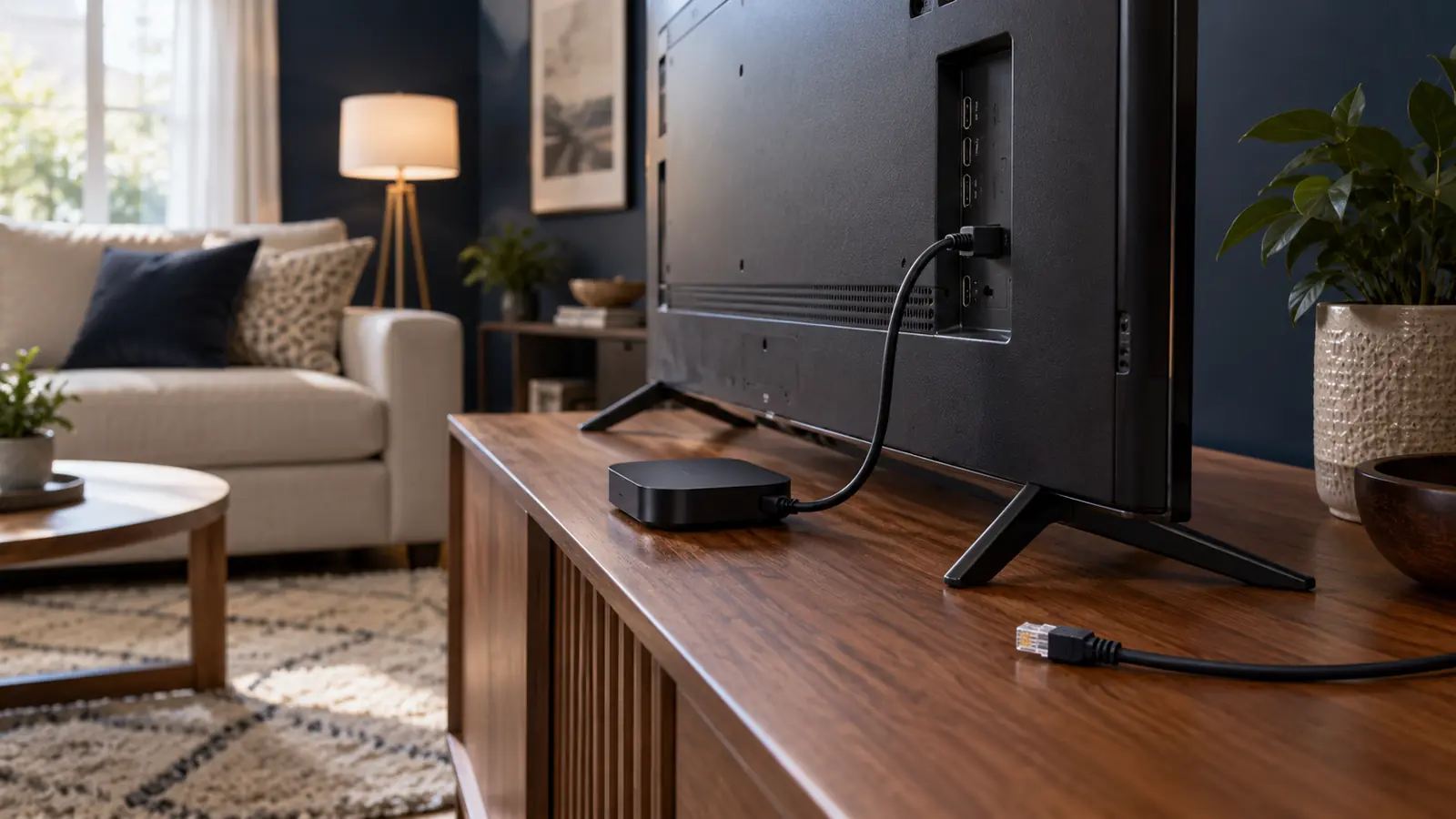
Does an Apple TV or Roku Stop LG’s Viewing Tracking?
An HDMI streaming device does not automatically bypass the TV’s ACR. The television still receives the picture and sound from that input. Independent research on tested LG and Samsung TVs found ACR activity even when they were used as external HDMI displays.
Review the LG privacy controls even if you never open its built-in apps. Then review privacy settings on the streaming device and in its apps separately.
For a stronger separation, you can use a network-connected player while keeping the television itself disconnected from Wi-Fi and Ethernet. Built-in online services will then be unavailable, and you will need a plan for TV firmware updates.
Already have a suitable player? Start with that. Our guide to using a streaming device with a smart TV explains the practical tradeoffs.
If You Cannot Find a Setting
- Check the installed software. An older TV may now have a newer webOS interface.
- Search by label. Look for Privacy & Terms, User Agreements, Advertisement, and Live Plus.
- Check your model’s User Guide. Availability can differ between U.S. models and overseas examples.
- Reopen the menu after saving. Confirm the setting or agreement shows the choice you intended.
- Review new prompts carefully. When an update presents agreements again, read the optional selections.
A factory reset is a poor first step for a missing menu label. It also means working through setup again. Write down the model and software version before asking LG support for the exact route.
Our Recommended Approach
Start with the viewing-information and advertising choices. Then adjust Home-screen promotions if the interface bothers you, and delete stored viewing information if your model offers that option.
You can assess picture quality separately. These privacy menus are not picture presets; for display adjustments, use our LG C5 picture settings or LG C6 picture settings guide.
At TelevisionCafe, our advice is to choose each optional service deliberately, then verify the saved choices on the television you actually own.