
Why Does HDR Look So Dark on Your TV? 10 Fixes That Work
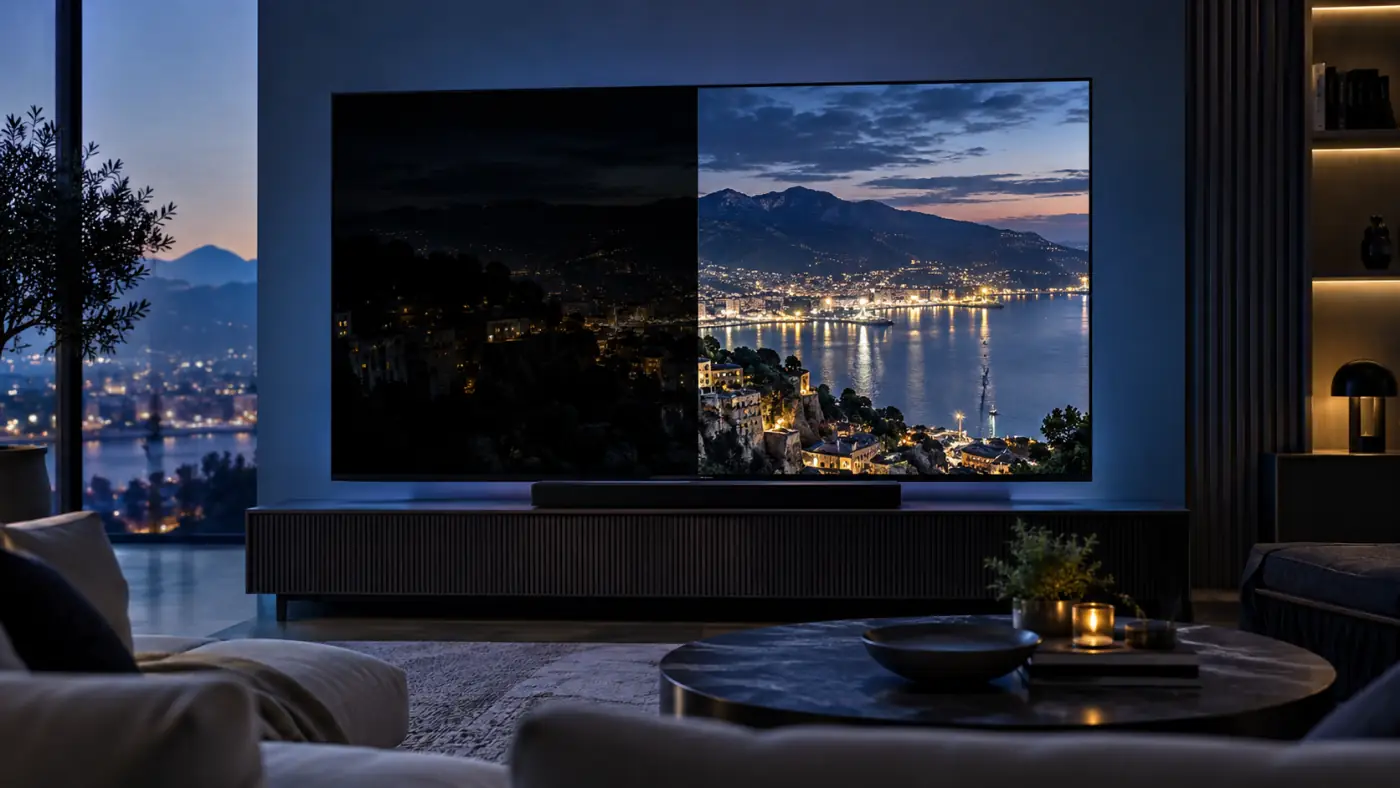
You start a movie labeled HDR or Dolby Vision, expect dazzling highlights and richer color, and get a picture that looks dimmer than ordinary TV. Faces disappear into shadow, daytime scenes feel overcast, and turning on a lamp makes the problem even worse. So why does HDR look so dark?
Sometimes nothing is wrong. HDR is designed to reproduce a much wider range between darkness and intense highlights, not to make every part of every scene brighter. But an overly dark HDR picture can also reveal a poorly chosen picture mode, an active energy-saving feature, incorrect tone mapping, a source problem, or a TV that simply lacks the brightness needed to show demanding HDR content convincingly.
This guide explains how to tell creative intent from a genuine setup problem and shows you how to fix dark HDR without washing out blacks or destroying highlight detail. If you want a broader explanation of the formats first, read our guide to HDR10, HDR10+, Dolby Vision, and HLG.
Why Does HDR Look Dark? The Quick Answer
HDR often looks dark because it preserves brightness headroom for highlights instead of lifting the entire image. The effect becomes excessive when the TV is in an accuracy-focused dark-room mode, Energy Saving is active, tone mapping is too conservative, the room is bright, or the panel cannot produce enough real-world HDR brightness.
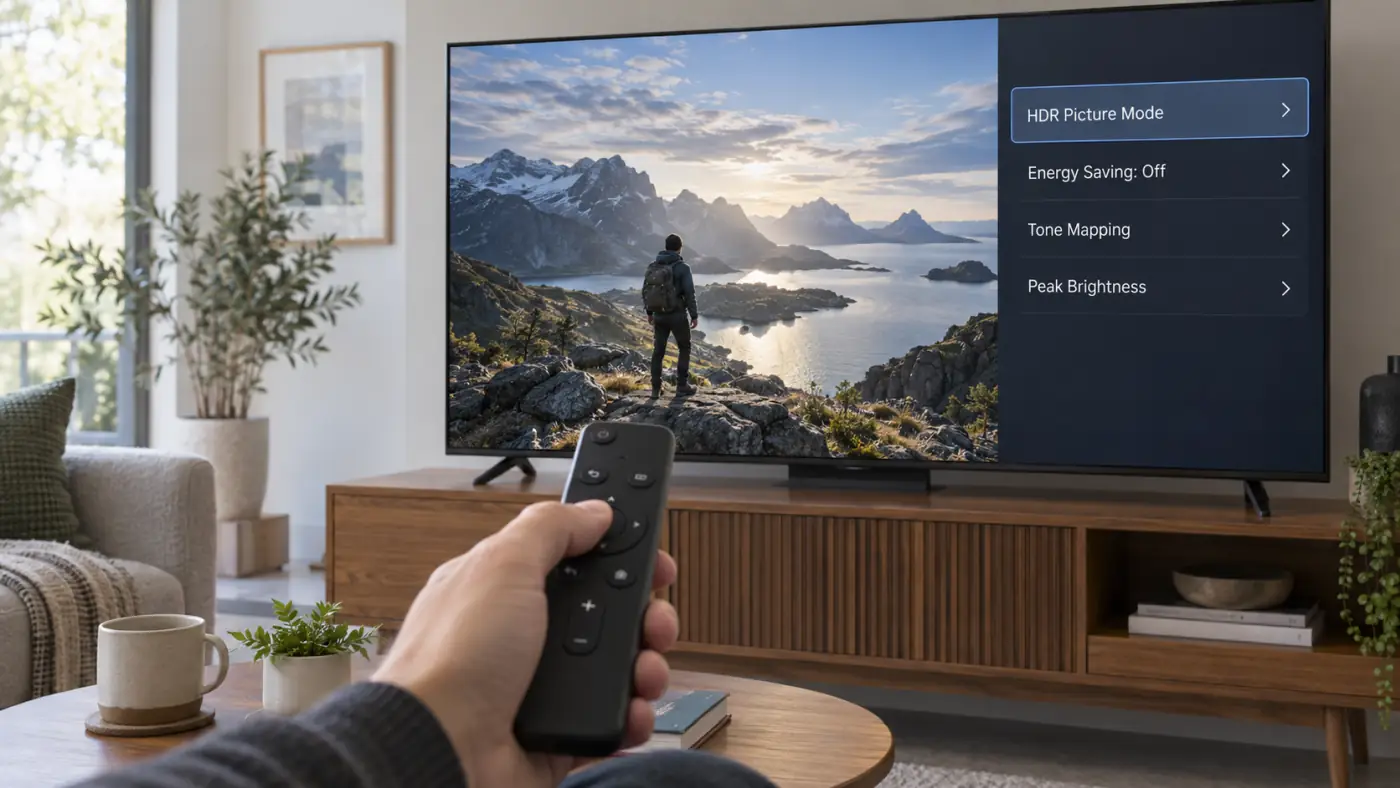
Start here: Play actual HDR content, open the picture settings while it is playing, turn off Energy Saving, confirm that panel brightness and peak brightness are at their HDR defaults, and try the brighter HDR or Dolby Vision preset available on your TV.
HDR Is Not Supposed to Make Everything Brighter
The most common misunderstanding about HDR is that it should resemble an SDR picture with the brightness control pushed higher. That is not how it works.
In SDR, a relatively limited brightness range must represent everything from a black coat to direct sunlight. Many modern TVs also display SDR more brightly than its traditional reference level because viewers enjoy a punchy image in normal living rooms. HDR has a far larger range. It can keep ordinary objects at a comfortable level while using the extra capability for specular highlights such as headlights, reflections, flames, lightning, or sunlight on water.
That means an HDR movie can have darker-looking midtones than a boosted SDR presentation while still producing brighter highlights and retaining more detail at both ends. A dimly lit scene graded to look like a dimly lit scene should not suddenly resemble daytime.
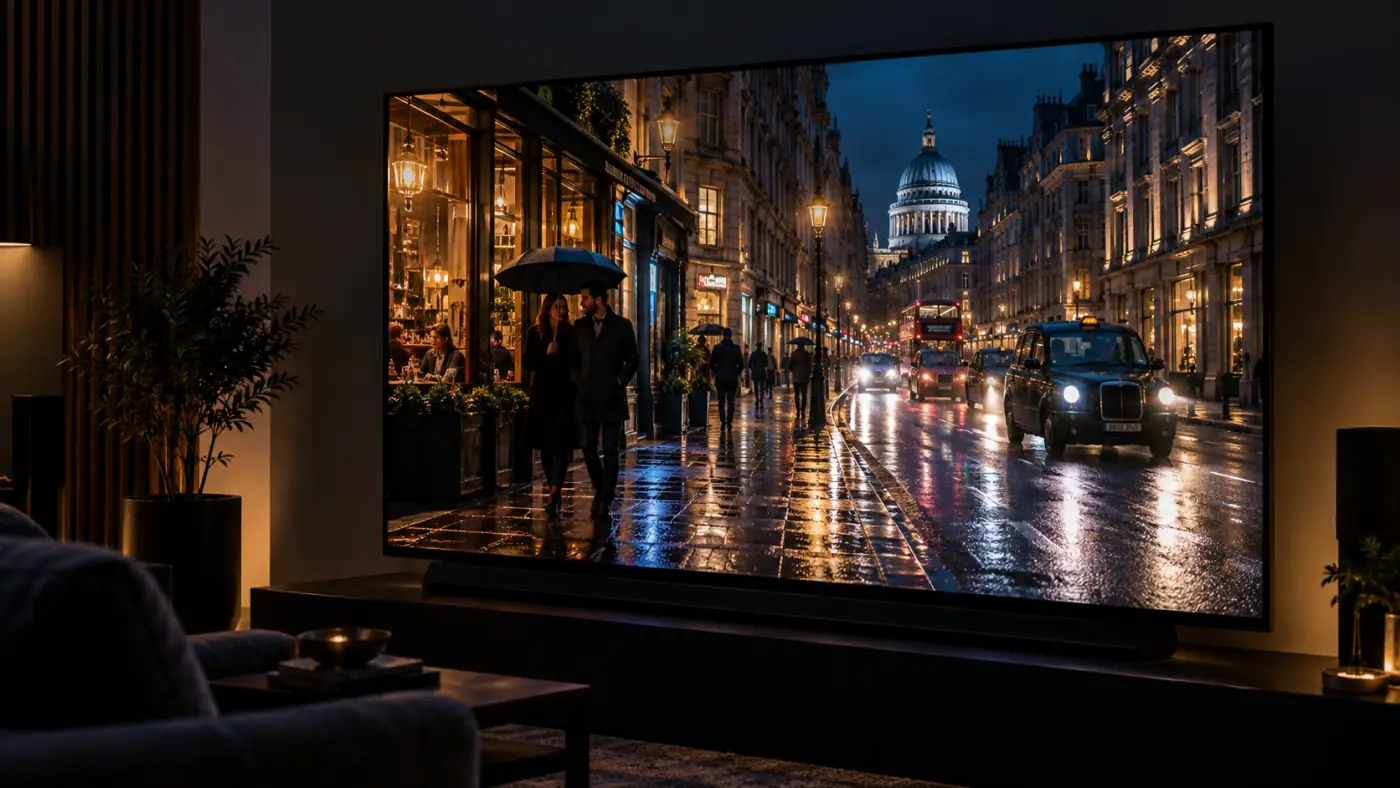
Is the HDR Image Cinematic—or Actually Too Dark?
Before changing settings, compare several pieces of content. One deliberately shadowy drama is not enough to diagnose the television.
| What You See | Likely Explanation | Best First Check |
|---|---|---|
| Bright highlights look impressive, but dark scenes remain dark | Probably normal HDR grading | Watch in lower ambient light |
| Every HDR movie is much dimmer than SDR | Picture mode, Energy Saving, or panel-brightness issue | Open settings during HDR playback |
| Black clothing and hair lose all detail | Crushed blacks or mismatched video range | Set black level and RGB range to Auto |
| Only an HDMI device looks wrong | HDMI format, cable, receiver, or source configuration | Check Enhanced/Deep Color mode |
| HDR games are dark, but HDR movies look normal | Console or in-game HDR calibration | Run the console HDR calibration tool |
1. Adjust the TV While Real HDR Content Is Playing
Many TVs store separate picture settings for SDR, HDR10, Dolby Vision, individual HDMI inputs, and sometimes individual apps. If you change brightness while watching cable TV or an SDR YouTube video, those changes may not affect the HDR movie that looks dark.
Start the problem movie or game first. Confirm that the TV displays an HDR, HDR10+, HLG, or Dolby Vision notification, or check the active signal information in the picture menu. Then open the picture settings without stopping playback.
If the TV never enters an HDR mode, the source may be sending SDR. Check the streaming plan, app quality setting, playback device, HDMI configuration, and whether that exact title is actually offered in HDR. Do not try to repair a dark SDR image with HDR controls that are not active.
2. Choose the Right HDR Picture Mode
Filmmaker, Cinema, Custom, and Professional modes generally aim for an accurate image. In a dark room, that can look excellent. In a sunny living room, the same preset may appear too subdued because ambient light makes shadow detail harder to see.
Try the brighter accurate option before jumping to Vivid mode. Depending on the brand, that may be called Cinema Home, Dolby Vision Bright, HDR Theater, Standard, or a similar name. These modes often raise midtones or adapt tone mapping without applying the extreme color, edge enhancement, and motion processing associated with a showroom preset.
For Dolby Vision, “Dark” usually targets controlled lighting, while “Bright” or “Cinema Home” is intended to remain more visible in an everyday room. Dolby Vision IQ, where available, can use the TV's light sensor and dynamic metadata to adapt the presentation to ambient conditions.
3. Turn Off Energy Saving and Automatic Dimming
Energy-saving controls are among the most common reasons an HDR picture looks unexpectedly dim. They can reduce the panel's light output, respond to the room sensor, or lower brightness after the TV detects certain viewing conditions.
Look for settings such as:
- Energy Saving or Energy Saving Step
- Eco Mode or Power and Energy Saving
- Brightness Optimization
- Ambient Light Detection
- Light Sensor or Auto Brightness
- AI Brightness or Intelligent Picture
Temporarily turn these features off and replay the same scene. If the image immediately improves, enable them again one at a time until you identify the control responsible. Some ambient-light features can be useful, especially with Dolby Vision IQ, so the goal is not to disable every automatic function permanently. It is to prevent two or three systems from dimming the picture at the same time.
4. Check Panel Brightness, Backlight, and Peak Brightness
On an LCD or Mini LED TV, the control may be called Backlight or simply Brightness. On an OLED, it may be OLED Pixel Brightness, Panel Brightness, or a similar name. For HDR, these light-output controls are commonly set close to their maximum by default because the TV needs its available range for bright highlights.
Also look for Peak Brightness, Local Dimming, Local Contrast, or a comparable control. A low setting can significantly reduce HDR impact. High is often appropriate for HDR, although the most accurate choice varies by model and picture mode.
Do not confuse panel light output with the control that establishes the video black level. On some TVs “Brightness” means overall screen output; on others, especially older models, it adjusts the black floor. Raising the wrong control can turn black into gray without making HDR genuinely better.
5. Understand What HDR Tone Mapping Is Doing
HDR movies may contain brightness information beyond what your TV can physically display. Tone mapping translates that large range to the capabilities of the panel. A strong algorithm preserves highlight detail while keeping the rest of the image visible; a conservative one may prioritize bright detail and leave midtones looking darker.
If your TV offers Dynamic Tone Mapping, HDR Tone Mapping, Gradation Preferred, Brightness Preferred, Active Tone Mapping, or a similar option, compare it using the same demanding scene. A brighter or dynamic setting can make HDR10 easier to watch during the day. The tradeoff is that it changes the original brightness relationships and can occasionally make highlights less consistent.
For an accuracy-first movie setup, the default or more neutral tone-mapping option is the logical starting point. For normal daytime viewing, dynamic or brightness-priority mapping may be the better practical choice. There is no prize for using the theoretically pure setting if you cannot see the actors' faces from your sofa.
6. Control the Light in the Room
HDR shadow detail is easiest to see in controlled lighting. Sunlight, ceiling fixtures, and reflections do not change the digital signal, but they raise the visual black floor in the room and reduce your eyes' ability to distinguish subtle near-black detail.
Close blinds, dim overhead lights, and avoid placing a bright lamp directly opposite the screen. A soft bias light behind the television can be more comfortable than watching in total darkness without reflecting directly from the panel.
If most of your viewing happens during the day, use the brighter HDR preset and consider reflection handling and sustained brightness when buying your next television. Our OLED vs Mini LED comparison explains why the best display technology can depend heavily on the room.
7. Protect Shadow Detail Without Washing Out Blacks
If dark areas look like featureless black shapes rather than simply low-light images, check Black Level, HDMI Black Level, RGB Range, Shadow Detail, Gamma, or Black Equalizer settings.
Start with the TV and source both set to Auto. A Full-range RGB source interpreted as Limited can crush shadow detail, while a Limited signal interpreted as Full can make blacks gray and washed out. Auto normally avoids this mismatch.
Raise Shadow Detail or the equivalent control only a small amount. Large changes may reveal objects in the dark, but they can also flatten contrast and expose compression noise that the grade was designed to hide. Gamma adjustments may be useful for SDR, but they are not a universal cure for PQ-based HDR and may be unavailable or behave differently in HDR mode.
8. Check the HDMI Input, Cable, and Source Chain
If built-in streaming apps look correct but a console, streaming box, or 4K Blu-ray player looks dark, focus on that HDMI path.
- Enable the enhanced signal mode for that HDMI input. LG may call it HDMI Deep Color or HDMI Ultra HD Deep Color; Sony commonly uses Enhanced Format. Other brands use similar names.
- Use a suitable Premium High Speed or Ultra High Speed HDMI cable for the required resolution and frame rate.
- If the signal passes through a receiver or soundbar, confirm that the device supports the HDR format and bandwidth you are sending.
- Connect the source directly to the TV as a test. If the picture improves, the intermediate device or its settings are the likely bottleneck.
- Set the source's color range and the TV's black level to Auto before making manual changes.
An HDMI problem does not always produce a blank screen. It can cause the source to fall back to a different format, bit depth, chroma mode, or dynamic range that looks noticeably different.
9. Rule Out the Streaming App or the Content Itself
Not every HDR master is equally bright, and not every streaming version is identical to the disc. Compression can make subtle shadow gradients look rougher, while different services may carry different HDR formats or masters of the same title.
Test a second HDR movie from another app, then compare a built-in TV app with an external streaming device if possible. Confirm that the service is set to its highest video quality and that your subscription tier includes 4K HDR where required. A slow or unstable connection may reduce streaming quality, although it does not normally rewrite the artistic brightness of a properly delivered HDR grade.
If one episode looks abnormally dark while other HDR content looks excellent with the same settings, the television is probably not the problem. Resist the urge to rebuild your entire picture profile around one unusually graded show.
10. Recalibrate HDR Games on the Console and in the Game
Games add another tone-mapping stage. The console may map the HDR signal, the game may have its own paper-white and peak-brightness controls, and the TV may apply additional tone mapping. If those stages disagree, nighttime gameplay can become nearly invisible or highlights can clip into flat white.
Use the built-in HDR calibration tool on PlayStation or Xbox while the TV is already in its HDR Game mode. Then run the HDR setup inside the game if it offers one. Follow the on-screen patterns rather than copying numbers from another TV model.
If you use HGiG, calibrate the console after enabling HGiG so the console or game performs the main tone map for the known capability of the display. HGiG can look darker than a dynamic tone-mapping mode because it avoids an extra brightness lift from the TV. For games without reliable HDR calibration, Dynamic Tone Mapping may be more visually pleasing even if it is less predictable.
When the TV—not the Settings—is the Limitation
“HDR compatible” only means a television can accept and process an HDR signal. It does not guarantee enough brightness, contrast, local dimming precision, or color volume to display that signal with convincing impact.
Entry-level LCD TVs may recognize HDR but lack the peak brightness and local dimming needed to separate small highlights from the rest of the image. The television then has to compress a demanding HDR grade into a narrow physical range, which can make the whole presentation look flat or dim.
OLED televisions have excellent black levels and per-pixel control, but many models reduce output as a larger portion of the screen becomes intensely bright. LCD and Mini LED TVs can often sustain more full-screen brightness, although black level, blooming, viewing angle, and local-dimming behavior vary enormously.
Peak brightness numbers alone do not tell the complete story. Look for measured real-scene HDR brightness, small-highlight brightness, sustained large-area output, black level, and tone-mapping quality. A TV with balanced processing can make HDR look better than a brighter model that mishandles shadow detail.
Best Starting Settings When HDR Looks Too Dark
| Setting | Recommended Starting Point | What to Watch For |
|---|---|---|
| HDR Picture Mode | Filmmaker/Cinema in a dark room; brighter Cinema/Home mode in daylight | Avoid extreme Vivid processing |
| Energy Saving | Off while troubleshooting | Automatic dimming |
| Panel/Backlight Output | HDR default, commonly near maximum | Do not confuse it with black level |
| Peak Brightness/Local Dimming | High or model-appropriate HDR default | Blooming or loss of highlight detail |
| Tone Mapping | Neutral for accuracy; Dynamic/Brightness for a brighter room | Changing creative brightness relationships |
| Black Level/RGB Range | Auto on both TV and source | Crushed blacks or gray blacks |
| Sharpness and Color | Leave near the accurate preset defaults | These do not fix low luminance |
Menu names and ideal values vary by brand, model, firmware, input, and HDR format. Change one setting at a time and use the same scene for every comparison.
Why HDR Looks Dark: Frequently Asked Questions
Why does HDR look darker than SDR on my TV?
HDR does not try to make the entire image uniformly brighter. It preserves a wider luminance range and reserves more output for intense highlights. SDR may also be displayed above its traditional reference brightness, making it look brighter overall even when HDR has more highlight detail.
Should brightness be set to maximum for HDR?
The panel-light control is commonly near maximum in HDR mode, but names differ by manufacturer. Do not automatically maximize a control that adjusts the black floor rather than panel output. Begin with the HDR preset's default values and consult the manual for your model.
Should Dynamic Tone Mapping be on or off?
Off or a neutral setting is usually the accuracy-first starting point. Turning Dynamic Tone Mapping on can lift midtones and improve daytime visibility, but it may alter the brightness relationships intended by the content creator. Compare both with the same scene.
Why is Dolby Vision so dark?
You may be using Dolby Vision Dark or Cinema, which is intended for controlled lighting. Try Dolby Vision Bright, Cinema Home, or Dolby Vision IQ if your TV offers it. Also disable Energy Saving and confirm that the active Dolby Vision profile has not inherited unusual settings.
Why is Netflix HDR too dark?
Test another HDR title and another streaming app first. If only one show is dark, its grade may be responsible. If all Netflix HDR content is dark, adjust the HDR or Dolby Vision picture mode while the video is playing and verify the app, plan, playback quality, and device settings.
Why do HDR games look darker than HDR movies?
The console, game, and TV can each apply tone mapping. Put the TV in HDR Game mode, run the console's HDR calibration, and then adjust the game's own HDR controls. Recalibrate after changing between HGiG and Dynamic Tone Mapping.
Does HDR look better in a dark room?
Dark-room viewing makes subtle shadow detail and contrast easier to see, especially with accuracy-focused movie modes. HDR can still look excellent in daylight, but the TV needs sufficient brightness, good reflection handling, and a picture mode suited to the room.
Is my TV bright enough for real HDR?
HDR compatibility alone does not guarantee strong HDR performance. A capable HDR TV needs useful peak and real-scene brightness, good contrast, appropriate local dimming or pixel-level control, wide color capability, and effective tone mapping.
Final Verdict: Dark HDR Is Not Always Broken HDR
HDR can look darker than expected because it is built around contrast and highlight headroom, not nonstop full-screen brightness. A nighttime scene may be behaving exactly as intended. But if every HDR movie looks dull, start the content first, disable Energy Saving, choose a room-appropriate HDR mode, check panel and peak-brightness controls, and compare the available tone-mapping options.
Then isolate the source. Built-in apps, HDMI devices, streaming services, and game consoles can use different picture memories and calibration paths. Once those variables are separated, it becomes much easier to decide whether the issue is a setting, the content, the room, or the physical limit of the display.
At TelevisionCafe, our advice is simple: preserve the deep blacks and bright highlights that make HDR special, but do not be afraid to use a brighter, well-balanced mode when real-world viewing conditions demand it.