
TV Upscaling Explained: Why Some Shows Look Better
You put on a recent drama and the picture looks crisp. Switch to an older sitcom, a live game, or a different streaming app, and the same TV suddenly looks soft. Faces lose texture, grass turns into a green smear, and turning up sharpness barely helps.
That does not automatically mean your TV has bad upscaling. The television can only work with the picture it receives, and two shows labeled “HD” can arrive with very different amounts of usable detail.
This guide explains what TV upscaling actually does, why some shows respond better than others, and how to improve lower-resolution content without making everything look overprocessed.

What Is TV Upscaling, and How Does It Work?
A typical 4K UHD television has a 3840 × 2160 pixel panel. A 1080p video contains a 1920 × 1080 pixel image. To display that video across the corresponding screen area, something in the playback chain has to scale it to the panel’s resolution.
Basic scaling calculates additional pixel values from the surrounding picture. More advanced processing analyzes edges, textures, and patterns to produce a cleaner enlargement. Depending on the system, it may also use information from neighboring frames.
The goal is to make the image fit while keeping lines, faces, and fine patterns looking natural. The TV is calculating how the larger image should look; it is not receiving a new, higher-resolution recording.
| Source | Image Dimensions | Scaling to 4K UHD |
|---|---|---|
| 720p HD | 1280 × 720 | 3× the width and height; 9× the pixel count |
| 1080p Full HD | 1920 × 1080 | 2× the width and height; 4× the pixel count |
| 2160p 4K UHD | 3840 × 2160 | No resolution enlargement needed for a matching full-frame image |
Those ratios describe the pixel grids, not an increase in genuine captured detail. Four times as many output pixels does not mean four times as much information about the scene.
Upscaled 1080p vs. Native 4K: What Is the Difference?
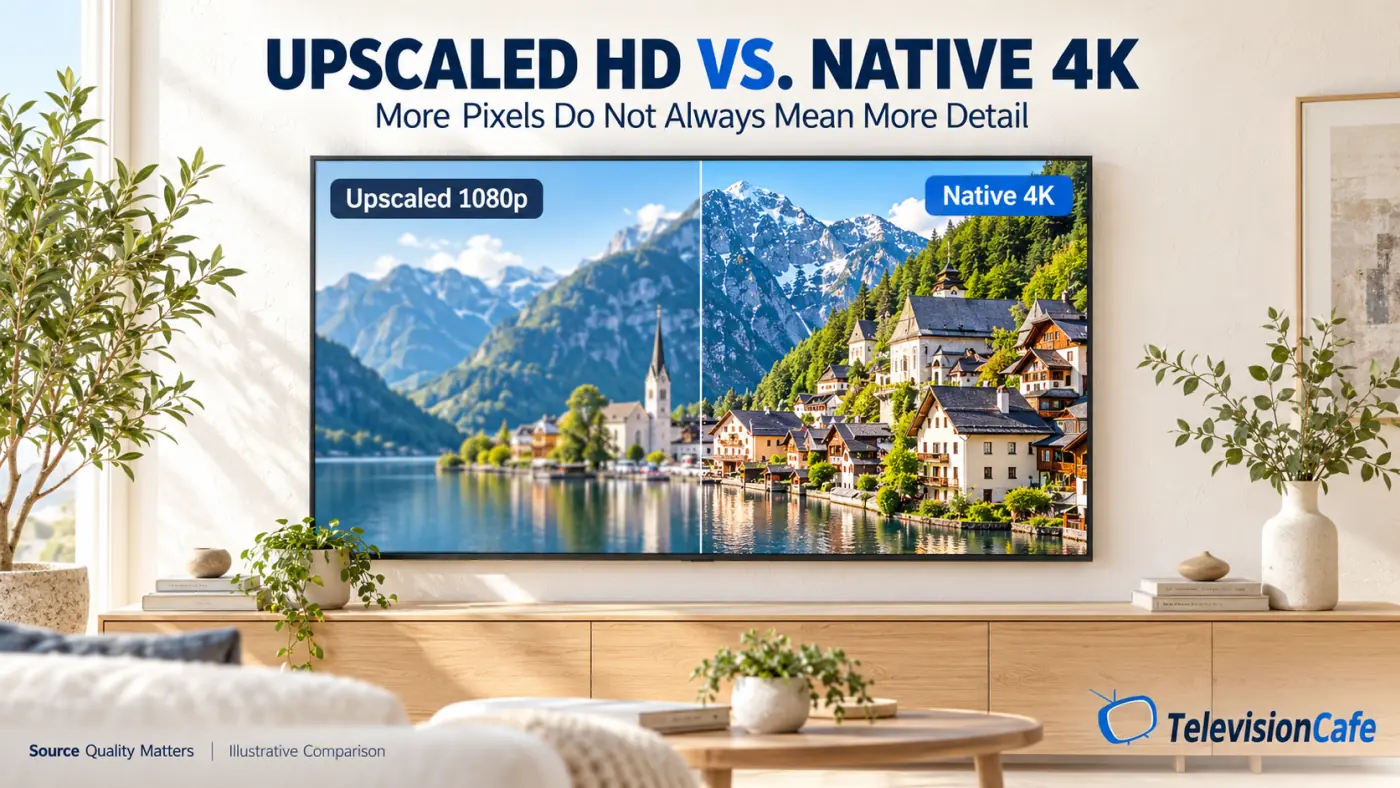
Upscaled 1080p starts with a smaller image and calculates the extra pixels needed for 4K output. Native 4K source material can carry finer information before it reaches the TV, provided the capture, production, and delivery preserve it.
Look at hair, fabric, distant signs, and closely spaced lines. Upscaling may make those areas look more defined, but it cannot guarantee the same accurate detail as a well-produced 4K source.
That does not make every 4K stream better than every 1080p stream. A clean HD image can look more pleasing than a heavily compressed 4K image. Resolution describes the image dimensions; it does not grade the quality inside them.
Why Two HD Shows Can Look Completely Different
Imagine two 1080p shows. One has a clean master with focused faces and well-preserved textures. The other comes from a soft transfer with compression damage. Both have the same image dimensions, but the first gives the upscaler much more useful information.
Several things influence the result before your television gets involved:
- The original recording: Focus, lighting, camera choices, and production style affect how much visible detail exists.
- The master or transfer: A good restoration and a poor older transfer can look very different.
- The delivered stream: Encoding and the selected playback quality determine how much of that picture survives.
- The shot itself: An intentionally blurred background should remain blurred. Sharpening it does not make the image more faithful.
Judge focused parts of several scenes. A wide daylight shot and a dim, shallow-focus close-up are not equally useful tests of your TV’s processing.
Compression: Why Grass, Smoke, and Dark Scenes Fall Apart
Streaming video is compressed to reduce the amount of data that needs to reach your device. When too much visible information is lost, you may see blocky patches, smeared textures, or unstable detail around moving objects.
Busy scenes can expose those weaknesses. A quiet interview may look clean, while a moving crowd or a field of grass looks messy on the same service. Upscaling enlarges the delivered picture, including any damage already in it.
Bitrate is the amount of video data delivered per second, but a higher number is not an automatic quality win. Codec efficiency and encoding choices matter too. Comparing bitrates across different formats without that context can be misleading.
A faster internet connection can help when your app is reducing quality because the connection is inadequate. It cannot improve a stream beyond the version the service supplies. If Netflix is the main problem, start with our guide to why Netflix looks blurry on a 4K TV.

Why Older Shows Can Look Great - or Stay Soft
A show’s age does not tell you everything about its picture. A film-based production may benefit from a new scan of surviving film elements. A version derived from a low-resolution video master has different limits.
A restoration changes the source available to you. Your TV’s upscaler changes how that source is displayed. The two processes should not be confused.
Film grain also deserves a little patience. It can be part of the intended image, and preserving it through streaming compression is demanding. A grainy movie is not automatically a bad stream or a sign that the TV needs stronger noise reduction.
Watch what happens to faces and clothing when you increase cleanup settings. If the picture becomes smoother but skin loses its texture, you may be removing detail you actually want.
1080i vs. 1080p: Why Broadcast Processing Matters
Some broadcast and set-top-box sources use interlaced video, such as 1080i. The “i” means alternating sets of scan lines arrive as separate fields. Progressive video, such as 1080p, represents complete frames.
Before interlaced video can be shown correctly on a modern flat-panel TV, the playback chain must convert it into progressive frames. That step is called deinterlacing, and it is separate from enlarging the image to 4K.
Poor handling can leave moving edges looking rough or showing comb-like lines. Depending on the output setting, the set-top box may perform the conversion before the TV receives the signal.
If a game looks reasonably sharp when the camera stops but soft during a pan, resolution scaling may be only one part of the problem. Our guide to TV motion blur and blurry sports explains the other causes to check.
Does AI Upscaling Actually Make a Difference?
It can, but “AI” on the box does not tell you how good the result will be. Learning-based upscalers use trained models to help estimate higher-resolution edges and textures from lower-resolution input.
With suitable material, that can produce a more convincing image than basic scaling. The useful question is whether the enhancement looks natural when people move, not just whether a paused frame looks sharper.
Watch for bright outlines, exaggerated texture, or detail that changes oddly between frames. Increasing the effect may emphasize the wrong parts of the picture.
AI processing can estimate plausible detail. It cannot verify exactly what was in the original scene after that information has been lost. Treat it as a display enhancement, not a replacement for a better source.
TV Settings That Can Improve Upscaled Content
Start with a Movie, Cinema, or Filmmaker preset if available, then compare the same scene from your normal seat. These are useful baselines; they do not guarantee identical settings across TVs.
Change one control at a time. A cleaner picture should still preserve faces, fabric, and movement.
- Sharpness: Start near the preset’s default or the model’s documented neutral setting. Reduce it if you see outlines. Zero is not universally neutral.
- Detail enhancement or super resolution: Compare Off with a modest setting. Keep the effect only if it improves the image during playback.
- Noise reduction: Try Off or Low on clean material. Increase cautiously for a noisy source, and check for smeared moving faces.
- Compression noise reduction: Test a low setting when blockiness or noise around edges is distracting.
- Smooth gradation: If available, compare a low setting when skies or shadows show visible bands.
Motion interpolation is a separate adjustment. Test it separately rather than treating smoother motion as proof of better upscaling. Our TV refresh-rate guide explains how panel refresh rate differs from the incoming video.
Make adjustments while the problem content is playing. Different apps, inputs, and SDR or HDR modes may use different picture settings.

Should the TV or Streaming Device Handle Upscaling?
If an external device converts an HD video to 4K, the TV receives an already-scaled image. It can still apply other picture processing, but the initial resolution enlargement happened upstream.
If the device sends a lower-resolution signal, the TV must scale that input for its 4K panel. Which approach looks better depends on the specific TV, source device, content, and settings.
Where your device allows it, compare 1080p and 4K output using the same HD scene. Also compare its app with the TV’s built-in app. Keep picture presets as similar as possible; otherwise, you may be comparing settings or different streams rather than the scalers.
Use equipment you already own for the comparison before buying another streaming box. A difference between playback paths is a clue to investigate, not proof that one device always has better upscaling.
How to Tell Whether the Source or Your TV Is the Problem
Use this short check before changing a dozen settings:
- Play a known good-quality title. If it looks clean, the TV can display a good image through that playback path.
- Compare another episode or channel. A problem limited to one feed points toward that source.
- Check the app’s playback quality and connection. Give an adaptive stream time to settle before judging it.
- Compare processing settings. Test sharpness, enhancement, and noise reduction individually.
- Compare another playback path. Use the same scene through the TV app and an external device, if available.
A consistently soft show suggests a source limitation. Detail that breaks up mainly during movement suggests compression or motion-related issues. Smearing that appears after increasing noise reduction gives you a setting to reverse.
If menus, several good-quality sources, and the TV’s built-in picture test all look wrong, use the manufacturer’s diagnostics or support. A single fuzzy channel is a much weaker reason to suspect a hardware fault.
Does a Bigger or More Expensive TV Upscale Better?
A larger screen can make source flaws easier to see from the same seat because the image fills more of your view. A broadcast that looked acceptable on a smaller set may reveal its limitations after a size upgrade.
Use our TV size and viewing-distance guide to balance immersion with the quality of what you usually watch.
OLED, QLED, and Mini LED labels do not identify an upscaling winner. Upscaling belongs to the processing system; panel characteristics affect other parts of the picture. Likewise, a premium price alone does not establish better handling of every source.
For shopping, look for independent tests of the exact model that separate resolution scaling from low-quality content cleanup. If you watch mostly cable, older series, or compressed live TV, give those results real weight. Our TV buying guide helps put processing alongside size, room lighting, and budget.
What Should You Expect From Good TV Upscaling?
Good upscaling should let you enjoy HD content on a 4K screen with natural edges and convincing detail. It should not need thick outlines or aggressively smoothed faces to look impressive.
The biggest improvement may come from finding a better version of a show or correcting playback quality. After that, modest processing adjustments can help the TV make the most of the source.
At TelevisionCafe, our advice is to start with the program and playback path, then adjust the picture. If one show looks fantastic and another looks rough, first check what each is actually delivering.
TV Upscaling: Frequently Asked Questions
Do 4K TVs upscale 1080p automatically?
Yes. A 4K TV scales a 1080p input to its panel resolution for normal full-screen viewing. If a connected device has already converted the video to 4K, that device performed the initial upscale. Optional enhancement settings are separate from the scaling needed to fit the screen.
Can TV upscaling make 720p look like native 4K?
It can make 720p look cleaner and more pleasing, but it cannot reliably reproduce the accurate fine detail of a good native 4K source. Results depend on the source, processing, screen size, and viewing distance.
Can I turn off upscaling on my 4K TV?
You can often disable optional AI or detail enhancement. Lower-resolution video still needs scaling to fill the corresponding area of a 4K panel. Turning off enhancement does not normally disable that basic operation.
Is upscaling the same as increasing sharpness?
No. Upscaling changes the image’s pixel dimensions. Sharpness generally adjusts edge emphasis. They can be used together, but raising sharpness does not turn a lower-resolution source into genuine 4K material.
Does upscaling turn SDR into HDR?
No. Resolution scaling and dynamic-range conversion are different processes. Some TVs offer SDR-to-HDR enhancement, but enlarging the image alone does not create HDR or reproduce a professionally mastered HDR version.
Will faster internet fix blurry upscaled video?
It can help if an inadequate connection is forcing the app to deliver a lower-quality stream. It cannot fix a poor master or remove compression already present in the service’s best available version.
Which TV brand has the best upscaling?
Compare specific models rather than assigning one winner to an entire brand. Look for testing with clean lower-resolution video, compressed sources, and moving detail. Different processing tasks can produce different winners.