
HDMI ARC/eARC Not Working? 12 Fixes for No Sound and Dropouts
You turn on the TV, the picture looks fine, and the soundbar is silent. Or the audio works until you switch to a game console, launch an app, or wake everything from standby. HDMI ARC and eARC are convenient when they behave, but a single wrong port or setting can break the connection.
Start with the quick checks below. Then use the symptom-specific sections to find out whether the trouble is the cable, the TV, the soundbar, or the audio format.
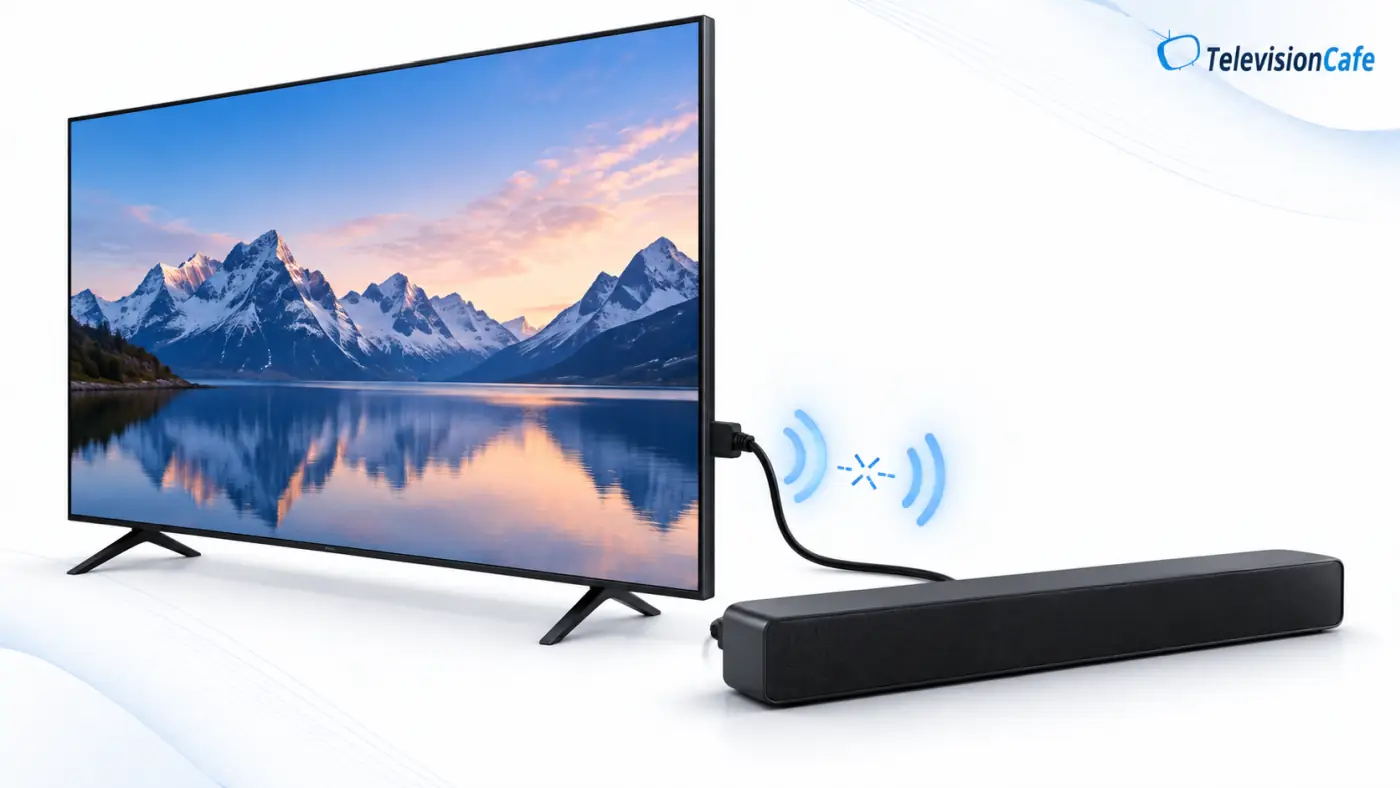
Quick fix: check these five things first
- Connect the TV's HDMI ARC/eARC port to the soundbar or receiver's HDMI OUT (ARC/eARC) port.
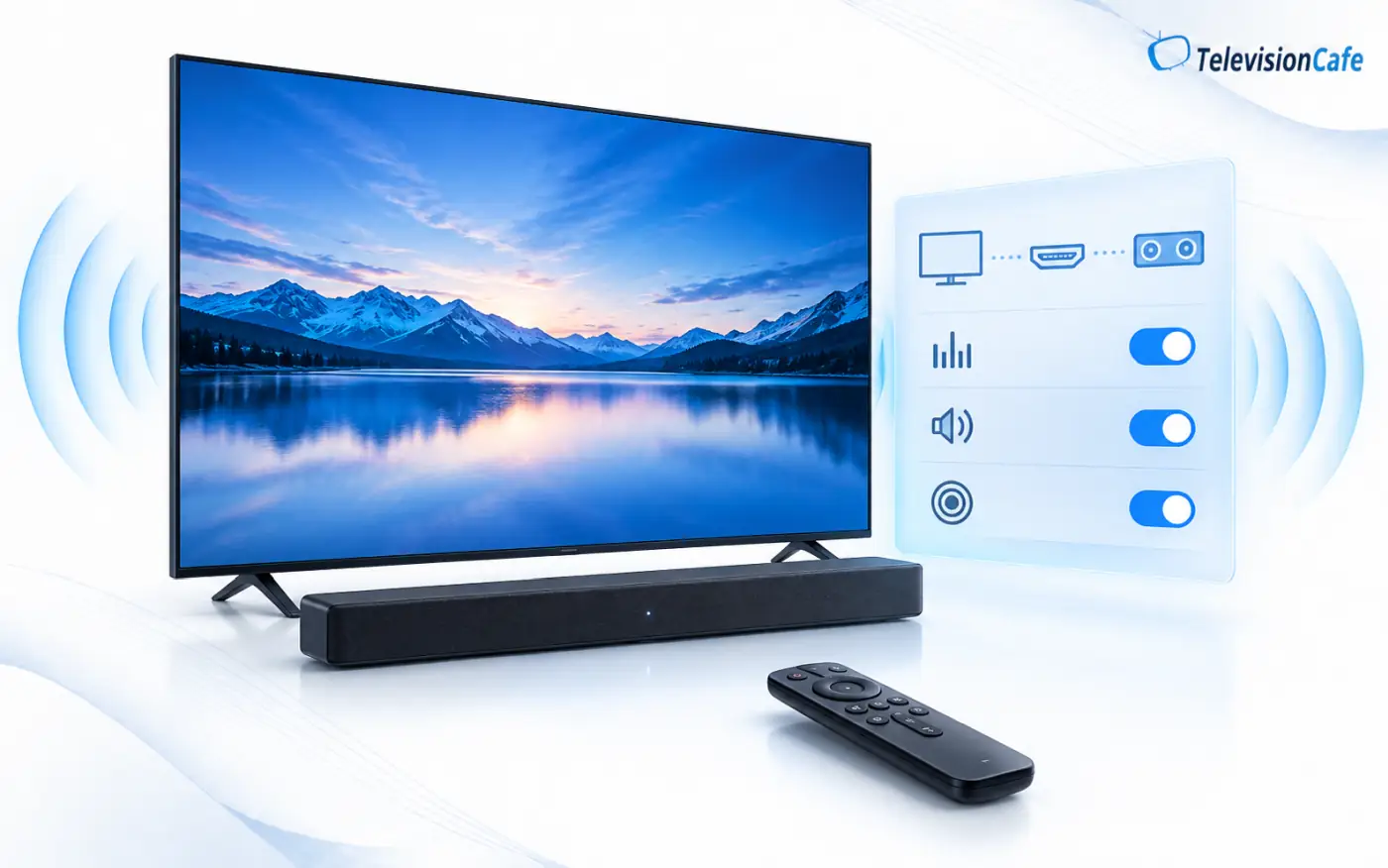
- Select the external audio system in the TV's sound output menu and the TV/ARC/eARC input on the soundbar.
- Enable HDMI-CEC on the TV and audio system. The menu may call it Anynet+, SIMPLINK, or BRAVIA Sync.
- If both devices support eARC, enable the TV's eARC setting, often labeled Auto.
- Power off both devices, unplug them from power briefly, reconnect the HDMI cable firmly, and turn them back on.
If there is still no sound, play a built-in TV app before testing a console or streaming stick. That one comparison narrows the problem quickly.
ARC vs. eARC: what actually matters?
ARC (Audio Return Channel) sends TV audio back to a soundbar or AV receiver over the same HDMI connection used for video from the receiver. eARC (enhanced Audio Return Channel) does the same job with enough capacity for higher-bitrate formats, including lossless Dolby TrueHD and multichannel uncompressed PCM, when the whole setup supports them.
A common misconception: Dolby Atmos does not automatically require eARC. Some streaming services deliver Atmos in Dolby Digital Plus, which can work over ARC on compatible equipment. Lossless Atmos carried in Dolby TrueHD, and some other high-bandwidth audio formats, need eARC for the TV-to-audio-system connection. A TV can also limit which formats it passes through, regardless of the logo on its HDMI port.
Remember: ARC/eARC describes the return path from the TV to your audio system. A console connected directly to a soundbar's HDMI input uses a different signal path, so the result can change when you move the console to a TV input.
1. Use the right HDMI ports on both devices
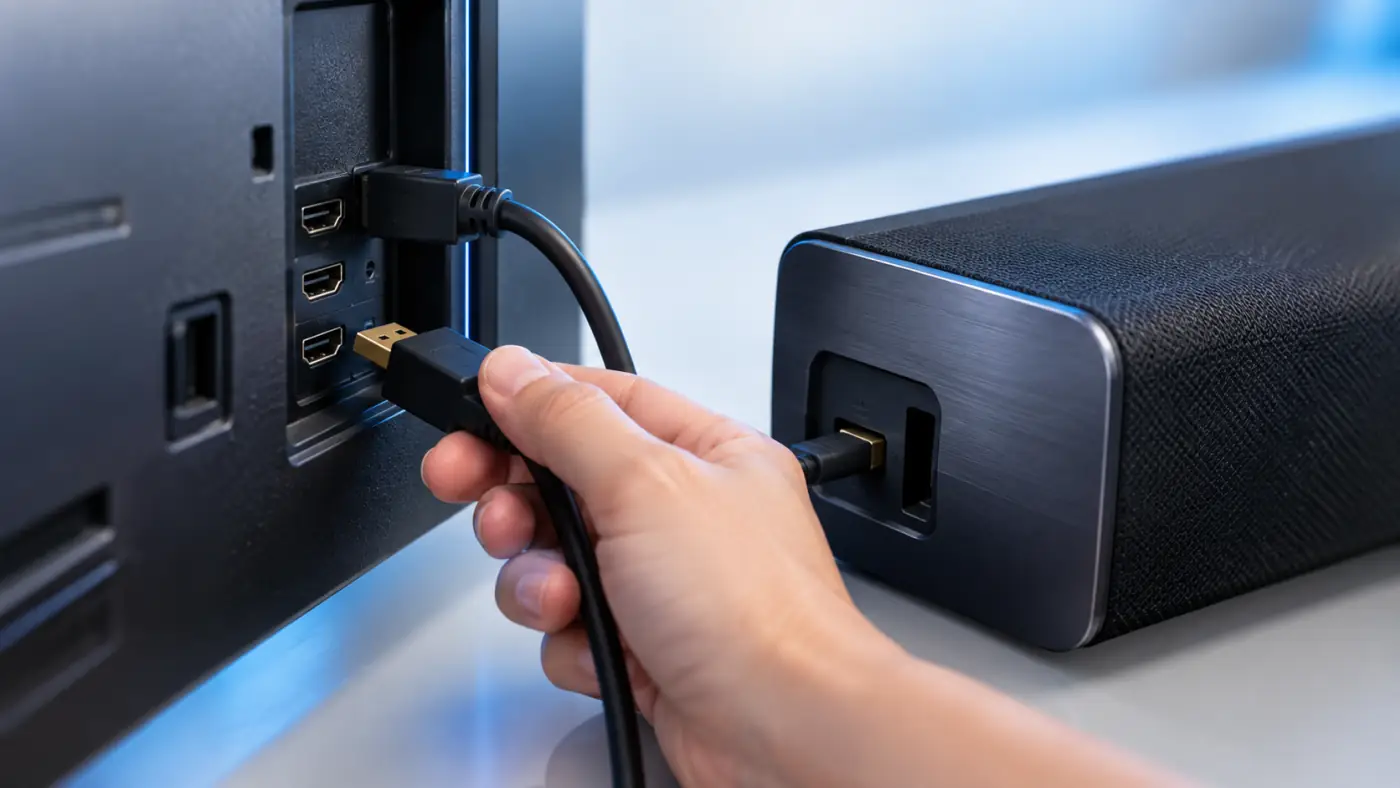
Look at the labels beside the physical ports, not just the number in the TV's input list. The TV end must go into a port marked ARC or eARC. On a soundbar or receiver, use the HDMI output marked TV OUT, ARC, or eARC. A soundbar's ordinary HDMI IN port is usually intended for a player or console, not for returning sound from the TV.
Even if your TV has several HDMI inputs, only certain ones may support audio return. If your TV and soundbar each have eARC, connect the labeled eARC ports on both ends.
2. Select the TV's external speaker and the soundbar's TV input
Plugging in the cable does not guarantee that the TV will stop using its own speakers. Open the TV's sound menu and choose a setting such as HDMI ARC, HDMI eARC, Receiver, or Audio System. On the soundbar, switch to TV, ARC, eARC, or the maker's equivalent input. Check that the soundbar is not muted and raise its volume with its own remote for the initial test.
If the soundbar display says HDMI 1 or HDMI 2, it may be listening to a source connected directly to the bar instead of the TV's return channel.
3. Turn on HDMI-CEC, then check the eARC setting
HDMI-CEC helps the TV and audio system discover and control each other. Many TVs require it for their ARC/eARC setup. Manufacturers give it different names: Anynet+ on Samsung TVs, SIMPLINK on LG TVs, and BRAVIA Sync on Sony TVs. Enable the corresponding HDMI control option on the soundbar or receiver too.
If your equipment supports eARC, find the TV's separate eARC or HDMI eARC Mode setting and try Auto. Menu locations vary by model and software version. If you are pairing an eARC TV with an older ARC-only soundbar, try switching eARC off temporarily to test the standard ARC connection.
4. Restart the connection in a controlled order
A failed HDMI handshake can survive an ordinary standby cycle. Turn off the TV and soundbar, unplug both from the wall, and disconnect the HDMI cable at both ends. Reconnect the cable firmly, restore power, turn on the TV and soundbar, and select the correct audio output and input again.
For this test, disconnect other HDMI devices from the TV. If ARC works with only the soundbar connected, add the other devices back one at a time. A connected player or console can sometimes interfere with HDMI-CEC control.
5. Swap the HDMI cable before changing ten more settings
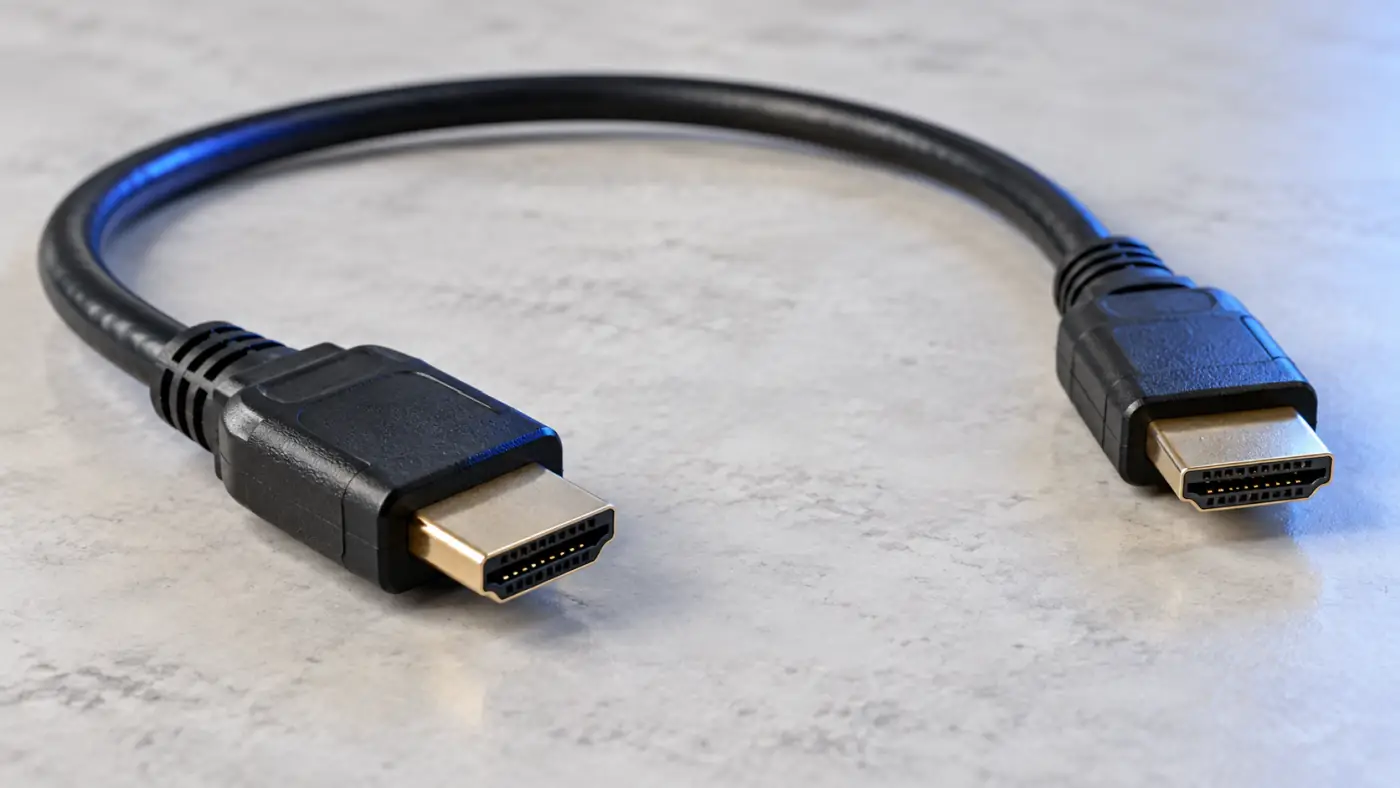
A cable can carry video yet still cause an unreliable ARC/eARC connection. Try a short, known-good HDMI cable directly between the TV and soundbar. Bypass wall plates, switches, couplers, and adapters while testing. If the cable is directional or active, check its marked ends and the manufacturer's ARC/eARC support.
You do not need to buy an expensive cable just because the box says “8K.” For a straightforward replacement, a certified Ultra High Speed HDMI cable is a clear choice; the official certification label is more useful than vague marketing claims. Existing good-quality cables may also work with eARC, so test what you already own first.
6. Test PCM to isolate an audio-format mismatch
In the TV's digital audio output menu, temporarily choose PCM and replay the same scene. If sound returns, the HDMI connection is probably working, but the previous bitstream or passthrough format may not be supported somewhere in the chain. Change back to Auto or Pass-Through and check the TV, source, and soundbar's supported formats one setting at a time.
Diagnostic tip: PCM is a test, not a universal best setting. Depending on your TV and connection, selecting it can change multichannel audio to stereo or prevent the soundbar from receiving an Atmos bitstream. Recheck your preferred format after the sound is stable.
7. If TV apps work but your console or streamer is silent
When Netflix or another built-in app has sound but an HDMI source does not, the TV-to-soundbar link is already working for at least one source. Focus on the external device. Check its audio output setting and try a widely supported format such as stereo PCM first. Then test its Dolby or surround settings individually.
On the TV, look for a digital audio output option such as Auto or Pass-Through. Some TVs cannot pass every audio format they receive from an HDMI device. If a particular console, Blu-ray player, or streaming box still fails, connect it to a suitable HDMI input on the soundbar or receiver, if available, and test again. Check that this input supports the video features you need before keeping that wiring.
8. If Atmos is missing but ordinary sound works
First, confirm that the scene or app actually offers Atmos and that the soundbar or receiver reports the incoming format. Check the streaming plan and playback device where applicable. Enable eARC when both the TV and audio system support it, then try the TV's Auto or Pass-Through audio setting.
For streaming Atmos delivered in Dolby Digital Plus, compatible ARC equipment can be enough. For lossless Dolby TrueHD Atmos from a compatible disc player, eARC is generally needed when the player is connected to the TV first. If your TV will not pass the format, a direct player-to-receiver connection may solve it.
9. If sound cuts out, crackles, or disappears after standby
Recheck the cable seating at both ends and test another short cable. Update the TV and soundbar firmware using each maker's official instructions. If the problem began after adding a new HDMI device, remove it and test again before changing the entire audio setup.
Dropouts limited to one app or source point toward that app's audio format, the external device, or its HDMI connection. Dropouts across every source, including built-in TV apps, put the TV-to-soundbar link and its settings higher on the suspect list.
10. If audio is delayed or the TV remote will not control volume
For lips that do not match speech, try the TV or soundbar's AV Sync or Audio Delay control in small steps. Compare a built-in TV app with an external source: if only one device is out of sync, inspect that device's output settings. As a diagnostic, try changing Pass-Through or eARC mode, knowing that this may alter the audio format.
If sound plays normally but the TV remote does not change the soundbar volume, recheck HDMI-CEC on both devices. Remote volume control and audio return are related parts of the setup, but one can fail while the other continues to work.
11. Check compatibility before blaming the hardware
Look up the exact model numbers of your TV and soundbar. Check whether each supports ARC or eARC, which audio formats the TV can pass through, and which formats the soundbar can decode. An eARC port does not guarantee that the TV supports every codec. Also confirm that a soundbar advertising Atmos can receive it through the connection you are using.
If the TV supports only ARC, an eARC soundbar may still play through ARC when its manual allows that fallback. You should not expect the ARC link to carry lossless formats simply because the soundbar supports them elsewhere.
12. Know when to try optical audio—or seek a repair
If HDMI ARC remains unstable, a TV's optical output can be a useful fallback when both devices have optical ports. Select Optical on the TV and soundbar and check the supported audio formats. Optical has different format and control limitations, so it is best treated as an alternative connection rather than an eARC replacement.
If a known-good cable, clean two-device connection, correct ports, proper settings, and firmware updates still produce no sound, check the devices' manuals for a reset procedure or contact the relevant manufacturer with both model numbers and the results of your tests. A factory reset should be a last resort because it erases your saved settings.
HDMI ARC/eARC troubleshooting: frequently asked questions
Why is there no sound from my soundbar over HDMI ARC?
Check that the TV's ARC/eARC port runs to the soundbar's HDMI OUT (ARC/eARC) port. Then select the soundbar as the TV's audio output, choose its TV/ARC input, enable HDMI-CEC, and restart both devices. Test another HDMI cable if needed.
Does eARC need an HDMI 2.1 cable?
Not necessarily. Some existing HDMI cables can carry eARC, and a certified Ultra High Speed HDMI cable is a straightforward option when replacing an unreliable cable. The ports and features on both devices matter too; a new cable cannot add eARC to an ARC-only TV.
Can Dolby Atmos work over regular ARC?
Yes, when the devices support Atmos carried in a compatible compressed format such as Dolby Digital Plus. Higher-bandwidth formats such as Dolby TrueHD Atmos generally require eARC for the return path from the TV.
Why does sound work in TV apps but not on my PS5, Xbox, or streaming device?
The TV-to-soundbar connection is likely functioning. Test the external device with stereo PCM, then check its surround format and the TV's audio passthrough support. You can also test a direct connection to a compatible soundbar or receiver input.
Should I turn eARC off if my soundbar only supports ARC?
Try it as a troubleshooting step. Some TVs offer an eARC Auto setting and fall back to ARC on their own, while others behave better with eARC disabled when paired with an ARC-only audio system.
The bottom line
Most ARC/eARC problems become easier to solve when you test one link at a time. Confirm the labeled ports, select the correct speaker and input, enable the relevant HDMI controls, and test a built-in TV app. If that works, move outward to the source device and audio format. A few deliberate checks can save you from replacing a perfectly good soundbar.
For more practical setup help, explore TV Setup and Accessories at TelevisionCafe.