
HDMI Cable Guide: What You Need for 4K, 120Hz & eARC
For 4K at 120Hz, buy a certified Ultra High Speed HDMI cable. For typical 4K at 60Hz connections, a certified Premium High Speed HDMI cable is usually enough. For an eARC soundbar, Ultra High Speed is a straightforward new-cable choice, but eARC itself doesn't require 48Gbps of video bandwidth.
The confusing part is the packaging. You'll see “8K,” “gaming,” and “HDMI 2.1” everywhere, even when the useful detail is the cable's official certification. A bigger number also won't fix a TV input or soundbar that doesn't support the signal you're trying to send.
Before you buy: If your current cable delivers the resolution, refresh rate, HDR, and audio format you want without dropouts, keep it. Upgrade to solve a specific limitation, not because the packaging promises a better picture.
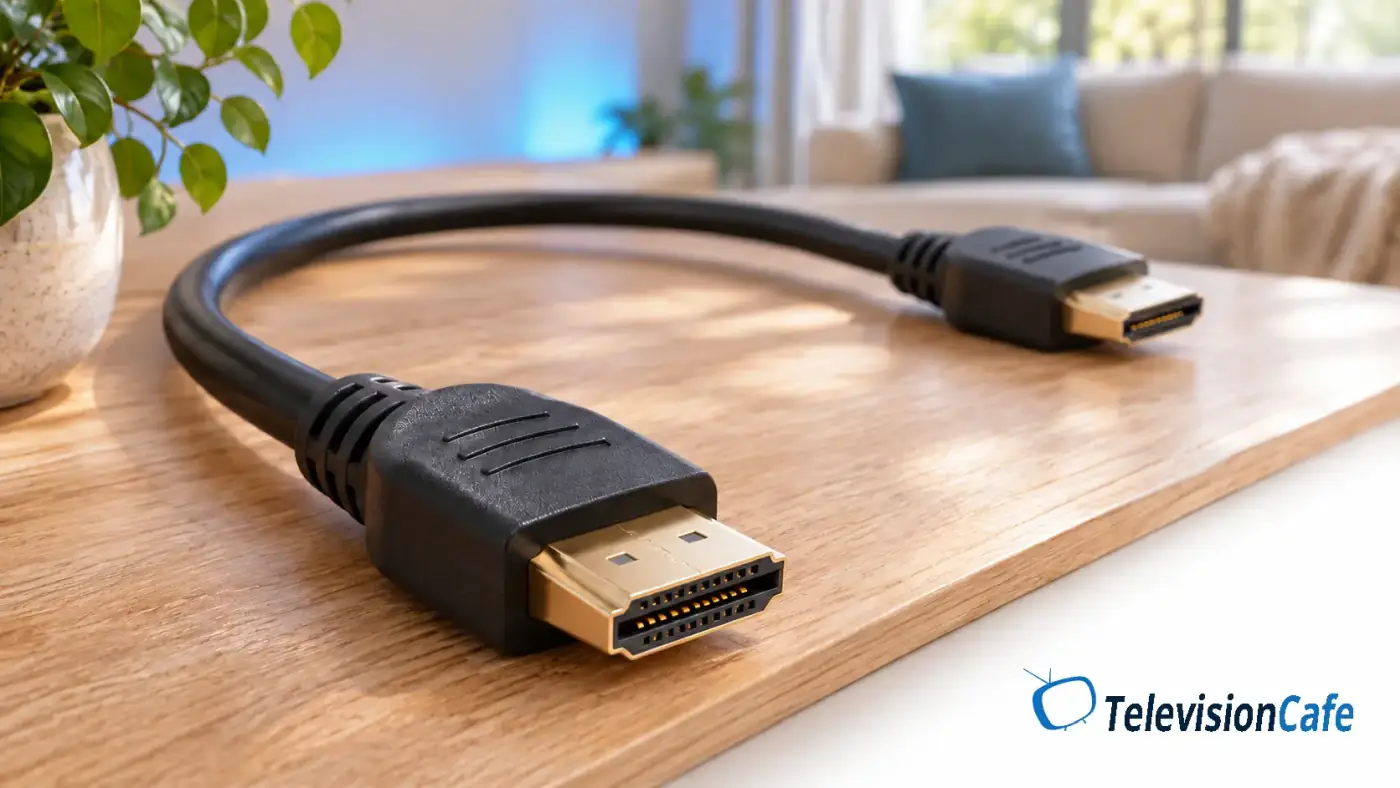
Which HDMI Cable Should You Buy?
Match the cable to the connection you actually use. These are buying recommendations, not a claim that every older cable will fail.
| Your connection | What to buy | What matters |
|---|---|---|
| Typical 4K/60Hz streaming or video | Certified Premium High Speed HDMI; Ultra High Speed also works | Premium certification covers up to 18Gbps. Check the source's HDR requirements. |
| 4K/120Hz gaming | Certified Ultra High Speed HDMI | Rated for up to 48Gbps; the TV input and source must support the desired mode. |
| TV to eARC soundbar or receiver | Keep a working compatible cable; choose certified Ultra High Speed when replacing it | Both devices need eARC for an eARC connection. |
| A device mode requiring more than 48Gbps | Certified Ultra96 HDMI | Up to 96Gbps; buy it when the equipment and mode call for it. |
A cable's bandwidth rating is its supported ceiling. A 48Gbps cable doesn't force a console or TV to operate at 48Gbps.
For 4K at 60Hz, Start With Premium High Speed
A certified Premium High Speed HDMI cable is designed for 18Gbps connections, including common 4K/60Hz and HDR video formats. It's a sensible fit for many streaming boxes, cable boxes, and movie setups.
However, “4K/60” doesn't describe the whole signal. Color depth and color format also affect bandwidth. A high-bit-depth PC signal with full color detail can demand more than a typical streaming-video connection at the same resolution and refresh rate.
Check your source's instructions if it specifies a particular cable for HDR or Dolby Vision. If you're buying a new cable and the price difference is small, certified Ultra High Speed gives you more room for a later console or PC upgrade.
If you stream through the TV's built-in apps and use its speakers, those streams don't travel through an HDMI cable at all. Adding a soundbar introduces a separate audio connection; it doesn't turn the app's video into an HDMI signal.
For 4K at 120Hz, Choose Certified Ultra High Speed
For a new 4K/120Hz connection, choose a certified Ultra High Speed HDMI cable. Its up-to-48Gbps rating covers the higher-bandwidth link used by compatible gaming equipment.
Start with the suitable cable supplied with your console, if you have it. Sony's PS5 support guide specifically recommends the included cable or an Ultra High Speed cable rated for 4K/120Hz when troubleshooting that output.
Then check the TV's exact HDMI input. A television can have several HDMI sockets with different capabilities. Use the input documented for 4K/120Hz, and enable its higher-bandwidth signal mode if the manufacturer requires it.
A 120Hz cable upgrade has limits: It can't turn a 60Hz TV into a 120Hz display, add VRR to unsupported hardware, or make a game render at 120 frames per second.
For a PC, also check the graphics card's HDMI output and the display's supported resolution, refresh rate, and color format together. The HDMI version number alone isn't a complete compatibility check.
What HDMI Cable Do You Need for eARC?
A certified Ultra High Speed HDMI cable is an easy choice when buying a new cable for an eARC soundbar or receiver. But eARC does not require 48Gbps of video bandwidth. It uses a separate audio-return channel within the HDMI connection.
Some existing High Speed HDMI cables with Ethernet can also work. HDMI Licensing Administrator cautions that those older cable types aren't certified for eARC operation, so don't treat “with Ethernet” as a universal guarantee. If yours already carries your intended audio reliably, you don't need to replace it just to get a newer label.
Use the labeled ports on both devices
Connect the TV's HDMI eARC port to the soundbar or receiver's HDMI OUT / TV eARC connection, following the labels in its manual. A soundbar's regular HDMI IN is generally for a player or console.
HDMI eARC can carry higher-bandwidth audio such as Dolby TrueHD and multichannel PCM, but the TV must be able to pass the format and the audio system must accept it. A cable can't add a missing decoder or unsupported passthrough format.
For the connection tradeoffs, see our HDMI vs optical guide for soundbars. If the connection is already in place but silent, use our HDMI ARC/eARC troubleshooting guide.
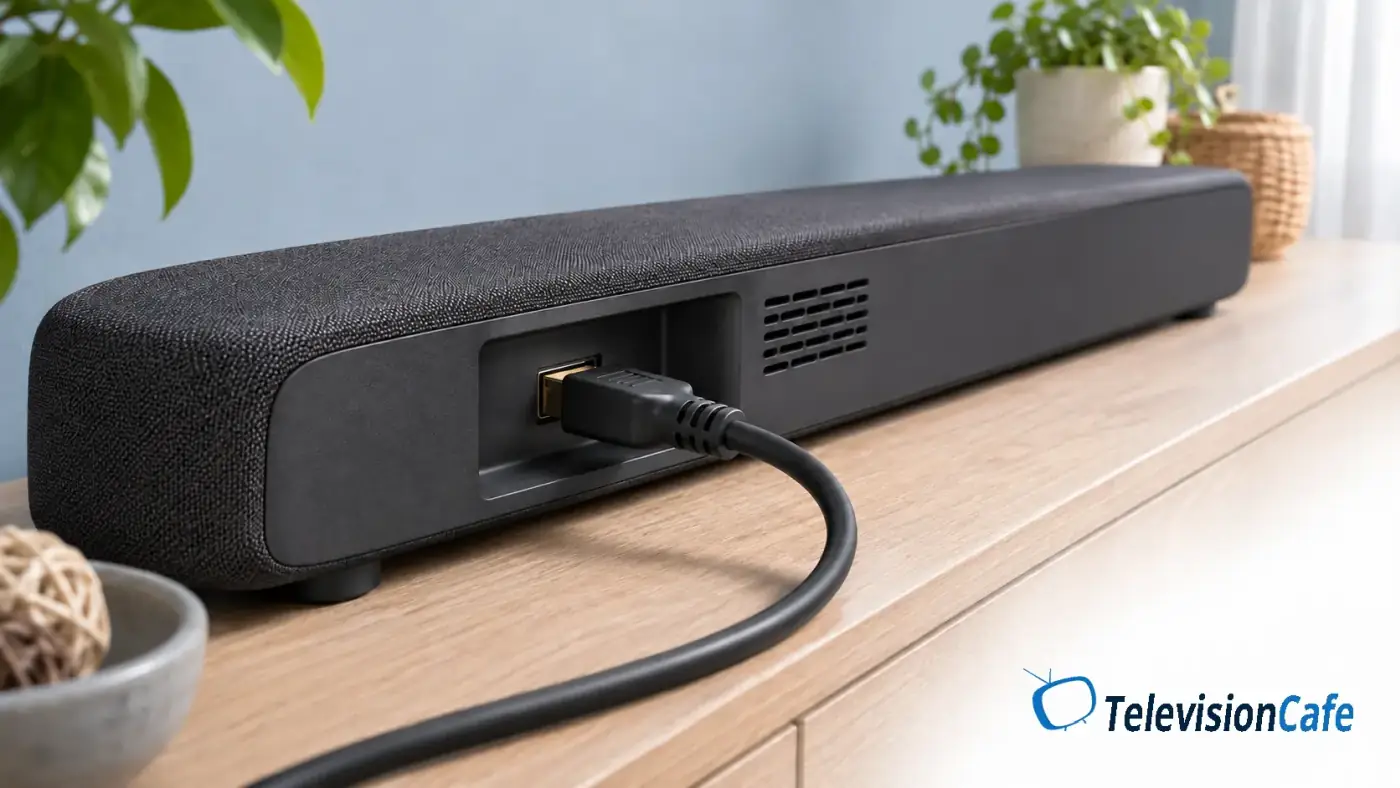
Check the Soundbar or Receiver in the Middle
Connecting a console to a soundbar and then to the TV makes the soundbar part of the video path. Its input, output, and video passthrough must support the resolution, refresh rate, and HDR features you want. Both HDMI cables in that path matter, too.
If the soundbar only passes 4K/60Hz, replacing its cable won't unlock 4K/120Hz. One option is to connect the console directly to a suitable TV input, then send audio from the TV to the soundbar over eARC.
That route still depends on the TV's audio passthrough support. If the picture works but surround sound doesn't, check the format and the TV's output setting. Our PCM, Bitstream, and Pass-Through guide explains what those settings change.
How to Check HDMI Cable Certification
Look for the official Premium High Speed, Ultra High Speed, or Ultra96 certification label for the cable you need. An “8K gaming cable” product title isn't a substitute.
- Find the certification label on the package. A bandwidth claim in the listing doesn't establish certification.
- Verify the label. Follow the scanning instructions for that label. HDMI LA says current Ultra labels can be checked with standard QR-code apps.
- Compare the result with what you bought. Check the brand, model, and cable length. Certification of one length doesn't establish certification of every length in a product family.
“HDMI 2.1 cable” is common shopping shorthand, but HDMI's official cable names describe the cable categories. Use the official Ultra HDMI cable guide to recognize the relevant labels.
How Long Can an HDMI Cable Be?
HDMI doesn't set one universal maximum cable length. Construction, bandwidth, and whether the cable is passive or active all matter. A cable that works for a lower-bandwidth signal may struggle when you switch to 4K/120Hz.
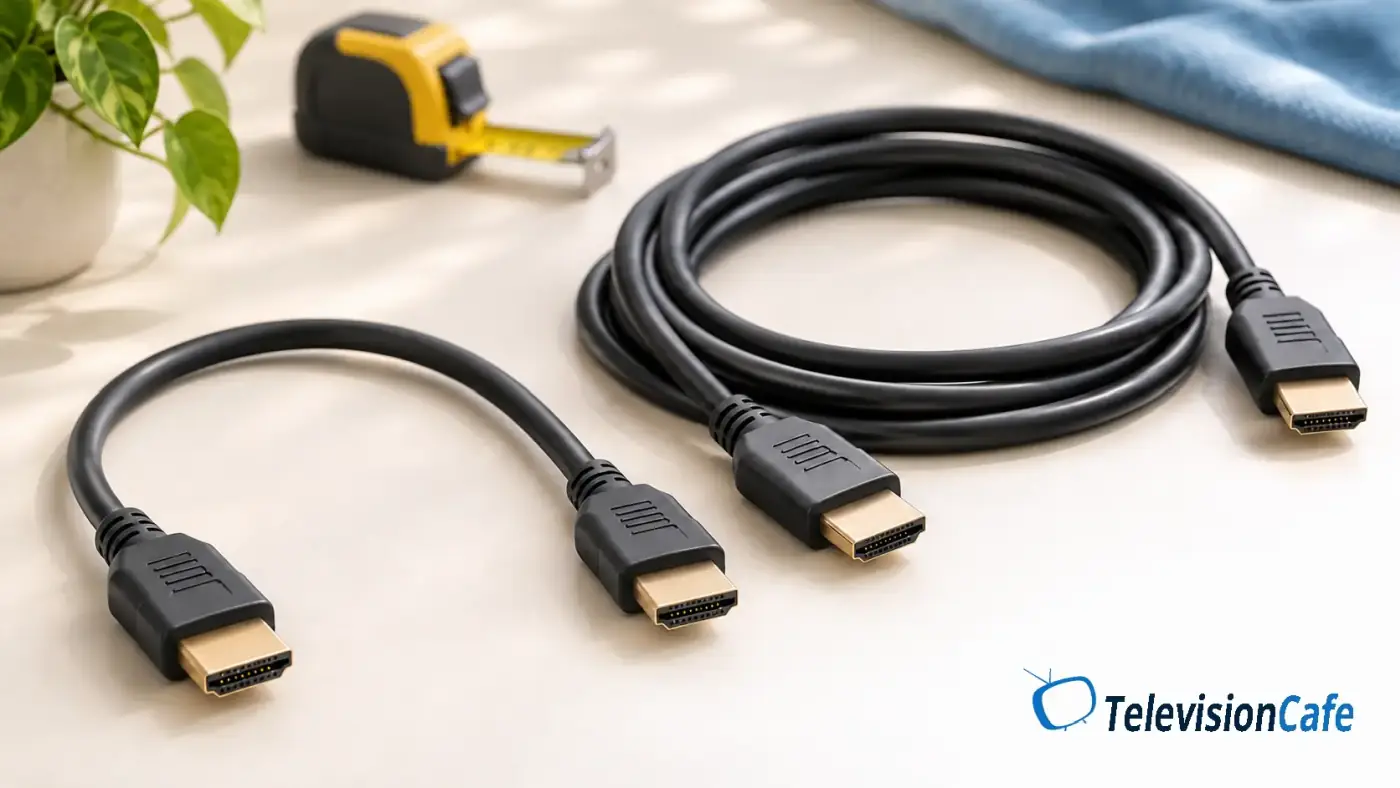
Measure the actual route, including the trip around furniture and enough slack to move the equipment. A 6-foot cable is a practical starting point for nearby devices, not a technical limit or a reason to stretch a connection tight.
When active or fiber HDMI makes sense
For a long room-crossing run, consider a certified active optical HDMI cable at the exact length you need. These cables can carry high-bandwidth video farther without relying on a very thick passive copper cable.
Active cables are directional. Follow their Source and Display markings and any power instructions. For an eARC connection, check the manufacturer's explicit support and installation directions; don't infer the correct orientation from the direction the audio travels.
Test before hiding the cable: Run your intended resolution, HDR mode, refresh rate, and audio format before routing it through furniture or a wall. Follow the manufacturer's bend-radius and installation instructions.
Will an Expensive HDMI Cable Improve Picture Quality?
Once two cables reliably deliver the same digital signal, a higher price doesn't add sharper detail, richer colors, or deeper blacks. Extra bandwidth is useful when it enables a signal your old connection couldn't carry.
There are practical reasons to pay more: a certified long run, active electronics, a flexible jacket, connectors that fit a tight space, or better support if something goes wrong. Braiding and heavy connector housings alone don't tell you whether the cable passes certification.
Buy for the required capability and physical fit. A bulky plug that puts pressure on a wall-mounted TV's HDMI socket is a poor match, however impressive its packaging looks.
Do You Need HDMI 2.2 or an Ultra96 Cable?
The newer certified Ultra96 HDMI cable supports up to 96Gbps. HDMI 2.2 includes higher-bandwidth options such as uncompressed 4K/240Hz with full chroma and 10-bit or 12-bit color.
That doesn't make your certified Ultra High Speed cable obsolete. For a 4K/120Hz setup operating within 48Gbps, or an eARC audio link, Ultra96 isn't required just because it's newer.
Choose Ultra96 when your source and display support a mode that needs more than 48Gbps, or their instructions specifically call for it. The cable can't upgrade either device's HDMI hardware.
Before Replacing a Cable, Check These Six Things
Black screens, sparkles, and dropouts can point to a connection problem, but they don't identify the cable as the cause. Narrow it down first.
- Check the exact TV input. Confirm it supports the desired video mode, or use the labeled ARC/eARC port for return audio.
- Check the input's signal setting. Follow your TV manual for any Enhanced, Deep Color, or similar high-bandwidth mode.
- Remove intermediate equipment temporarily. Connect the source directly to the TV to check whether a switch, adapter, soundbar, or receiver is limiting the signal.
- Compare a lower-bandwidth mode. If 4K/60Hz works and 4K/120Hz fails, investigate the cable, input, and every device in that video path.
- Try a short, known-good cable. Keep the other settings the same so the comparison tells you something useful.
- Check firmware and restart instructions. A compatibility or handshake issue can persist even with a suitable cable.
For Apple TV 4K, Apple's support guide also provides a connection test under Settings > Video and Audio > Check HDMI Connection. It checks that connection; it doesn't certify a cable for every possible HDMI mode.
If sound works but voices don't match the picture, follow our TV audio delay and lip-sync guide before buying another cable.
Our Recommendation
For a new cable that may serve a 4K/120Hz console, a PC, or an eARC soundbar, choose certified Ultra High Speed HDMI in a length that fits comfortably. Certification, fit, and a useful return policy matter more than a premium-looking jacket.
Keep a reliable existing cable when it already does the job. Certified Premium High Speed remains a reasonable 4K/60Hz choice, while Ultra96 is for equipment and modes that need its additional capacity. For a long run, prioritize the exact cable's certification and installation requirements over the biggest number in the listing.