
Xbox Cloud Gaming Ends on 2020 Samsung TVs: What to Do
The built-in Xbox app on 2020 Samsung smart TVs has reached its announced end-of-support date. Microsoft told affected owners that support would end on November 3, 2026, according to an email published by Windows Central. If Xbox Cloud Gaming has stopped working on your set, that notice may explain why.
You can keep the television and move cloud gaming to a supported HDMI device or computer. The important part is choosing hardware that actually supports Xbox Cloud Gaming.
What to do first: Check your TV's model year, then try the same Xbox account on a supported computer or phone. If that works, a compatible Fire TV device or a laptop connected through HDMI can get you playing on the same screen again.
What Changed for 2020 Samsung TVs?
The affected component is the Xbox app running inside the television. Microsoft's notice attributes the cutoff to incompatibility between newer cloud-gaming technology and the operating system available on these models.
The announced date has passed, but public documentation is inconsistent. When checked on November 6, 2026, Xbox's US TV compatibility page still listed select Samsung models from 2020 onward. That conflicts with the more specific email reproduced in Windows Central's report.
Owners should treat November 3 as the announced support cutoff. The conflicting listing does not establish whether every affected TV has already lost access.
Check the Model Year Before Troubleshooting
Open Settings > Support > About This TV and note the complete model code. You can also find it on the TV's rear label. Use that code to check the model year with Samsung; the year you bought the television may be different.
Samsung's older-TV gaming page includes 2020 families such as Q80T, Q90T, Q60T, TU8000, TU7000, and The Frame LS03T. That is a list of models that received game-streaming services, not a new model-by-model shutdown confirmation. App availability also depends on the model and region.
A 55-inch or 65-inch screen does not, by itself, change the software-support issue. If you have a different model year, check its eligibility and ordinary connection problems rather than assuming this particular cutoff applies.
Why a Reset or App Reinstall Is Unlikely to Help
Samsung's developer documentation lists its 2020 TV platform as Tizen 5.5 with Chromium M69. That web engine is part of the software environment used by TV web apps. A healthy display and working Wi-Fi do not guarantee compatibility with a service's newer software requirements.
Restarting can help a frozen app, but it cannot reverse a service's decision to drop a platform. Reinstalling the Xbox app or resetting Smart Hub should not be treated as a way to restore discontinued support.
Keep installing official updates offered for your exact television. However, do not assume an ordinary firmware update upgrades its underlying platform enough to bring Xbox back. There is no confirmed restoration update in the sources checked for this article.
Before a factory reset: Test your account on another supported device. A reset can remove accounts and settings without solving a compatibility cutoff.
Use a Supported Fire TV Device on the Same Samsung TV
A compatible Fire TV player runs its own Xbox app and sends the picture to your television through HDMI. This bypasses the Samsung app platform while keeping your existing screen.
The following generations appear on Xbox's US supported-TV page, checked November 6, 2026:
- Fire TV Stick 4K Max, 1st generation
- Fire TV Stick 4K Max, 2nd generation
- Fire TV Stick 4K, 2nd generation
- Fire TV Cube, 3rd generation
Check the exact generation against Xbox's supported-device information before buying. Do not assume every Fire TV Stick, every Fire TV television, or a similarly named replacement has the same app support.
If Roku is also on your shopping list, our Roku Streaming Stick 4K vs Fire TV Stick 4K Max comparison explains why it isn't an equivalent replacement for the Xbox app.
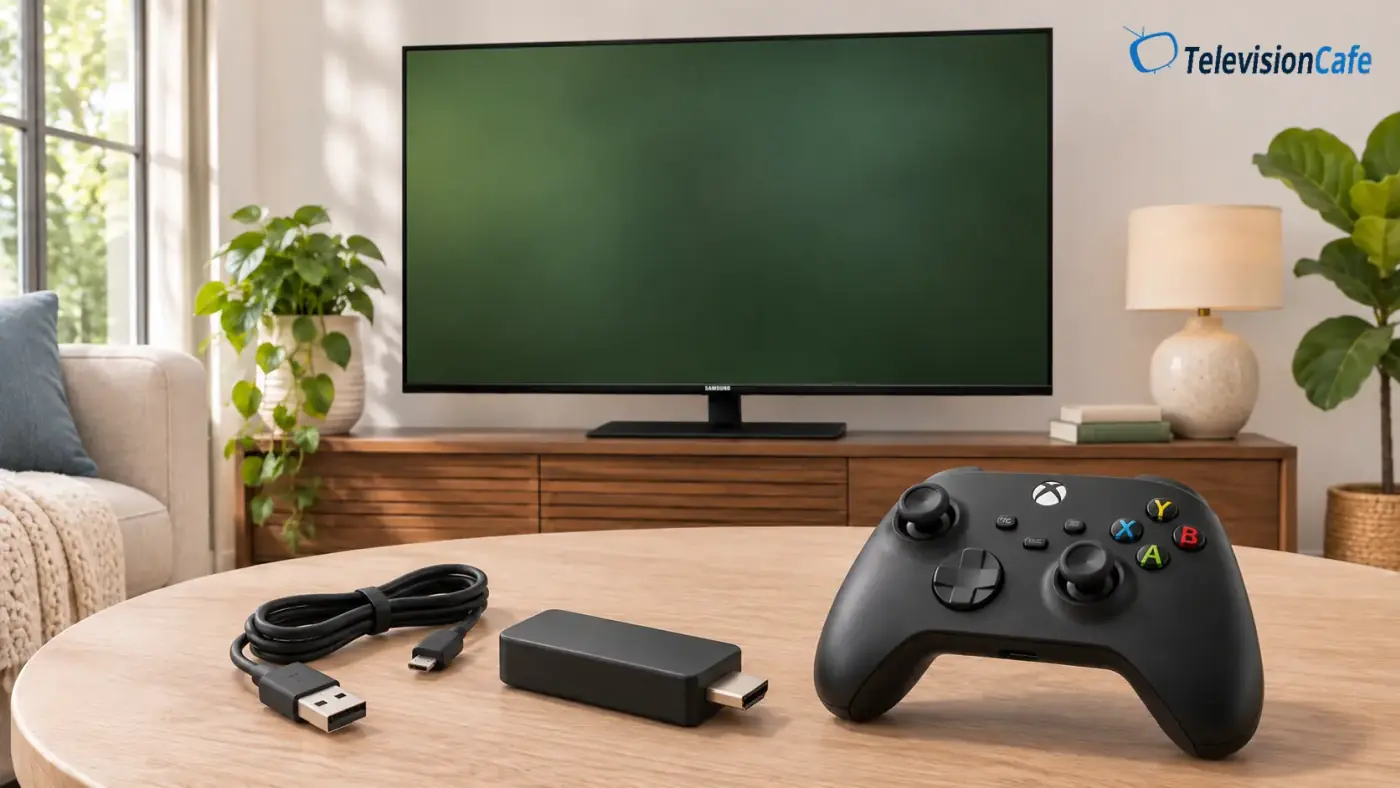
How to Set It Up
- Connect the supported Fire TV device to an available HDMI input. For a Fire TV Stick, use its supplied power adapter rather than relying on the television's USB port.
- Select that HDMI input and finish the Fire TV network, account, and update steps.
- Download the Xbox app from the Amazon Appstore and sign in with your Microsoft account.
- Pair a compatible Bluetooth controller with the Fire TV device. In Fire TV settings, select Controllers & Bluetooth Devices > Game Controllers > Add New Game Controller.
- Open a cloud-playable game included with your access or subscription.
Microsoft identifies the Xbox Wireless Controller, PlayStation DualSense, and DualShock 4 among compatible options. The controller needs to communicate with the device running the game stream, so pairing it only with the Samsung TV is not enough for this setup.
For the broader buying decision, our guide to using a streaming device with a smart TV explains how an external player can replace outdated apps without replacing the display.
Try a Laptop Through HDMI Before Buying Anything
If you already have a compatible laptop, open Xbox Cloud Gaming in a supported, updated browser and sign in. Microsoft lists browsers including Edge, Chrome, and Safari, with compatibility depending on the device and software version.
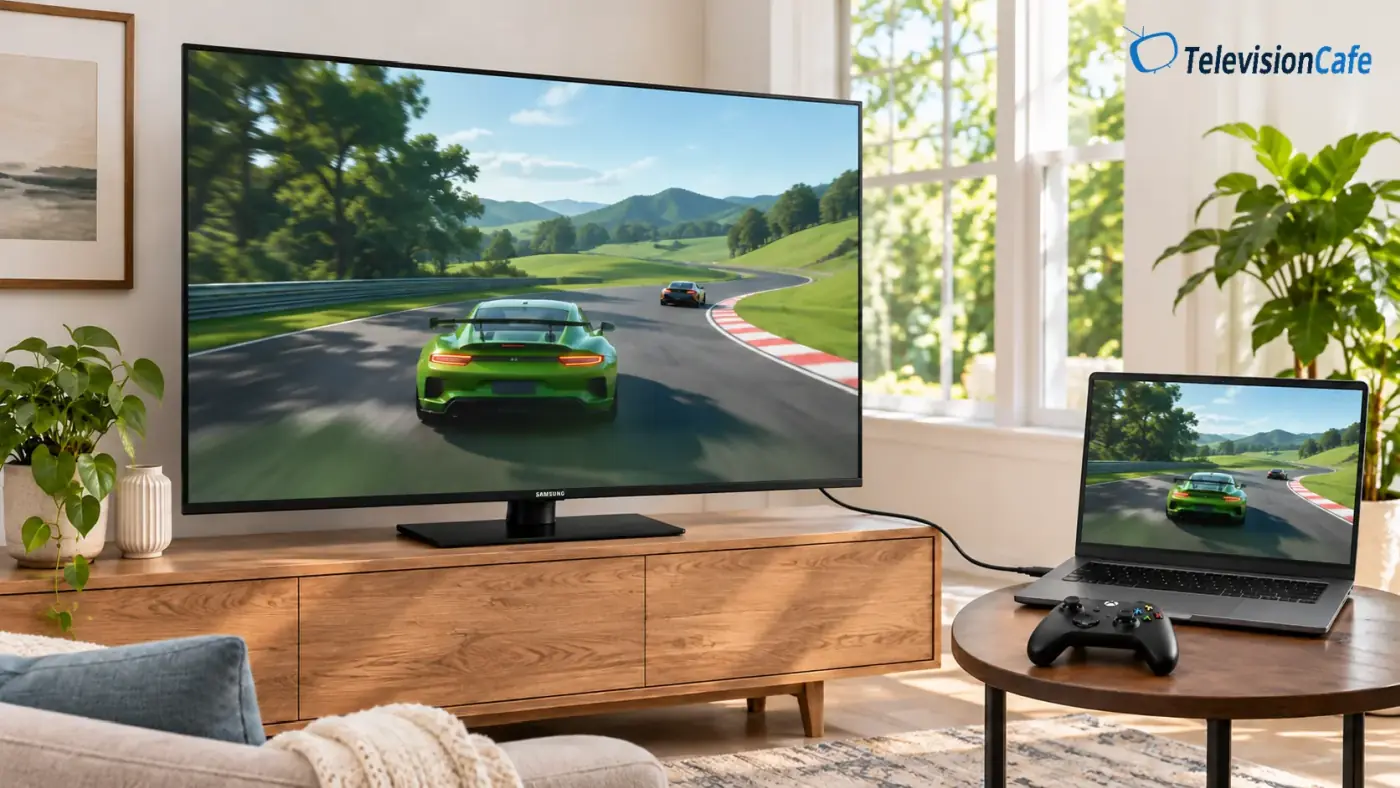
Connect the computer to the TV through HDMI, select the matching input, and connect your controller to the computer. A laptop without an HDMI output may need a compatible video adapter. Check that its port supports video output before ordering one.
This is a useful first test because it can separate a TV-app problem from an account or connection problem without requiring a new streaming player. The laptop handles the cloud session; the Samsung displays its video output.
An Xbox Console Remains Another Option
If you own an Xbox console, connect it through HDMI and use the console's supported gaming options. Installing and running a supported game locally also avoids dependence on the Samsung cloud app. Game ownership, subscriptions, and compatibility still apply.
Buying a console makes more sense if you also want local gaming. For someone who only wants occasional cloud play, first compare the total cost of a supported streaming player, controller, and ongoing service.
Don't Assume Roku, Apple TV, or Google TV Will Replace It
A device can be excellent for Netflix and still be the wrong purchase for Xbox Cloud Gaming. A phone's Android browser support, for example, does not automatically establish official Xbox app support on an Android TV or Google TV box.
Xbox's US TV page does not list Roku players, Apple TV, or Google TV boxes among its supported TV-device options. Avoid buying one specifically for this fix without explicit confirmation for the exact model and method you intend to use. Sideloading advice is not equivalent to official support.
Our streaming-device buying guide covers broader TV streaming needs. For this problem, Xbox compatibility needs to come first.
Check Your Account and Connection on the Replacement Device
Use your existing Microsoft account. Xbox says cloud progress can carry across supported devices, so switching hardware does not mean creating a new gaming identity. The game must remain available for cloud play under your account and service access.
A new device also does not remove subscription restrictions. Most cloud games require an eligible Game Pass plan; supported free-to-play exceptions include Fortnite. Check the current plan's game library and cloud-playtime allowance before subscribing.
For TV cloud gaming, Xbox recommends a wired connection or 5 GHz Wi-Fi and 20 Mbps download speed. Treat that as a starting requirement, not a guarantee of responsive play. A connection that stalls or fluctuates can still interrupt a session.
Test where the new player will sit. If the game opens but stutters, compare another supported device on the same network before spending more. If it fails across supported devices, check Xbox service status, account access, and the connection rather than blaming the Samsung cutoff alone.
Our Recommendation
Keep the Samsung if you're happy with its picture. First test a computer you already own; for a dedicated TV setup, choose an explicitly supported Fire TV generation and check controller compatibility before paying.
The trade-off is that cloud play still depends on your internet connection, service access, and ongoing device support. If those limits are the frustration you want to solve, consider a console for local gaming. Replacing the whole television just to recover this app is difficult to justify when an HDMI source can do the job.