
Filmmaker Mode vs Movie Mode: Which Should You Use?
Use Filmmaker Mode as your starting point for movies and scripted TV. Choose Movie or Cinema instead when its available controls help you get a picture that works better in your room. Neither name guarantees the best result on every television.
The main difference is who defines the preset. Filmmaker Mode follows UHD Alliance guidelines designed to preserve the source presentation. Movie and Cinema are manufacturer-defined modes, so their defaults can change between brands, models, and software versions.
The practical choice: Start with Filmmaker Mode for evening movies. For daytime viewing, compare a brighter adjustment of that mode, supported ambient-light compensation, and your TV's Movie or Cinema options. For playing games, start with Game Mode.
What Filmmaker Mode Actually Changes
Filmmaker Mode gives you a recognizable baseline without making you hunt through a dozen enhancement settings. According to the UHD Alliance's published specifications, its core targets include:
- Motion interpolation off: The TV avoids generating extra motion frames that change the source's presentation.
- A D65 white-point target: Whites are aimed at the reference used for video, rather than a deliberately cool-looking preset.
- Added sharpening and noise reduction off: These effects can alter edges and fine texture.
- The source aspect ratio preserved: The picture should retain its intended shape without unnecessary cropping.
Necessary processing still happens. A lower-resolution video must be scaled to fit a higher-resolution screen, for example. Filmmaker Mode reduces optional picture effects; it doesn't bypass everything required to display the signal.
It also isn't a personal calibration of your TV. The preset's targets don't prove how closely your individual panel meets them. Confirming color accuracy requires measurements.
What Movie and Cinema Modes Do Differently
Movie Mode is a manufacturer's preset for watching films. Depending on the TV, it may leave different motion, sharpness, noise-reduction, or brightness settings available or enabled. You need to check those controls on the actual set.
For example, Samsung's U.S. picture-settings guide describes Movie as suitable for a dark room. It separately lists Filmmaker Mode and warns that it may look darker than other presets. That is useful guidance, but it doesn't establish a fixed brightness difference for every Samsung model.
Other TVs use Cinema, Theater, or similar labels. A Cinema Home option, where offered, can have a different purpose from Cinema. LG's support documentation, for instance, describes Cinema Home as a brighter alternative for HDR and Dolby Vision playback on supported sets.
If Movie and Filmmaker look almost identical on your TV, check their settings before assuming something is wrong. Two presets can end up with similar brightness, color, and motion behavior.
Filmmaker Mode vs Movie Mode: Side-by-Side
| What Matters | Filmmaker Mode | Movie or Cinema Mode |
|---|---|---|
| Preset definition | Shared UHD Alliance guidelines | Defined by the TV manufacturer |
| Motion smoothing | Off in the baseline presentation | Check the preset's defaults |
| Daytime brightness | Depends on settings and ambient features | Depends on the model; compare directly |
| Adjustment options | Can vary by TV and signal type | Can vary by TV and signal type |
| Best reason to choose it | A defined starting point for film playback | A useful film preset you can tailor to your needs |
Why Does Filmmaker Mode Look Dark?
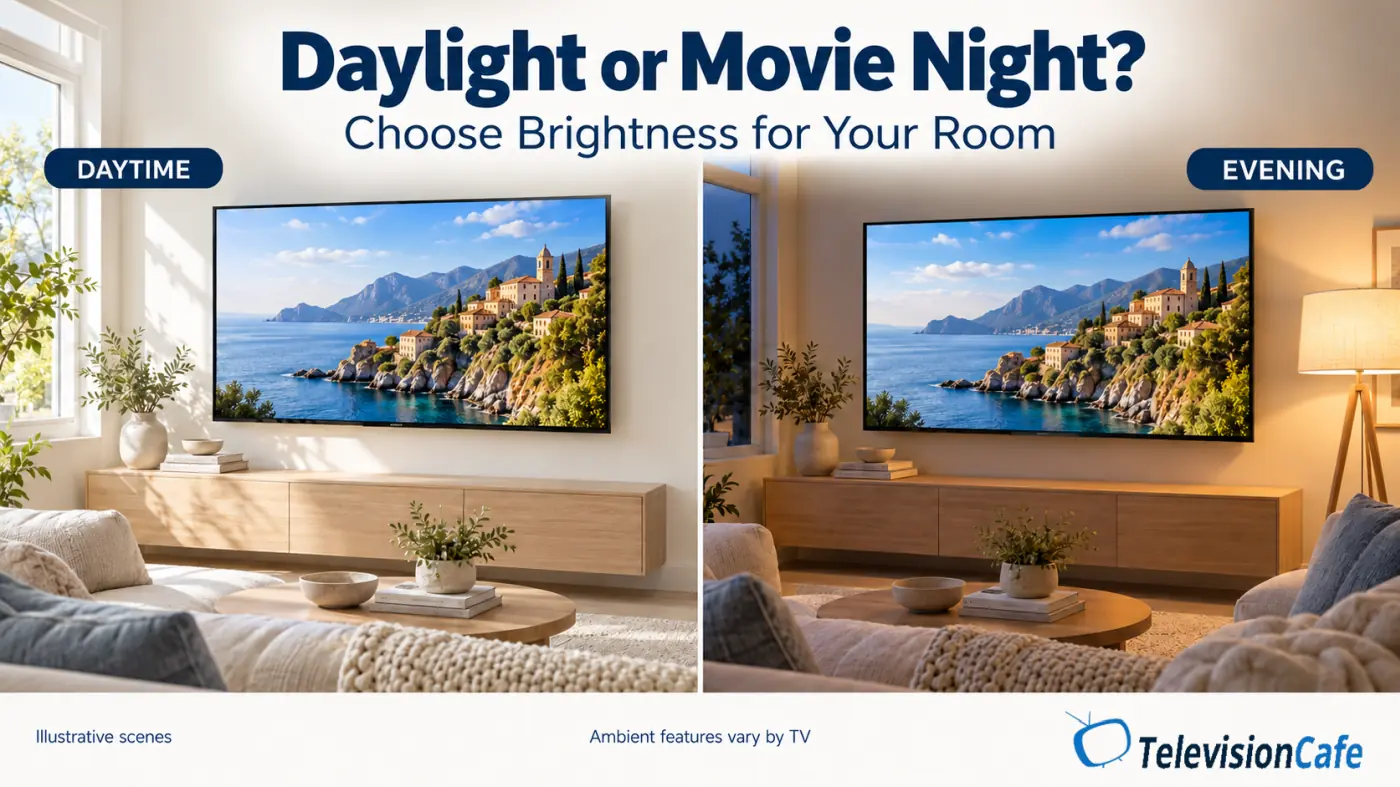
A movie preset can feel subdued when daylight or a nearby lamp makes shadow detail harder to see. Switching from a strongly boosted preset can make the difference seem larger. The important question is whether you can follow the scene comfortably in your normal viewing conditions.
For SDR viewing, try adjusting the control that changes the panel's light output. It may be called Backlight, OLED Pixel Brightness, or something else. Check the description: on some TVs, a control labeled Brightness changes light output; on others, it adjusts black level. Raising black level indiscriminately can turn blacks gray.
For HDR viewing, begin with the preset's recommended HDR defaults. Don't copy an SDR brightness value into HDR or move every contrast control to maximum. Check whether an energy-saving setting is dimming the image, then compare the room-appropriate HDR presets.
Check for ambient-light compensation: Supported TVs can adapt a Filmmaker presentation to room lighting. LG's U.S. buying guide lists FILMMAKER Ambient Mode and notes that it requires a light sensor. This feature isn't available on every TV with the original Filmmaker Mode.
If reflections are covering the picture, try closing a blind or moving a lamp before changing more settings. For a broader diagnosis, see why HDR looks dark and what to check first.
Why Does Filmmaker Mode Look Yellow?
A D65-targeted picture can look warm when you've become used to a cooler preset. Whites may initially seem less blue, and that change can read as a yellow tint.
Give yourself time to watch a familiar scene before switching back and forth. An immediate preference for the cooler picture doesn't establish which one is more accurate. Equally, the Filmmaker label doesn't prove that a persistent color cast is correct.
Check whether a blue-light-reduction feature is also changing color temperature. If you've already adjusted the mode, consider resetting that picture preset. Avoid copying someone else's multi-point white-balance values: those corrections are specific to the display that was measured.
You can choose a cooler setting if you prefer it. Just treat that as a viewing preference, not a calibration result.
Does the Choice Change for HDR and Dolby Vision?
Filmmaker Mode is a picture preset; HDR10, HDR10+, and Dolby Vision are HDR formats. Choosing a preset doesn't add support for a format your television can't display.
Filmmaker Mode can work with SDR and HDR, but the available choices depend on the TV and incoming signal. Some supported models also offer a Dolby Vision Filmmaker presentation. On others, you'll choose from separate Dolby Vision modes. Don't assume a setting is missing just because the menu changes when a Dolby Vision movie starts.
Many TVs keep different picture settings for SDR, HDR, and individual inputs. Open the menu while the content you want to adjust is actually playing. A change made during an SDR broadcast may not carry over to an HDR stream.
On supported Dolby Vision IQ televisions, Light Sense uses the TV's light sensor and Dolby Vision metadata to adapt playback to room lighting. That is a specific viewing feature, so evaluate it on its own merits instead of treating every automatic adjustment as the same thing.
If a dark-room Dolby Vision preset hides too much in daylight, compare the brighter alternative your TV provides. Keep an eye on faces, shadow texture, and bright objects so you can see what the adjustment changes.
What About Motion, Sports, and Gaming?
Turning off motion interpolation preserves the source's motion presentation, but it doesn't make every camera pan look smooth. Movies shot at 24 frames per second can still show visibly stepped movement. Filmmaker Mode doesn't change your television's native panel refresh rate.
If that movement bothers you, try a small amount of smoothing in a mode that allows it. Watch a moving scene rather than judging a paused frame, and keep only as much processing as you find useful. Our TV refresh-rate guide explains how source frame rate differs from panel refresh rate.
For live sports, compare motion controls separately from color and brightness. A balanced Movie or Cinema preset can be a useful base if it lets you adjust motion. The Sports label alone doesn't tell you whether its defaults suit the broadcast. See our guide to TV motion blur and blurry sports for a more focused setup.
For playing games, start with Game Mode or the manufacturer's equivalent. Low input lag matters when your controller is driving the action. Fewer movie enhancements don't guarantee the same low-latency behavior as a dedicated gaming mode. Use a film preset when watching a movie through your console, then check that the gaming profile returns when you play.
How to Compare Filmmaker and Movie Mode on Your TV
Use the same movie, app, input, and room lighting. Comparing an SDR cable channel in Movie Mode with a Dolby Vision stream in Filmmaker Mode won't isolate the effect of the preset.
- Record your starting settings. A photo makes changes easy to undo. If a preset has been heavily modified, reset that picture mode before comparing its defaults.
- Choose a useful scene. Look for a face, fabric texture, a bright window, and some shadow detail. Add a camera pan to judge motion.
- Consider brightness separately. If you're comparing color and processing, bring overall light output reasonably close where the TV allows it. A brighter image can grab your attention without resolving more detail.
- Watch from your normal seat. Check whether faces retain texture, shadows remain readable, and bright areas keep visible detail.
- Change one control at a time. Then repeat the check for the SDR, HDR, and HDMI sources you actually use.
For older or compressed shows, compare any available noise-reduction settings cautiously. A setting that makes a rough broadcast easier to watch may also smooth away texture in a clean movie. Our guide to TV upscaling and source quality explains why the same settings won't rescue every stream.
These checks help you choose a usable starting point. Menu names, locked controls, and defaults vary by model and firmware; they aren't a substitute for instrumental calibration.
Which Should You Use?
Choose Filmmaker Mode when you want a defined film-oriented baseline and the picture is comfortable to watch in your room. For an evening movie, its restrained approach is a sensible place to start without adjusting several enhancement controls yourself.
Choose Movie or Cinema when it gives you a useful adjustment that your Filmmaker preset restricts, or when its presentation suits your daytime viewing better. If both modes give you the brightness, color, and motion you want, there's little reason to force a winner. Keep the preset that works for your actual viewing conditions, and use a separate gaming profile when responsiveness matters.
Frequently Asked Questions
Why does my TV switch to Filmmaker Mode automatically?
Supported content and apps can trigger automatic switching on compatible TVs. Check for an option such as Filmmaker Mode Auto Start if you want to control this behavior. Its name and availability depend on your model and software.
Can I use Filmmaker Mode for Netflix or regular HD TV?
Yes, when the TV makes it available for that signal. It isn't restricted to 4K discs or HDR movies. You can select it for suitable streaming or broadcast content, although it won't improve the resolution or quality of the source itself.
Is Samsung Film Mode the same as Filmmaker Mode?
No. On applicable Samsung TVs, Film Mode is a separate processing control for certain older or interlaced input signals. Filmmaker Mode is the broader picture preset. The similar names don't mean the controls do the same job.