
TV Blooming Explained: Why Subtitles Glow in Dark Scenes
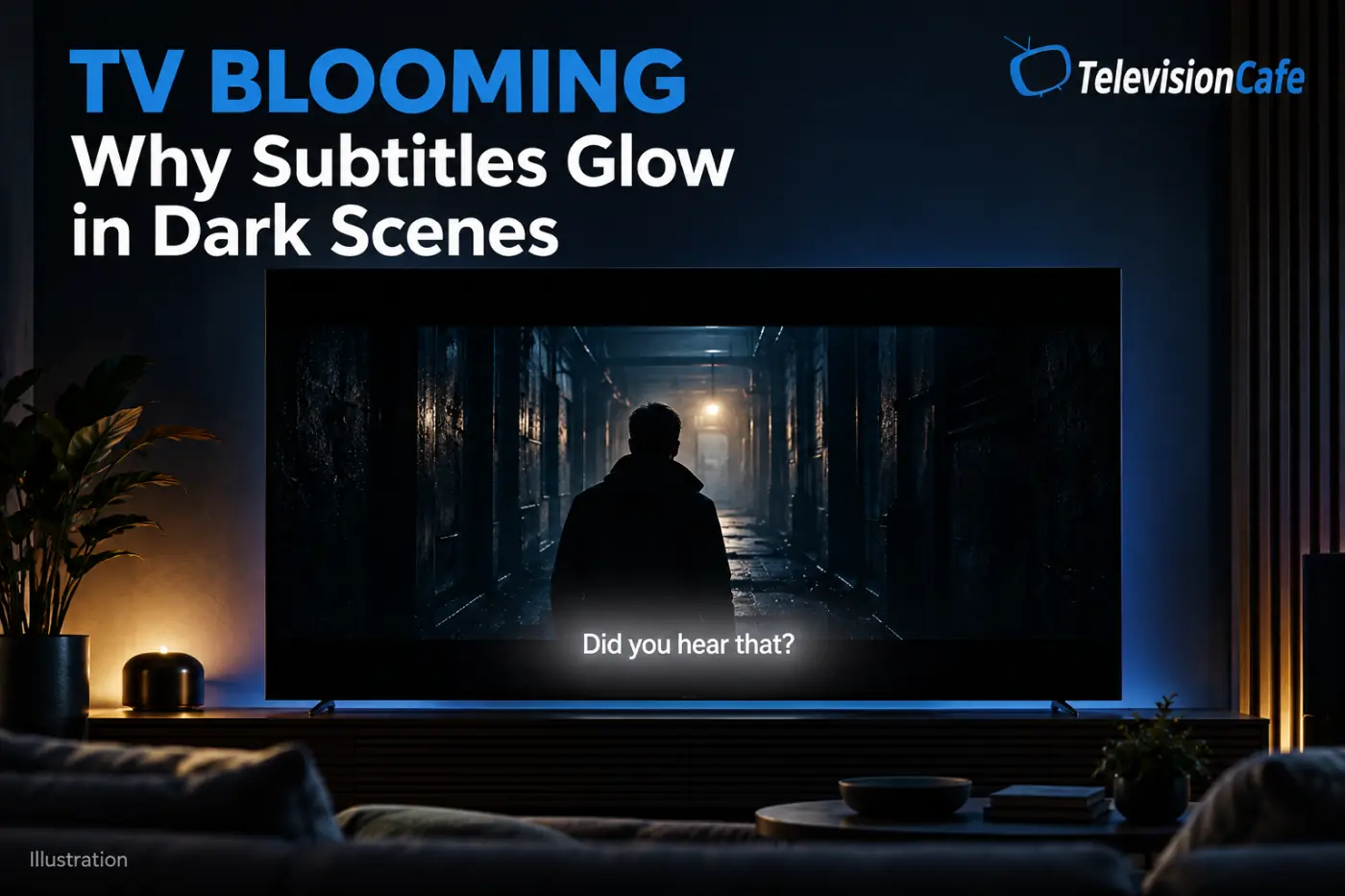
The movie cuts to a dark bedroom. Everything looks right until someone speaks. A line of white subtitles appears, and suddenly there is a pale glow around the words. Sometimes the black bar below the picture lights up, too.
That glow is often TV blooming, also called haloing. It is especially noticeable when a backlit LCD television has to show something very bright next to something very dark.
You may be able to make it less distracting without giving up subtitles or flattening the whole picture. The first step is working out whether you are seeing a local halo, a brightness shift across the scene, or a different screen issue.
What Is TV Blooming? The Quick Answer
TV blooming is unwanted light around a bright object on a dark background. On a locally dimmed LCD TV, the backlight zone illuminating a subtitle also covers nearby dark pixels. Because the LCD cannot block that light perfectly, a halo can appear around the text.
Subtitles, stars, credits, and streetlights against a night sky are useful examples. The bright object stays recognizable, but the surrounding black looks gray or hazy.
Blooming is a limitation of backlight control, not a loss of resolution. A sharp 4K picture can still show it.
Why Do White Subtitles Make Dark Scenes Glow?
An LCD TV uses a light source behind its picture-producing panel. With local dimming, the television adjusts sections of that backlight separately: darker sections receive less light, while brighter sections receive more.
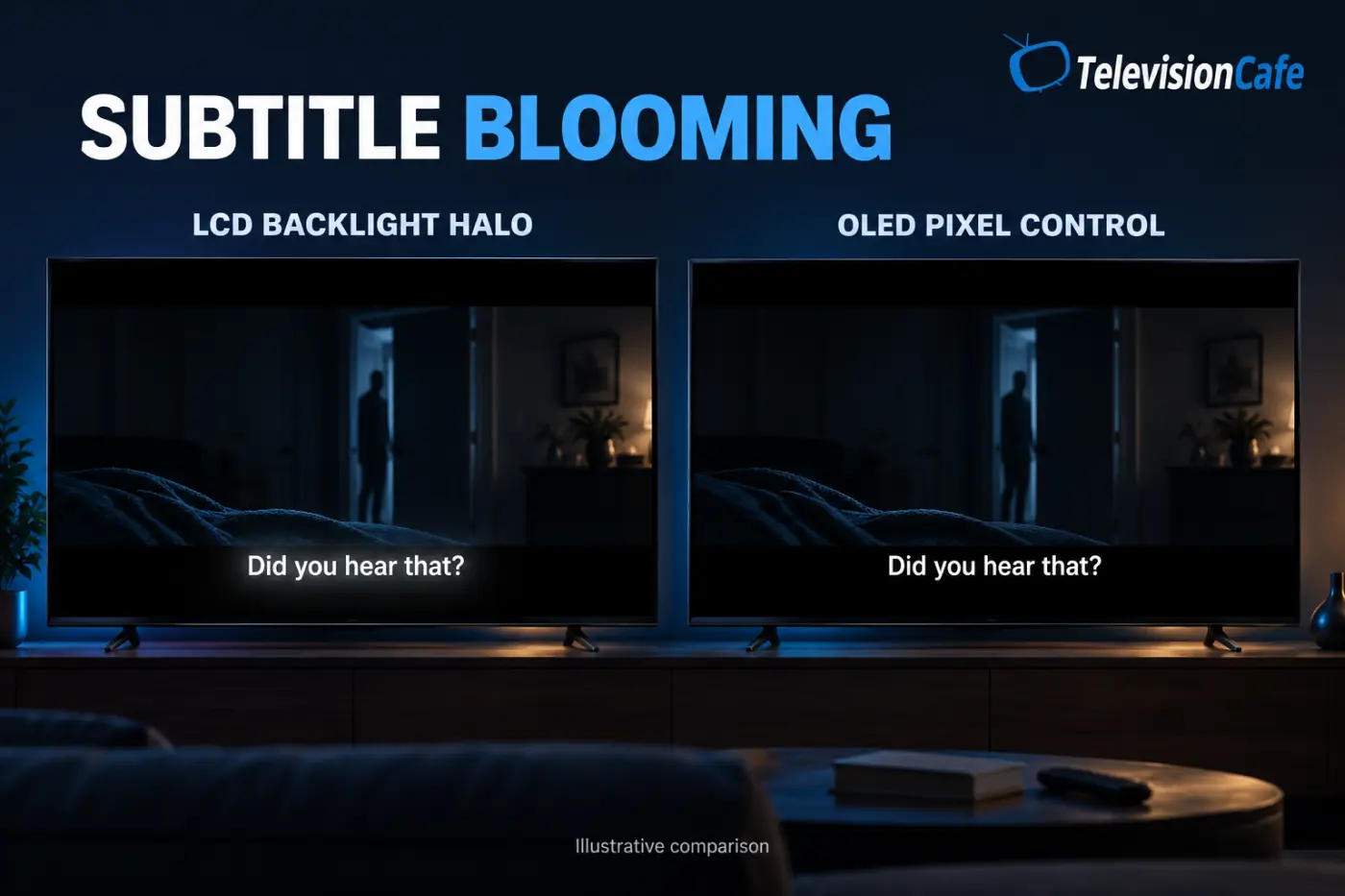
The catch is that a dimming zone is larger than an individual pixel. A narrow white letter may need only a small part of the screen to be bright, but the light behind it illuminates a wider area. The LCD layer blocks much of the unwanted light, but some can remain visible.
Subtitles make this particularly obvious because they repeatedly appear and disappear over the same dark area. You get an immediate comparison between the picture with text and the picture without it.
If a subtitle sits close to a movie's black letterbox bar, the illuminated area can extend into that bar. The text has not changed the movie's aspect ratio; the backlight is affecting an area that should look black.
Why Blooming Can Look Worse in HDR and From the Side
HDR can place intense highlights beside deep shadows. When subtitle rendering makes the words very bright, that contrast can expose a backlight halo. HDR does not automatically mean excessive subtitle brightness; the result depends on the app, playback device, television, and picture settings.
Your seat also matters. Some LCD televisions lose contrast when viewed off-center, making a halo that looks mild from the middle of the sofa much more obvious from a side chair.
Try the same scene from directly in front of the screen before deciding how severe the problem is. Then return to your usual seat. Both views matter, but the second one represents how you actually watch.
If the entire movie is hard to see, tackle that separately with our guide to why HDR looks too dark on your TV.
Is It Blooming, Backlight Bleed, or Clouding?
These problems can all make black areas look uneven, but they do not behave the same way.
| What you notice | What it may be | Useful clue |
|---|---|---|
| A halo around subtitles or a bright object | Blooming | The glow changes with the bright content. |
| Light leaking near an edge or corner | Backlight bleed or flashlighting | The affected area generally stays in the same place. |
| Uneven cloudy patches across a dark screen | Clouding or poor black uniformity | The patches are not simply following subtitle positions. |
| Much of the scene brightens when text appears | Backlight or contrast-related brightness pumping | Watch an area well away from the subtitles. |
More than one issue can be present. These clues help you choose a sensible next check; they are not a remote diagnosis of your panel.
Do Mini LED and QLED TVs Still Have Blooming?
They can. Mini LED uses smaller backlight LEDs, allowing manufacturers to build more finely controlled lighting systems. It still lights an LCD panel from behind, so a difficult subtitle scene can expose halos.
QLED describes quantum-dot technology in an LCD television, not pixel-level light control. A QLED TV may use a Mini LED backlight, a conventional full-array backlight, or another backlight arrangement.
More dimming zones can help, but the number alone is not a picture-quality score. The panel, optical design, and processing all influence how cleanly bright and dark areas sit next to each other.
A darker halo is not always a better picture. A TV can suppress visible blooming by dimming small highlights too aggressively. Watch whether faint stars and shadow details remain visible, rather than judging only how black the surrounding screen looks.
Does OLED Have Subtitle Blooming?
OLED does not produce local-dimming backlight blooming. Its pixels emit their own light, so the pixels forming white subtitles can be lit while adjacent black pixels remain off. Both WOLED and QD-OLED avoid the backlight-zone mechanism described here.
A glow visible on an OLED still deserves a different explanation. It could be part of the video or subtitle styling, an optical effect in your viewing conditions, or something exaggerated by a camera recording. Calling every glow “blooming” makes troubleshooting harder.
If glowing subtitles are a major buying concern, our OLED vs Mini LED comparison explains how that advantage fits alongside brightness, reflections, and everyday use.
How to Reduce TV Blooming Without Ruining the Picture
Use a familiar dark scene and change one thing at a time. Keep a note or photo of your original settings so you can undo an adjustment that makes the picture worse.
1. Make subtitles less intense, where the app allows it
Try a less bright text style, reduced opacity if supported, or a slightly smaller readable size. Treat these as experiments: yellow text is not automatically dimmer than white, and no particular color guarantees less blooming.
On Netflix, a browser offers profile-level controls under Account > Profiles > Subtitle appearance. Supported TV apps also offer subtitle Size and Style controls during playback. Options vary by device and language, and a reload may be needed after changing profile settings.
Burned-in subtitles are part of the video image and cannot be restyled through ordinary caption controls.
2. Start with a movie-oriented picture mode
Try Cinema, Movie, Filmmaker Mode, or the comparable preset on your TV. Use it as a baseline, then compare with your existing mode. A calmer preset may make text less harsh, but it cannot change the physical size of a backlight zone.
3. Compare local dimming settings on the same scene
Keep the manufacturer's recommended setting as your starting point, then compare the available levels. High is not universally best, and Low is not universally a fix.
For example, Sony recommends High for subtitles on dark backgrounds on certain supported models. Other televisions may make an aggressive setting more distracting. Judge halos, black bars, and shadow detail together.
Switching local dimming off may reduce an obvious zone-shaped halo on some TVs, but it can also leave much more of the picture gray. Treat Off as a comparison, not an automatic improvement.
4. Reduce unnecessary brightness for SDR
For ordinary SDR viewing in a dark room, try lowering the backlight or panel-light output to a comfortable level. The control may be called Brightness, Backlight, or something else; check what it actually adjusts.
For HDR, begin with the mode's normal defaults. Lowering overall light output is a comfort trade-off that can weaken highlights, rather than a free fix for blooming.
5. Sit closer to the center and test gentle room lighting
If halos increase from the side, a more central seat may help immediately. You can also try a dim, indirect light behind the television, without creating reflections on the screen.
Judge whether that makes viewing more comfortable. Room lighting changes how the picture looks to you; it does not add dimming zones or remove light leakage.
What If the Whole Picture Brightens When Subtitles Appear?
Watch a dark area near the top of the picture while subtitles appear below it. If that distant area repeatedly brightens and darkens, you may be noticing wider backlight adjustments or contrast processing alongside any local halo.
Try reducing or disabling optional Dynamic Contrast or Contrast Enhancer processing, then replay the same section. Sony documents subtitle-triggered brightness changes on certain TVs and recommends setting Advanced Contrast Enhancer to Low or Off for those models.
Do not assume a setting with a similar name behaves identically on every brand. If changing it has no useful effect, restore the original value.
For a controlled comparison, keep the room lighting, picture mode, and source the same. Changing several settings between viewings can make an improvement impossible to trace.
A Simple Subtitle Blooming Test You Can Do Tonight
- Choose real content. Find a familiar dark scene with readable subtitles and some visible detail in the shadows.
- Watch from your normal seat. Check the space around the text and the nearest black bar.
- Replay with subtitles off briefly. If the glow disappears with the words, the subtitles are triggering the visible change.
- Try a supported subtitle style adjustment. Keep it readable, then replay the scene.
- Compare local dimming levels. Watch the surrounding black and whether small highlights or shadow details disappear.
Use the toggle as a diagnostic step, not a suggestion to watch without captions. Accessibility and understanding the dialogue come first.
A completely black test screen is not enough on its own: some TVs switch their backlight off when there is nothing bright to display. Phone footage is also a poor substitute for your own view, because camera exposure can make dark areas look much brighter.
When Should You Contact Support or Consider a Different TV?
A small halo in a difficult dark scene does not, by itself, prove the television is faulty. But “expected behavior” does not tell you whether you will enjoy watching it.
Contact the manufacturer or retailer if there is a sudden change in performance, a persistent bright patch unrelated to the content, or a problem that remains distracting across everyday viewing. Record the model, source, picture mode, and a repeatable scene so support has something concrete to investigate.
If you are still within a return period, evaluate the picture under your usual viewing conditions. Do not spend the entire window hunting for a setting that makes you comfortable with a compromise you dislike.
For a replacement, compare the exact screen size and model. Look for dark-scene subtitle tests, preserved shadow detail, and performance from your usual seating angle. For gaming, check those results in Game Mode as well.
TV Blooming FAQ
Why do subtitles make my TV's black bars turn gray?
A backlight zone lighting the subtitles may also illuminate part of the nearby black bar. Wider brightness adjustments can contribute, so check whether the change is local or spread across the screen.
Can TV blooming be fixed completely?
Settings and subtitle adjustments can make it less visible, but cannot turn a zoned LCD backlight into individual pixel lighting. How much improvement you get depends on the television and content.
Will a firmware update reduce blooming?
It may change backlight processing, but improvement is not guaranteed. Firmware cannot add physical dimming zones. Check the manufacturer's update notes instead of assuming the next release will solve it.
Should I turn local dimming off?
Compare it briefly if your TV allows it. If halos shrink but the whole dark scene becomes gray, you have traded one problem for another. Choose the setting that gives the best overall picture.
Is blooming the same as OLED burn-in?
No. Blooming is unwanted light visible around bright content on a backlit display. OLED burn-in is lasting uneven pixel wear. They have different causes and require different decisions.
Keep the Subtitles. Make the Glow Less Distracting.
Start by checking whether the glow follows the text. Then try supported subtitle styling, compare local dimming settings, and use a comfortable picture mode for your room. If the whole scene pulses, check optional contrast processing separately.
The best adjustment leaves dialogue readable, black bars reasonably dark, and detail visible in the shadows. A scene that looks cleaner only because the TV has hidden half of it is not much of a win.
At TelevisionCafe, our advice is to judge the difficult scenes you actually watch. If subtitle halos remain a constant distraction, OLED removes this particular backlight limitation; if your Mini LED looks good after a few sensible changes, there is no reason to let a test pattern spoil movie night.